
Contents
Introduction
This page provides an overview of associated documents and how to use them in CARS.
Please note that associated documents are currently only available for MCHW documents.
Back to topWhat are associated documents?
An “associated document” is the term used for content produced outside of CARS but is to be published alongside the controlled document authored within CARS.
For example, if there is a proforma to be completed on site as part of construction, this can be created outside of CARS (i.e., as a form, spreadsheet, or any file type as required) and then referenced within the CARS document.
Back to topRecording associated documents
A record of any associated documents to be included in publication is captured on the document information page within CARS. This helps to ensure that all required documents are included when the controlled document is published.
Back to topAssociated document reference numbers
A reference number for each associated document is automatically generated within CARS. The generated reference follows a simple structure:
[MCHW SHW code]/[3-letter code for document type]/###
i.e., a single constructor proforma for CC 201 would have the code: CC 201/PRO/001.
If a associated document is removed from the listing in CARS, the references will automatically re-calculate. References are not persisted between different published versions.
Back to topAdding a new associated document in CARS
To add a new associated document in CARS, follow these steps:
- Navigate to your document in CARS
- On the “Document information” page, scroll down until the “Associated documents” section is visible.
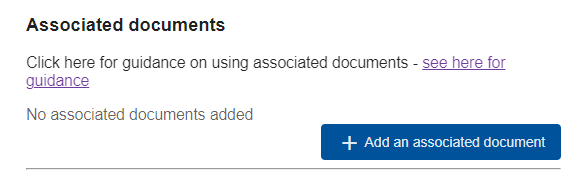
- Click “+ Add an associated document”, see below.

- Select the “Associated document type” from the drop-down list provided.
- Confirm whether the associated documents has any national variations; i.e., whether there are different versions to be published for England, Northern Ireland, Scotland, and Wales.
- Enter a title for the associated document. The title is restricted to a maximum of 100 characters.
- The “Cancel” button can be used to abort the addition at any time. Pressing “Esc”[ape], or clicking outside of the modal will also cancel the action.
- Click “Add this associated document” to save the record.
- The reference number is automatically generated and will updated if changes are made to the document code.
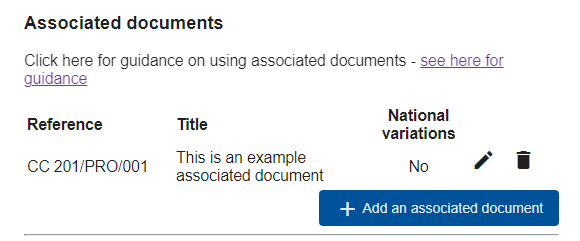
Editing an associated document
To edit an associated document in CARS, follow these steps:
- Navigate to the CARS “Document information” page for your document.
- Scroll down to the “Associated documents” section.
- Click on the edit (pencil) icon next to the associated document to be edited.
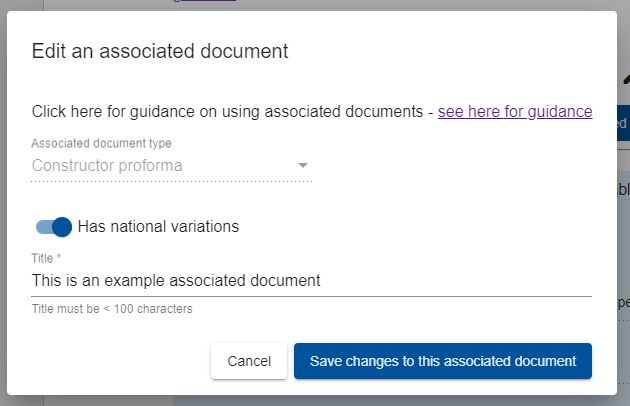
- The “Associated document type” cannot be changed once set.
- Update the “Has national variations” setting and “Title” as required.
- The “Cancel” button can be used to abort the edit at any time. Pressing “Esc”[ape], or clicking outside of the modal will also cancel the action.
- Click “Save change to this associated document” to save the changes.
Removing an associated document
To remove an associated document in CARS, follow these steps:
- Navigate to the CARS “Document information” page for your document.
- Scroll down to the “Associated documents” section.
- Click on the remove (bin) icon next to the associated document to be removed.
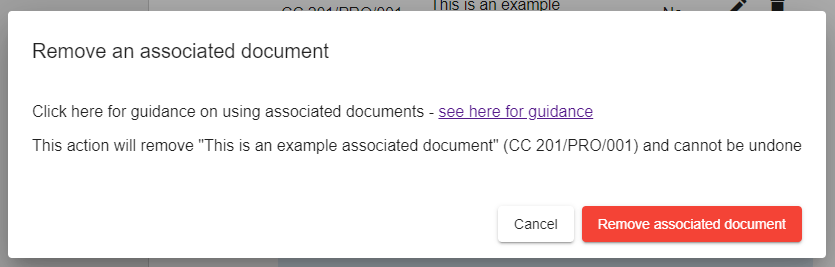
- A confirmation model, as shown above, will be displayed.
- The “Cancel” button can be used to abort the removal at any time. Pressing “Esc”[ape], or clicking outside of the modal will also cancel the action.
- Click “Remove associated document” to remove the associated document.