
Contents
Document roles available in CARS
There are 4 core roles within a CARS document: Lead Author, Author, Peer Reviewer and Reviewer. Below is a summary of permissions that each role has within a document:
| Lead Author | Author | Peer Reviewer | Reviewer | |
| Live Document Permissions | ||||
| Can view the live document? | ||||
| Can edit the live document? | ||||
| Can raise discussions and comments on the live document? | ||||
| Can assign and manage roles on the live document? | ||||
| Version Permissions | ||||
| Can create a version? | ||||
| Can edit a version? | ||||
| Can see all versions? | ||||
| Can view versions where “Available to reviewers” is ticked? | Can see all versions | Can see all versions | Can see all versions | |
| Can view versions where “Available to reviewers” is not ticked? | Can see all versions | Can see all versions | Can see all versions | |
| Can edit the discussions and comments on a version when “Allow discussions and comments” is ticked? | ||||
| Can edit the discussions and comments on a version when “Allow discussions and comments” is not ticked? | ||||
| Can view and respond to other users’ comments when “Forbid reviewers from seeing and commenting on others’ discussions” is ticked? | ||||
| Can view and respond to other users’ comments when “Forbid reviewers from seeing and commenting on others’ discussions” is not ticked? | ||||
| Can assign and manage roles on a version? | ||||
Adding users to a CARS document
A new CARS user account can be created by any existing CARS user following the steps below:
- Identify if a user has an account by typing their name into the required role on the document (Lead Author, Author, Peer Reviewer and Reviewer fields on the Document Information Page). If they appear in the dropdown options, they have an account. If they do not appear, they will require a new account.
- To add a new user, click the ‘+’ icon shown on the right

- Complete the users details in the resultant popup
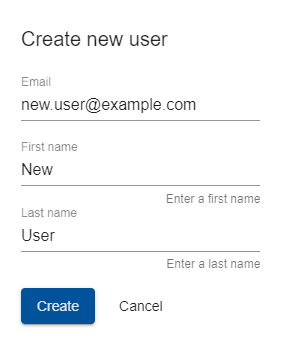
- Press ‘Create’
- The user will be sent an automatic email with the details on how to access CARS
There is also a video (from 1:56) available showing how to add a user to CARS.
Back to topRemoving users from a CARS document
If you need to remove a user from a role within a CARS document, simply click the blue minus icon button next to their name.

The user will be immediately removed from the document – without prompt for confirmation – and if they had the document open at the same time, the document would be become read only within a matter of seconds. Once they leave the document, they will not be able to access it again unless they are re-added to one of the document roles.
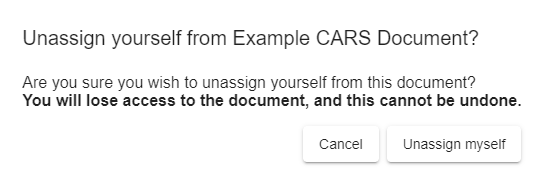
Please note that if you attempt to remove your own access from the document, you will be prompted for confirmation so that you do not inadvertently block your own access.
Back to top