
Contents
Overview
The change log is a key standards governance deliverable used to record what has happened to the contents of a document previously published outside of CARS where the replacement to this document is being drafted and published in CARS for the first time.
An example of when a change log would be needed is to determine what happened to the contents of MCHW Volume 1 Series 0100 Preliminaries where it has been subject to review and refresh and is being re-published using CARS by March 2025. Change logs are essential records for National Highways in the result of any challenge or where the Technical Standards Committee that owns the document wants to understand why a change was made.
The change log shall be completed during the drafting stage of the replacement document and finalised before the document is sent for Technical Standards Committee consultation to aid the consultees in understanding the changes proposed.
Where a document has been published using CARS at least once and you want to record additional changes, please see the clause change summary guidance.
Back to top
Creating a change log
Activating change log mode
Please ensure you have your newly drafted CARS document open and scroll over to the left hand side of the page. You will see two icons. The first icon is the ‘authoring view’ where you make updates to your new document. You are currently in this mode.

Please press the icon underneath to open the ‘change log view’.

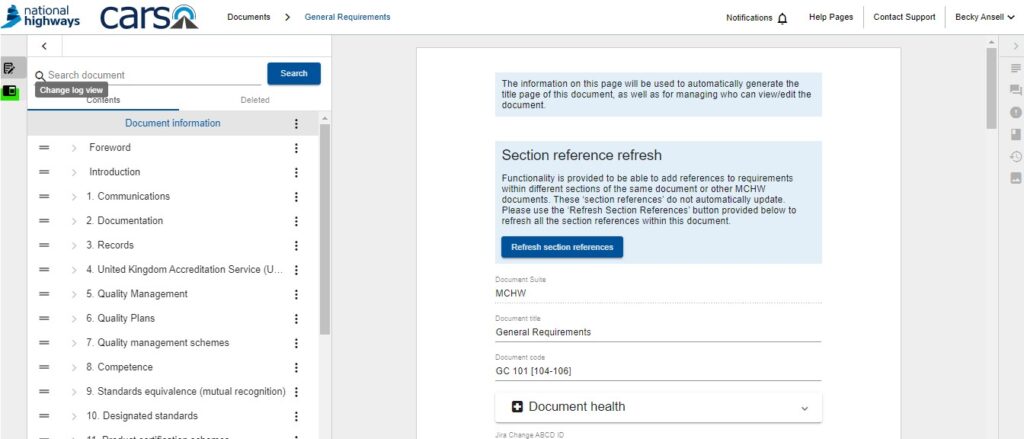
The screen will now split into two with the newly drafted document on the right and the change log view functionality on the left.
Back to topSelecting the published document
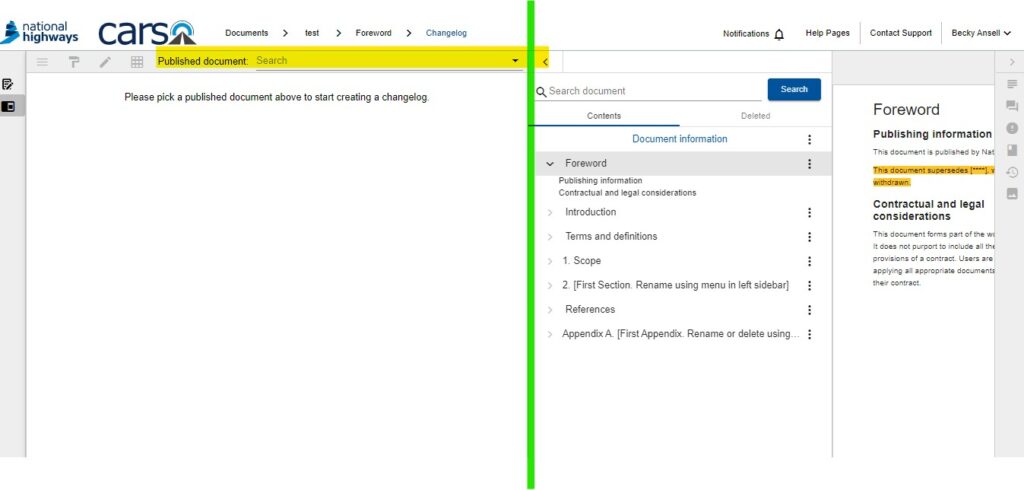
The screenshot below shows what you will see the first time you press the change log view button. The left hand side of the screen is blank and you are prompted to select a published document from a drop down list. Published documents are documents published outside of CARS that you are replacing with your new CARS document.
The published document library is populated by the Technical Standards Group and cannot be added by anyone else. Please email us at standards_enquiries@nationalhighways.co.uk if your published document is missing from the drop down menu.
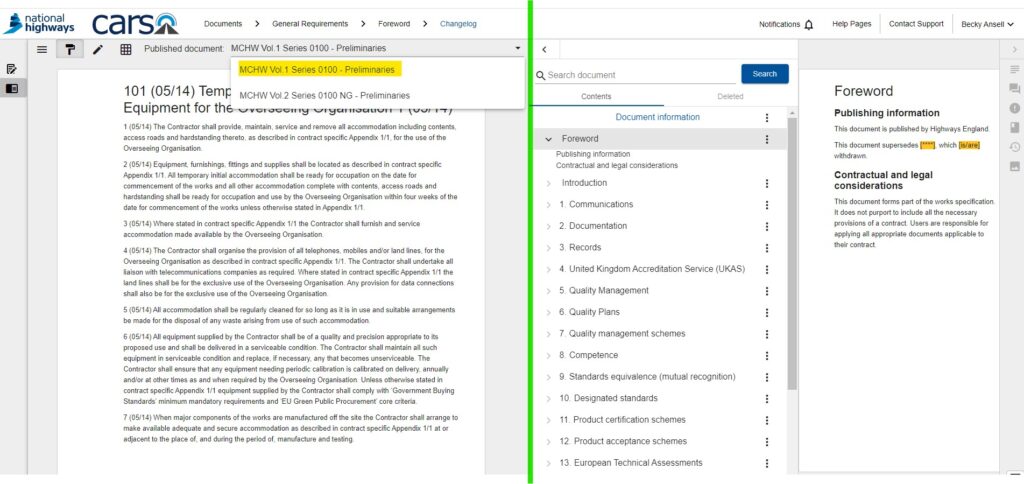
In this example here, I am selecting the published document for MCHW Volume 1 Series 0100 Preliminaries since I am drafting the replacement for this document in CARS. The change log view on the left hand side of CARS shows the content of the current published document. The view on the right hand side shows the newly drafted document.
Note: For this particular document where I am merging multiple documents together (Volume 1 Series 0100 and Volume 2 Series 0100), I will be completing separate change log entries to record what has happened to both of the individual documents, starting with Volume 1 Series 0100 first.
Determining what has happened to your current published document
Background
The main aim of the change log is to determine what has happened to the content in your current published document.
The change log is not expected to provide a long description of the changes made, rather to briefly identify the type of change and the reason behind it e.g.
- change of the wrong verb form
- change from recommendation/permission to requirement
- re-phrase of a prohibited expression
- deletion as duplication of clause ‘X’
- out of date clause
- transferred to another document
Where the content is remaining in the re-drafted document, you can also link the current published clause to the new drafted clause, thus helping to generate a change log table to show the changes between the two documents and the explanation of why.
Back to topCategories
Each clause in your current published document will therefore be marked as:
- Deleted
- Technical update
- Editorial update
- Technical and editorial update
To summarise the reason for the change made in the change log, free text options include:
- Content kept as it is
- Content moved to another clause in the same document (clarify in which section)
- Content merged
- Content that should be moved to another document
- Overseeing Organisation-specific content
- Content deleted from the DMRB/MCHW suite (for example because obsolete, duplication, Overseeing Organisation-specific, moved to industry, etc.)
- Content rephrased to adjust the verbal form
- Content changed technically
- Updated reference
- Content shared with other asset owners
Creation of change log entries
How to enter your change log information
Consider each clause or part of a clause in turn.
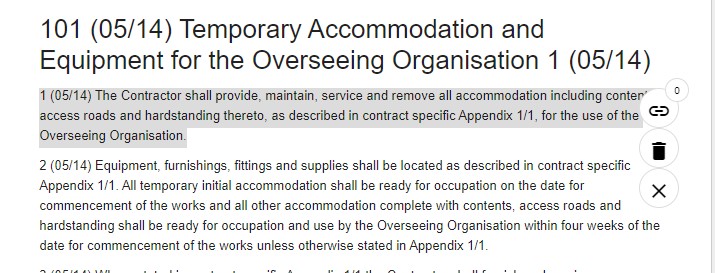
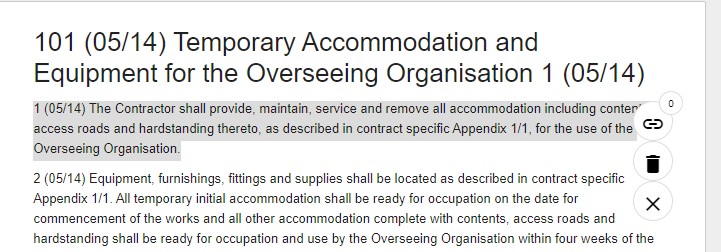
Highlight the text you want to use to mark the change and it will appear in a highlighted colour. You can select part of a clause, one clause or multiple concurrent clauses as appropriate.
If you hover over the highlighted section you will see some options on the right hand side.
Marking a clause as deleted
If you want to mark the text as deleted, press the icon that looks like a rubbish bin:
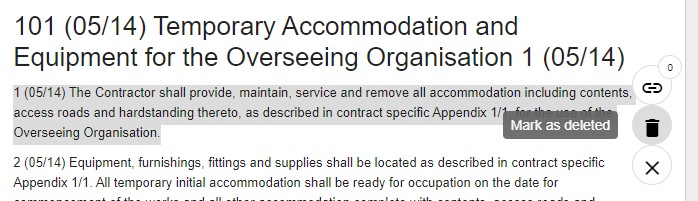
A pop up box will appear to confirm the text you want to delete. You are also required to add a comment to explain why the text has been deleted. The example below is for guidance only and is not factually correct.
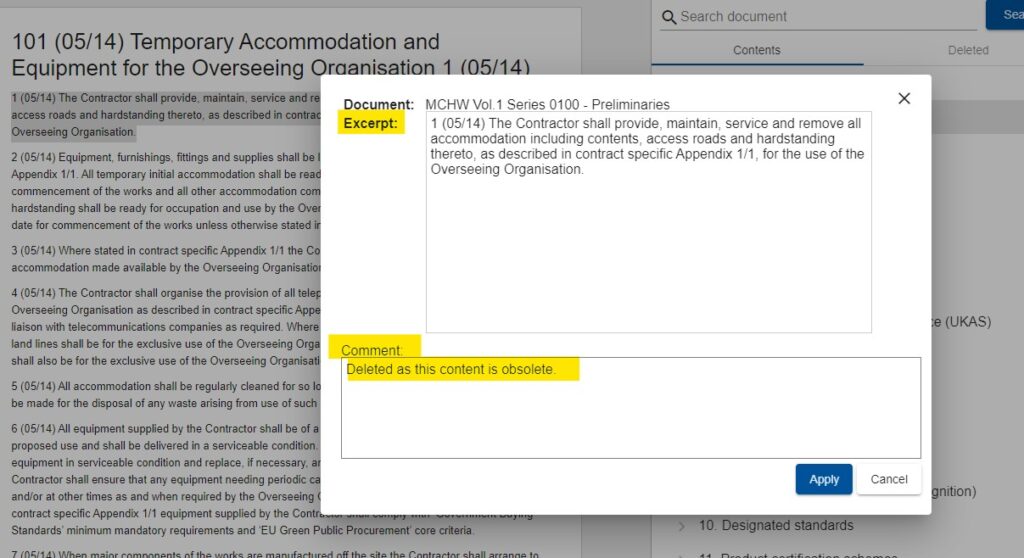
Press ‘Apply’ at the bottom of the pop up box to confirm the entry.
You will notice the text you selected is now crossed out. If you hover over this selection some additional option icons appear on the right hand side.
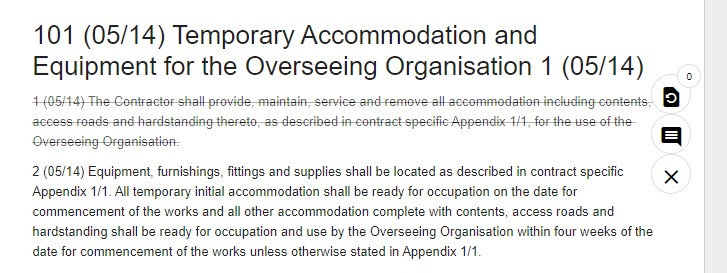
Additional options for text marked as deleted
Once your text is marked as deleted you have the following options:
Press ‘restore highlight’ to remove the deletion entry but keep the text marked as highlighted.
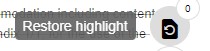
Press ‘edit deletion comment’ to open up the pop up screen and edit the comment you used to describe why the text was deleted.

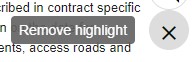
Press ‘remove highlight’ to delete the entry you made and return the text to the state where there are no marked changes.
Linking a highlighted clause to a clause in your newly drafted document
Where you determine that an entire clause, elements of a clause or one or more concurrent clauses on a page are to be retained and re-drafted in your replacement document, you create a change log link between the two.
Using the same highlighted clause example as earlier, you can hover over the icon that looks like a link to instigate the ‘create link’ functionality.
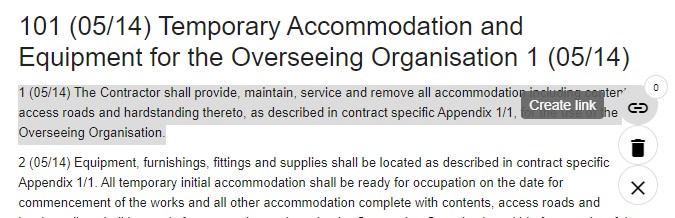
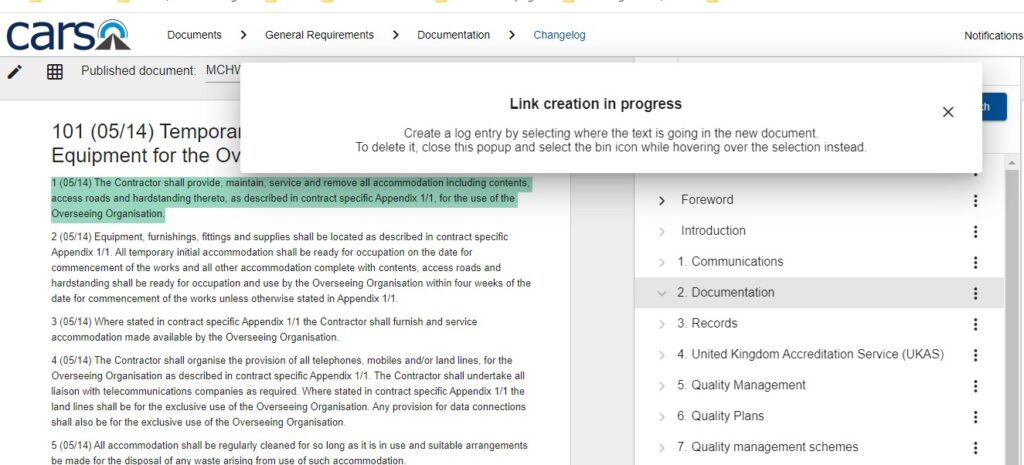
A pop up screen with the text ‘Link creation in progress’ will appear asking you to ‘create a log entry by selecting where the text is going in the new document’. It also reminds you that you can delete it by closing the pop up and selecting the rubbish bin icon.

Now, go to the re-drafted document on the right hand side of the screen and find the clause(s) where you want to make the link. You can use your mouse and mouse button to hover over and highlight the clause or concurrent clauses where you want to make the link. If it is linked to clauses in different places in the document, we’ll cover how to do this later on in this help page.
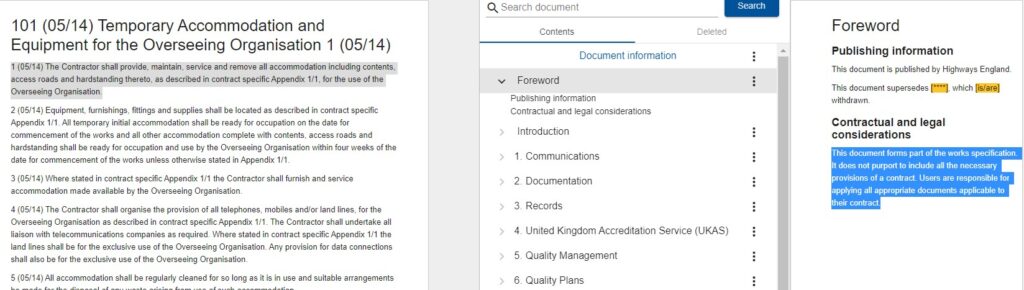
Once you let go of your mouse button over the highlighted area, a new pop up form appears showing the newly drafted clause that you want to link to. You will be asked to confirm if the change is editorial, technical, or technical and editorial in the ‘Type of change’ options and add a comment to give some details about the linkage.
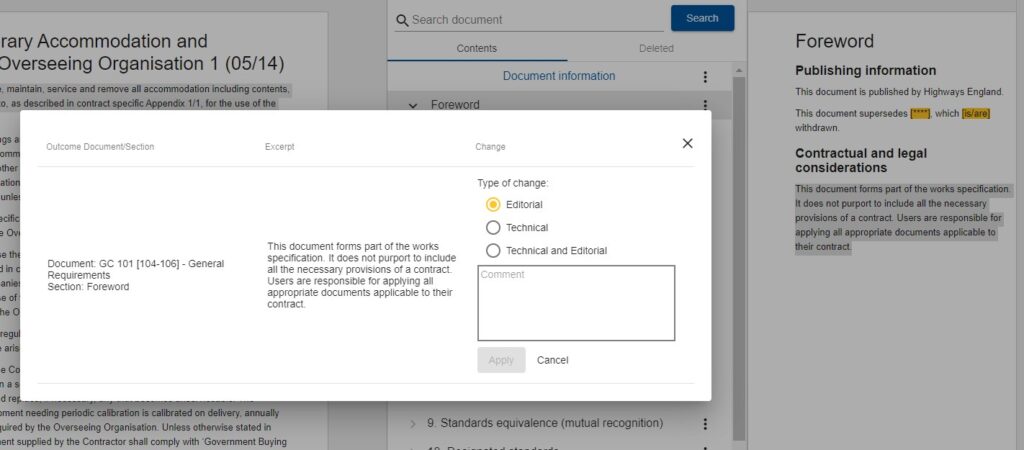
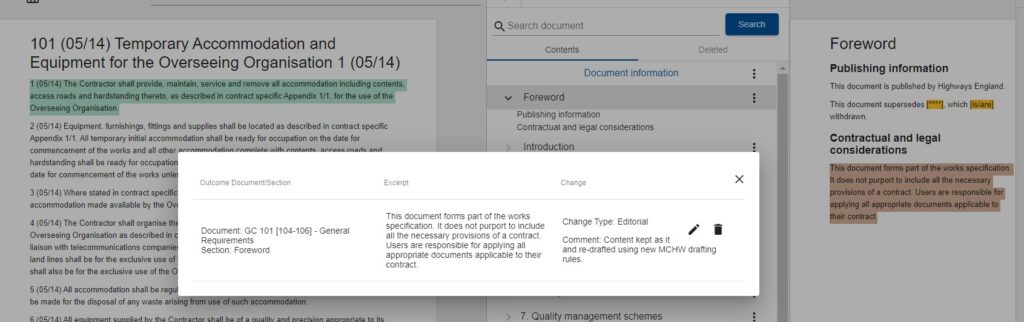
After entering my comment and pressing apply, I can now see a summary of the link in the pop up form that appears. This is not factually correct and is purely for example purposes. The form shows the excerpt that replaces the text in my previously published document, that it is an editorial change type, and a comment.
If you want to edit the change type and comment, press the pencil icon in the ‘change’ column. If you want to delete the entry, press the rubbish bin icon in the ‘change’ column.
Linking clauses in the published document to multiple places in the new document
Where you want to link the same text to different locations in the newly published document you are able to create additional new links as required. The example below shows that one link already exists.
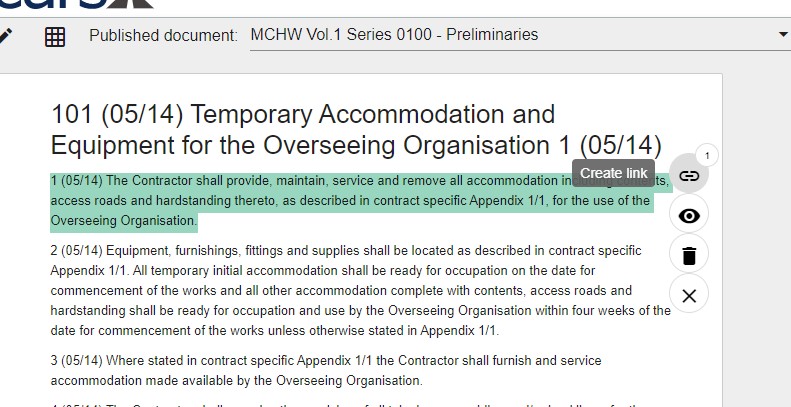
By pressing the ‘create link’ icon again the ‘link creation in progress’ pop up screen appears again and I am able to scroll through the newly drafted document on the right hand side of the screen and select the section where the clause I want to link to is.
Now I have linked the clause in the newly drafted document, like before I am prompted to select what type of change this is and add a supporting comment. The entry below is an example and not factually correct.
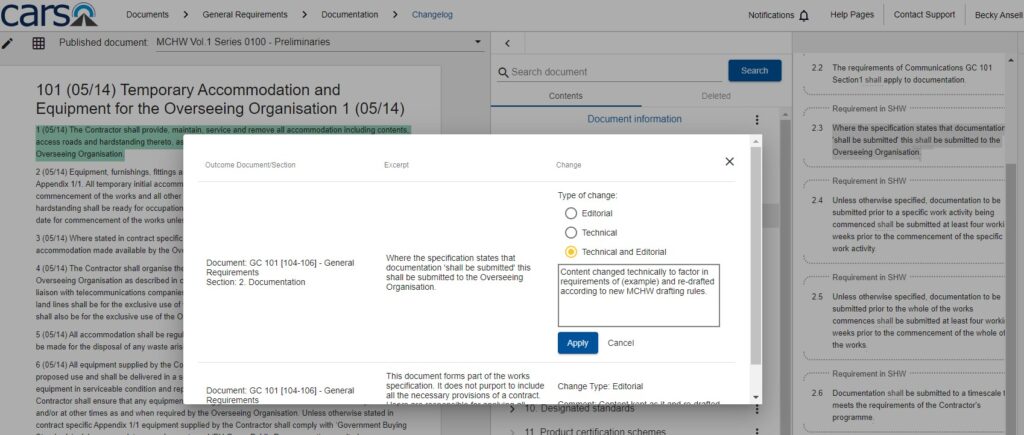
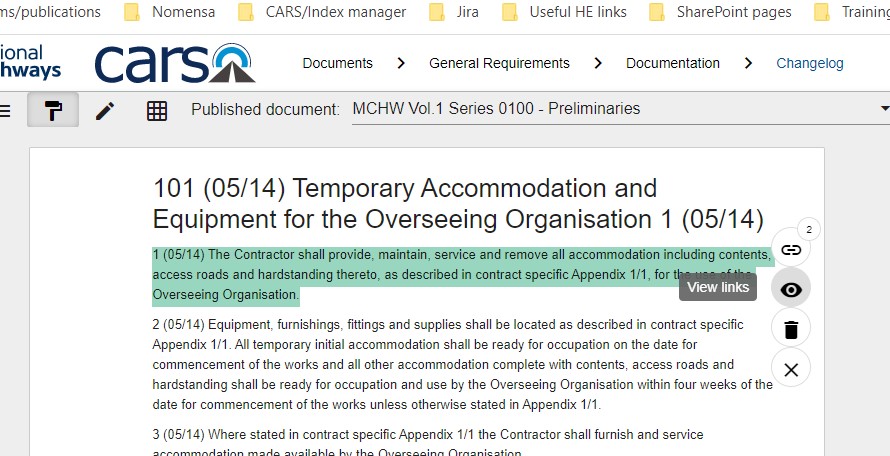
After pressing ‘apply’ to confirm the entry I can now see that there are two links against the clause in my previously published document. See the create link icon which has a number 2 against it to show two links.
If you want to review the links at any time, press the view links icon which looks like an eye.
You will be presented with a pop up screen summarising all links to the newly drafted document against that clause. You may edit the text in the change section (change type and comment) by pressing the pencil icon or delete the link by pressing the rubbish bin icon.
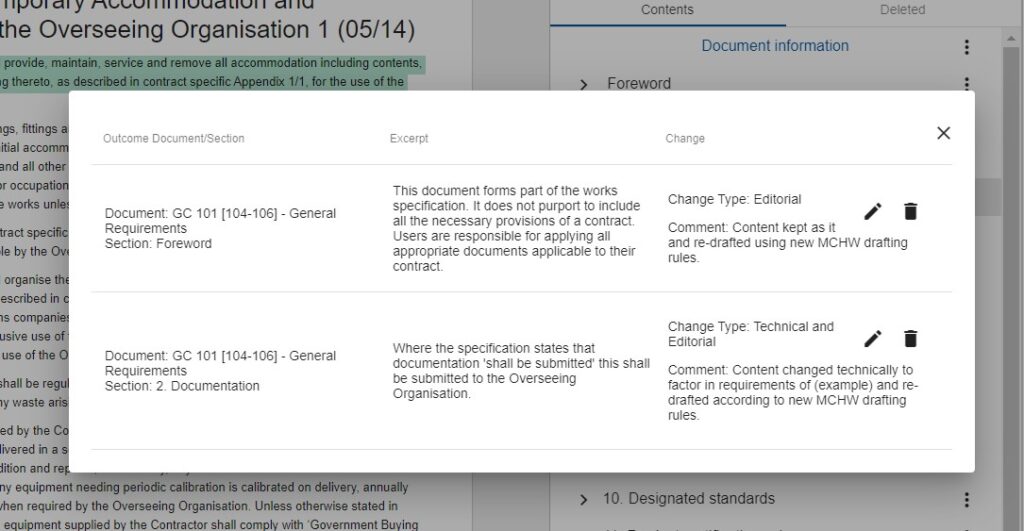
Please note after deleting links between the two documents, the clauses still remain highlighted unless you press the cross button to remove the highlight.
Linking the current published documents to multiple newly drafted documents
It is possible to create change logs against multiple newly drafted documents but you need to have author or peer reviewer permission rights against the newly drafted document in order to do this. Please contact standards_enquiries@nationalhighways.co.uk if you do not have permission rights against the document you want to link to and we will tell you the name of the Technical Author so you can you request that they give you permission to view the document.
The newly drafted document should be open in CARS and you can then press the change log view icon (see ‘Activating the change log mode‘) to open up the split screen view and re-select your current published document from the drop down menu and add the appropriate links.
Back to topAdditional change log functionality
There are a few more options available to you in the change log mode. The example below shows four icons to the left of the text ‘Published document’:

When adding change log entries, you are in the change log mark up mode.
If you want to view and scroll through the sections of your published document, press the sidebar icon. This is minimised at present to save space on the page. Press the arrow pointing left ‘collapse sidebar’ to minimise it again.
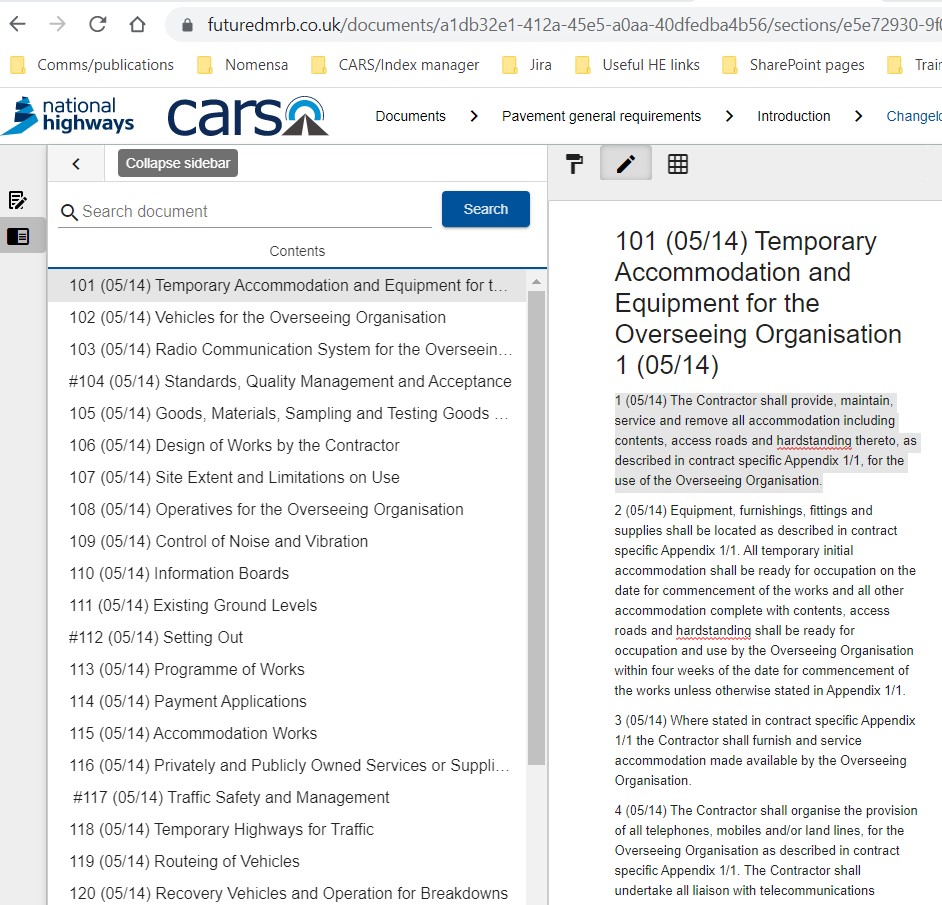
If you want to keep the change log view open with the published document on the left hand and be able to generate or edit clauses in your newly drafted document in the right hand side, press the pencil icon for the split screen authoring mode.
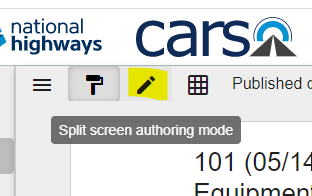
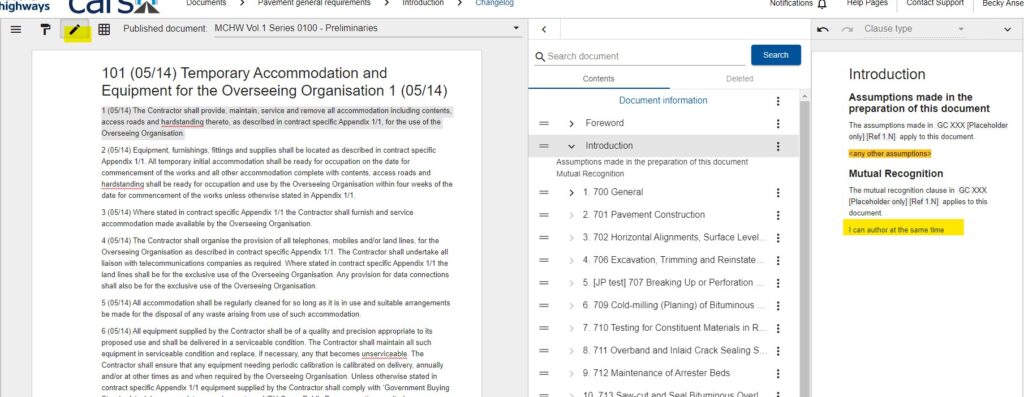
To close the change log functionality and return to full screen authoring, press the authoring view icon on the far left of the screen. See ‘Activating the change log mode‘ for guidance.
Back to topViewing the full change log
To see an overview of all of the change log entries. Press the icon that looks like a grid and is titled ‘see whole changelog’.
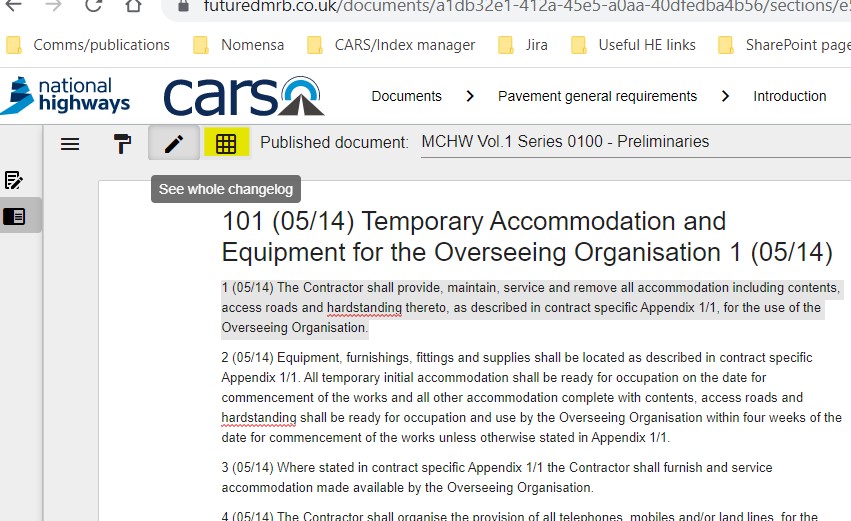
It may take up to a minute for the change log table to load and you may see a message saying that CARS is unresponsive but please be assured this will load for you. We will be working on response times over the coming months to improve this.
You will now see an overview of all change log entries made against each clause in your selected published document. Before you submit your newly drafted document for consultation, all clauses in the published document should be marked up as deleted, technical change, editorial change, or technical and editorial change. The example below shows ‘there are no changes in this clause’ for clause 1 meaning I still need to complete a change log entry here.
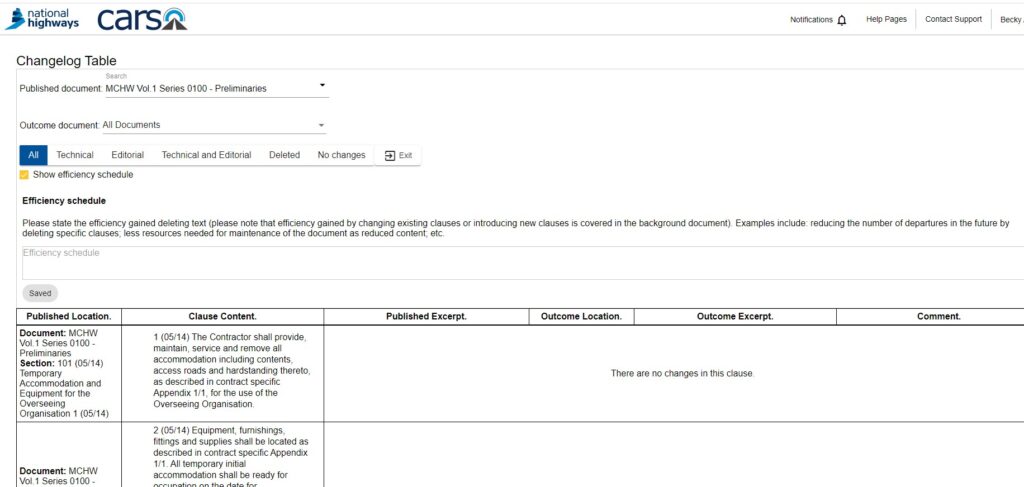
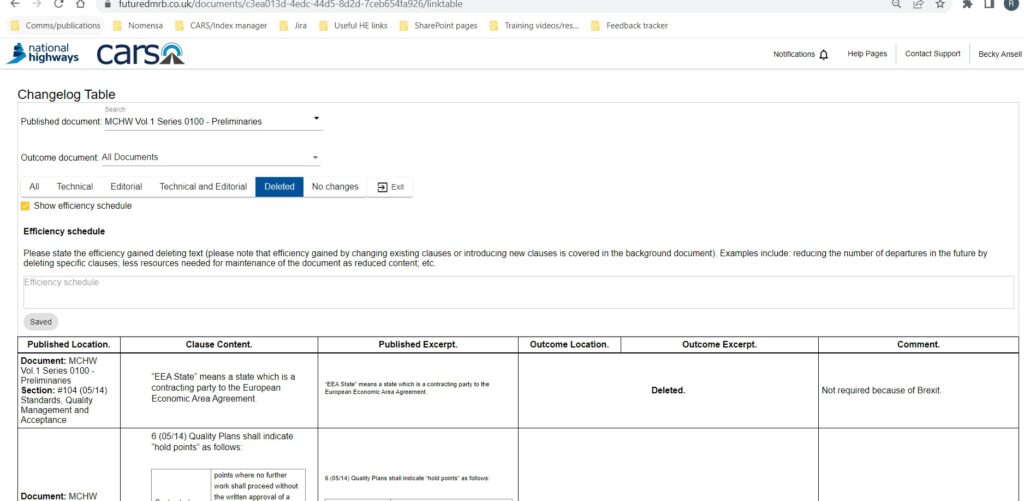
You can filter on the changes made and in the example below I’ve added a filter to show any clauses in the published document marked as deleted. The change log table shows me the original clause content in the published document, the outcome and the comment.
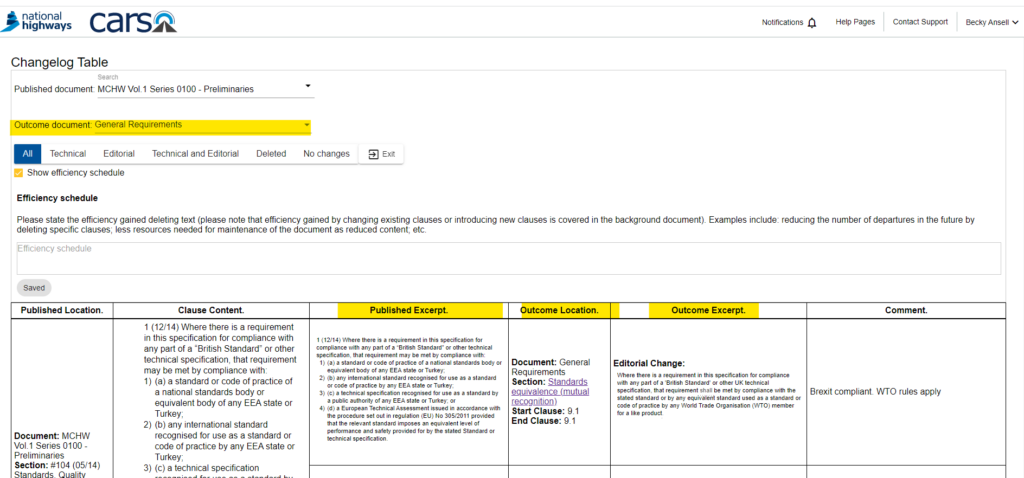
If you have linked your published document to multiple newly drafted documents you are able to select the appropriate document you want to view in the change log table using the ‘Outcome document’ filter. In the example below, my newly drafted document is called ‘General requirements’.
The published excerpt shows the original content in the published document. The outcome location shows the details of the newly drafted document where the link has been created. The outcome excerpt shows the newly drafted text and the comment is an explanation as to why the change was made.
Generating an output of the change log table
To generate an output of the change log table, please scroll to the bottom of the page and ensure all rows are visible on the page.
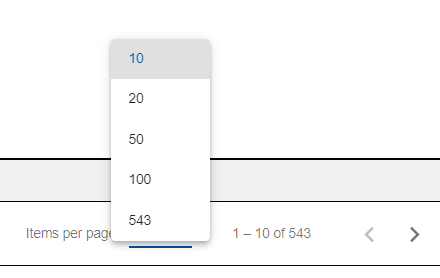
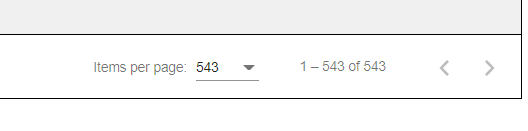
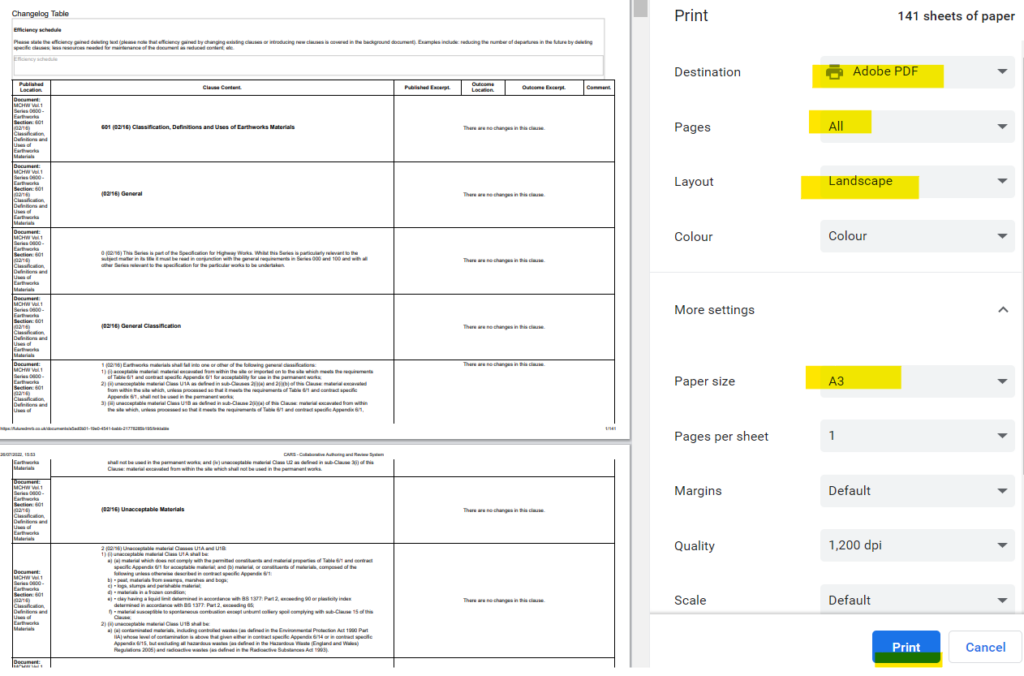
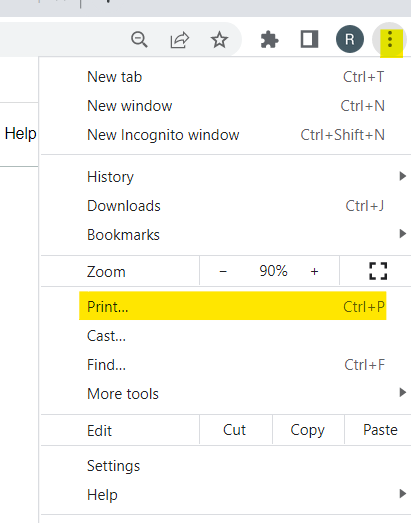
Please press ‘CTRL + P’ on your keyboard or select ‘Print’ from your browser menu in the top right hand corner. Please use the settings below to maximise the use of space and then print your change log to PDF.
Should you need any assistance, please email standards_enquiries@nationalhighways.co.uk
Back to top