
Contents
Why date change requests are needed
Where a document creation/update is part of wider change programme, changes to forecast dates for key development stages can have significant impacts on the successful delivery of that programme.
Once a Change ABCD item has been submitted into the Standards Review Programme (SRP) within Jira, you cannot edit the forecast dates for the fields below without submitting a “Date Change Request“.
- document development plan submission,
- commencement of drafting,
- start/completion of Technical Standards Committee (TSC) consultation
- submission to the TSC Chair for acceptance *
This is to ensure that any potential impacts on programme delivery are monitored and managed.
* Changes to the forecast date for submission to the TSC Chair for acceptance will require Divisional Director sign-off. If part of a major change programme with strict deadlines, the Divisional Director will also need to agreed the date change with the Chief Highway Engineer.
How to create a Date Change Request within Jira
Date Change Requests can be created by any Jira user with access to the Standards Review Programme (SRP) project.
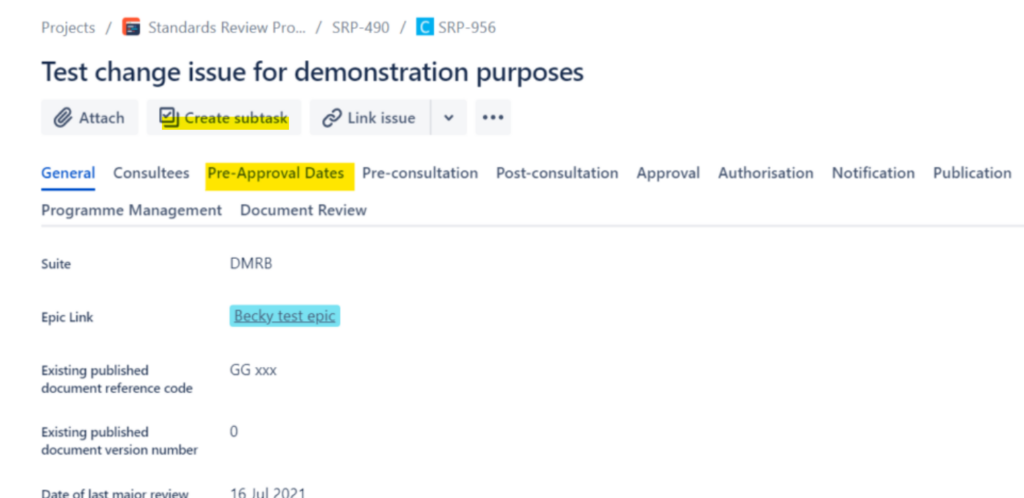
Open the “Change ABCD” item in Jira that requires updated forecast dates. It is recommended to make a note of the existing forecast dates as available on the “Pre-Approval Dates” tab, highlighted alongside. This will help you validate the new forecast dates being provided and may be referenced within any justification text.
To create a new “Date Change Request” , click the “Create subtask” option located just below the main item title, highlighted alongside.
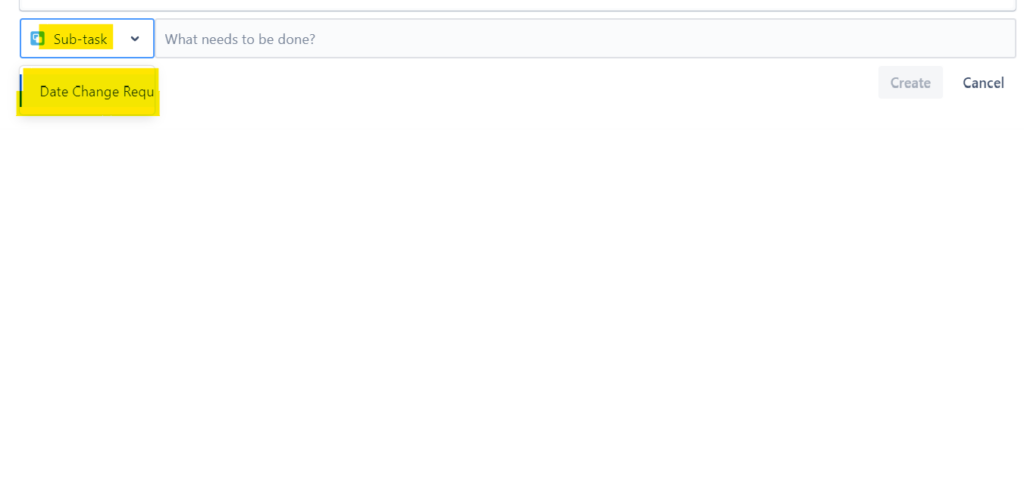
A new sub-task will appear further down the page. Please press the down arrow and select “Date Change Request”.
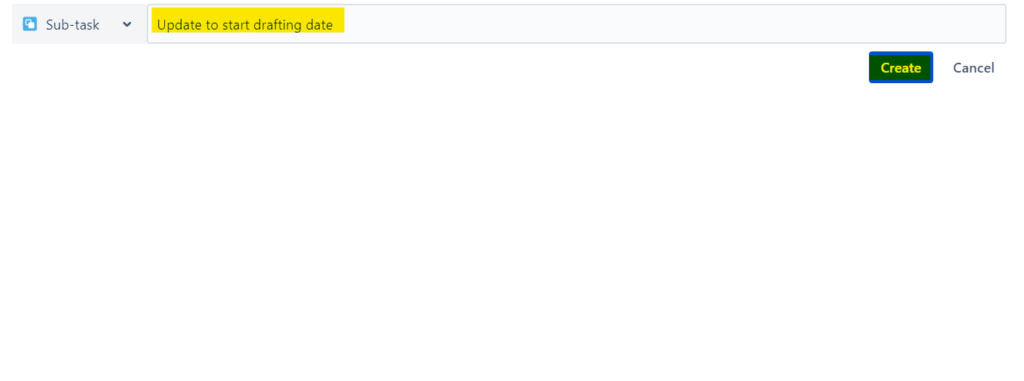
Please rename the Date Change Request appropriately, i.e. “Date Change Request for AB 123 – Mar ’24”. The title of the request will be included in all emails associated with the workflow, an informative title will help all involved process the request quickly.
Click the “Create” button provided.
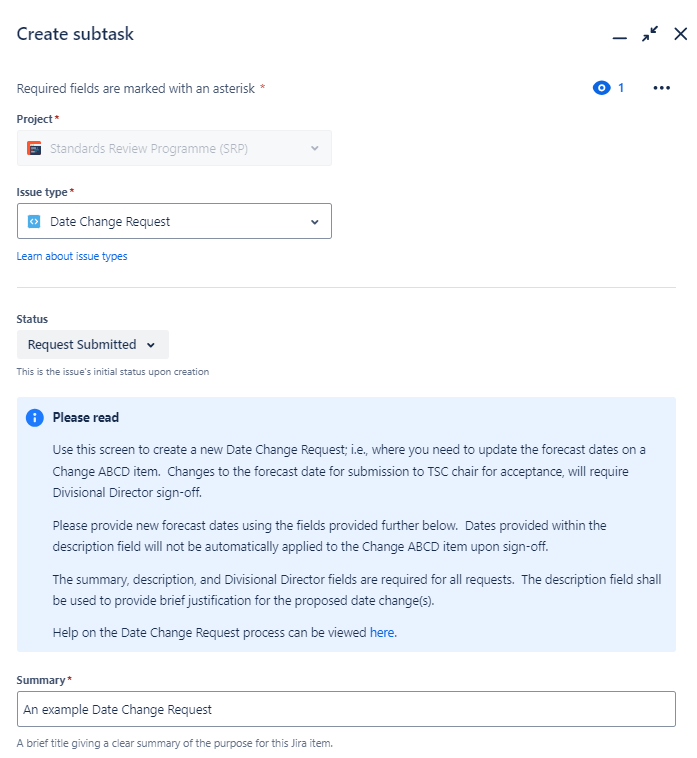
A popup form will appear where the details of the Date Change Request can be provided.
Do not change the “Issue type”, leave this as “Date Change Request”.
The “Status” should also be left as “Request Submitted”.
Take some time to read the guidance note provided at the top of the form.
The “Summary” (i.e. request title) will be pre-populated with the text provided above. Ensure this is correct / adjust accordingly.

The “Description” field is to be used to provide brief justification for the proposed date change(s). Please consider the information that the review will need to assess the request; they will only come back for more information if not provided.
Enter the “Divisional Director” associated with the Date Change Request. As above, they will be asked to sign-off any changes to the forecast date for submission to TSC Chair for acceptance; otherwise they will be notified of any changes once applied.
Use the fields provided to provide new forecast dates. NB: you do not have to re-enter any dates that are not changing. The existing dates will be automatically imported into the request once created to assist the reviewer.
Click ‘Create’ to submit your Date Change Request for review.

The Date Change Request will remain as an item in the Change ABCD item’s subtasks list whilst it is being processed.
What happens next?
The Date Change Request workflow is shown below:
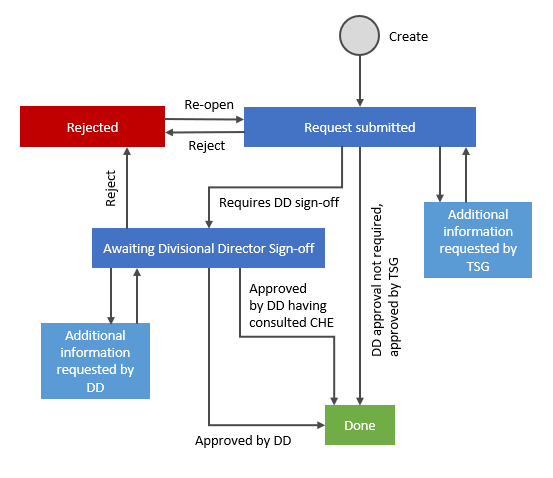
Once submitted, the request is passed to the NH Technical Standards Group (TSG) for review. TSG have 4 options available to them:
- Approve the request. This option is only available to TSG if a new forecast date for submission to TSC Chair for acceptance is NOT provided. Applying this action will automatically update the forecast dates in the parent Change ABCD item and will send an email confirming the review outcome. No further action is required.
- Send the request to the Divisional Director for sign-off. This option is only available to TSG if a new forecast date for submission to TSC Chair for acceptance IS provided. TSG do not need to provide any further comments to the request. The Divisional Director will receive an email with details of the request and clear steps on how to undertake the review within Jira; the requester is also cc’d on the email.
- Reject the request. A reason for rejection is mandatory and an email alert is sent to the requester. TSG do have the option to re-open a request if required.
- Request additional information. If more information is required to support the request, TSG can pass the item back to the requester (the person who created the request), providing comments outlining the additional information to be provided.
If the item is passed to the Divisional Director for sign-off, they have the following options available to them:
- Approve the request. If the parent Change ABCD item is identified in a “workstream” that is part of a major programme with strict deadlines (i.e. the MCHW refresh programme) the Divisional Director will be asked to check a confirmation statement that they have have discussed the proposed date changes to the programme with the CHE, who has given their approval. Applying this action will automatically update the forecast dates in the parent Change ABCD item and will send an email confirming the review outcome. No further action is required.
- Reject the request. A reason for rejection is mandatory and an email alert is sent to the requester. TSG do have the option to re-open a request if required.
- Request additional information. If more information is required to support the request, the Divisional Director can pass the item back to the requester (the person who created the request), providing comments outlining the additional information to be provided.
Been asked to provide additional information?
If you have been asked to provide additional information to support your Date Change Request please provide the requested detail as quickly as possible.
The email sent requesting more information will include a link to the Date Change Request Jira item, see an example below:
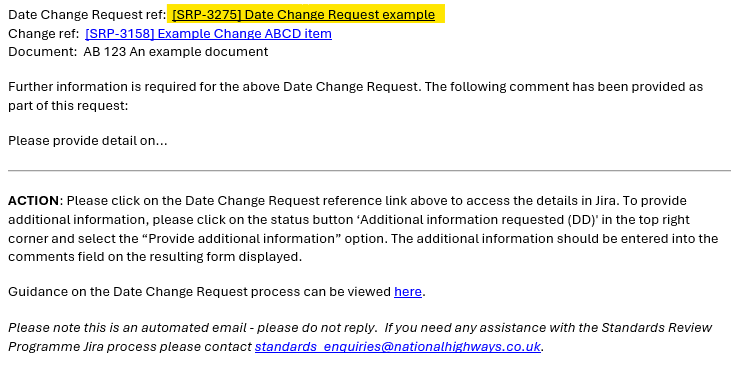
Having opened the associated item in Jira, click the current status of the item (i.e., “Additonal information requested by [DD or TSG]”) at the top right of the screen and select “Provide the requested information”, see screenshot below:

Within the resultant popup, enter the information requested within the comments field provided and then click “Provide the requested information”.
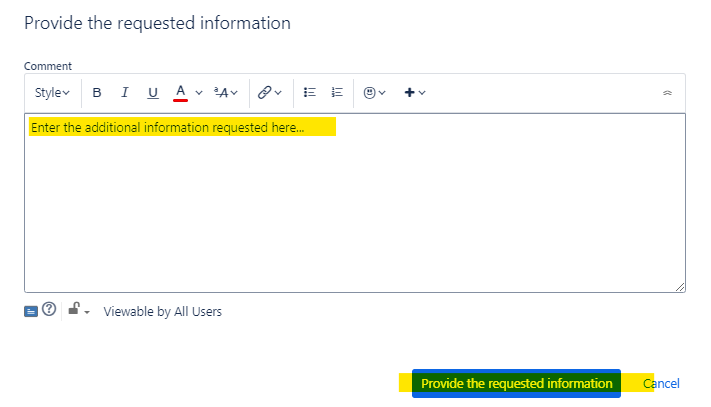
You will receive an email confirmation that the item has been passed back for review.
Back to topFurther support
For any queries related to this, please email standards_enquiries@nationalhighways.co.uk
Back to top