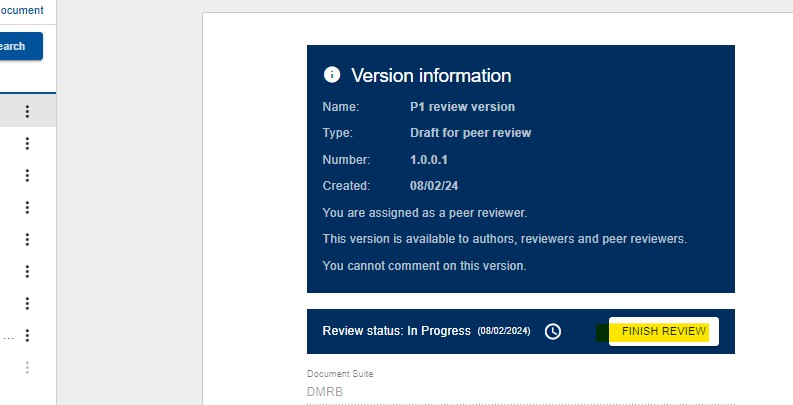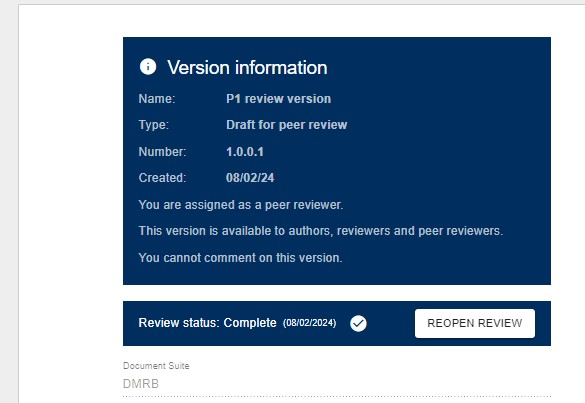
Open the peer review version sent to you by the author.
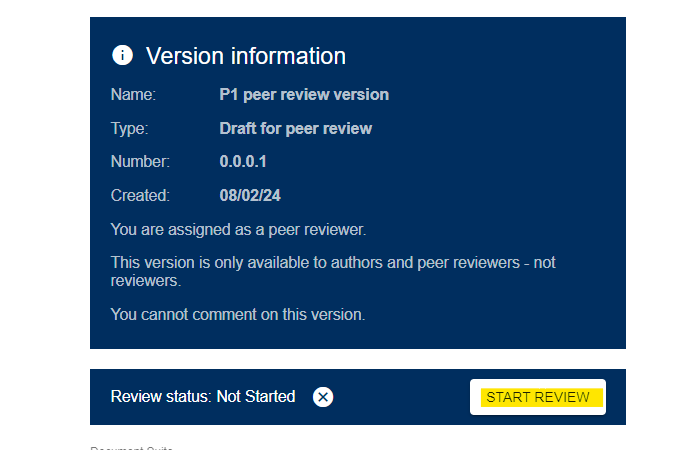
Update the review status to ‘Start review’. This assists the author with knowing what has been reviewed, what is in progress and what has not been started.
The document information page contains a summary of proposed document code, title, a summary of what is about, legacy documents etc. You cannot and are not expected to add any comments here.
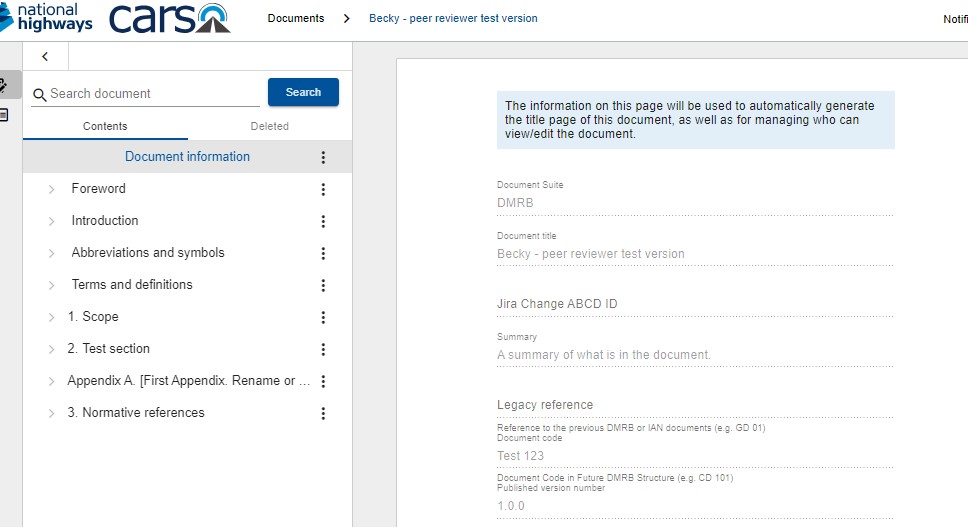
Click on the sections available to you on the left hand side, one by one. You can read was is written on a clause by clause basis and make any comments against the clause, table, image etc. You cannot edit the text.
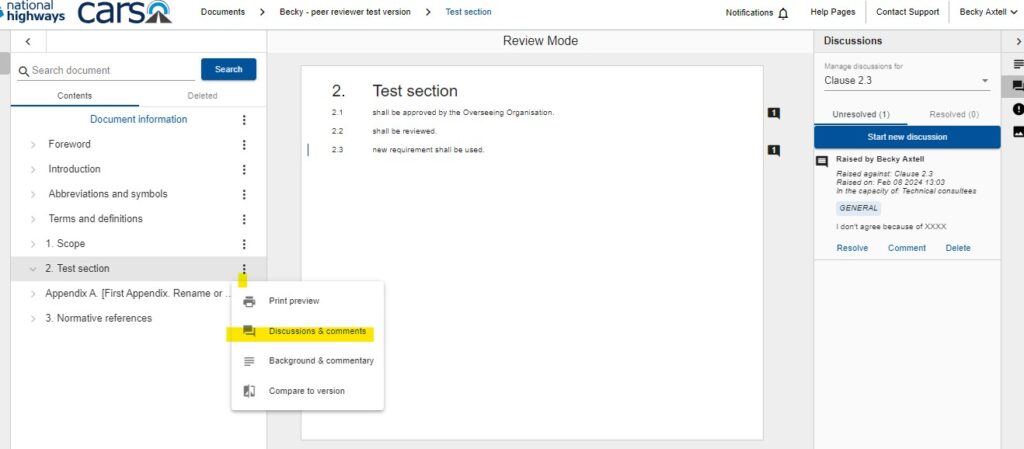
Where you see something you want to comment on, click on the relevant clause in the middle pane, and then select the comment icon on the right hand side (it looks like a speech bubble). This opens up the comments functionality.
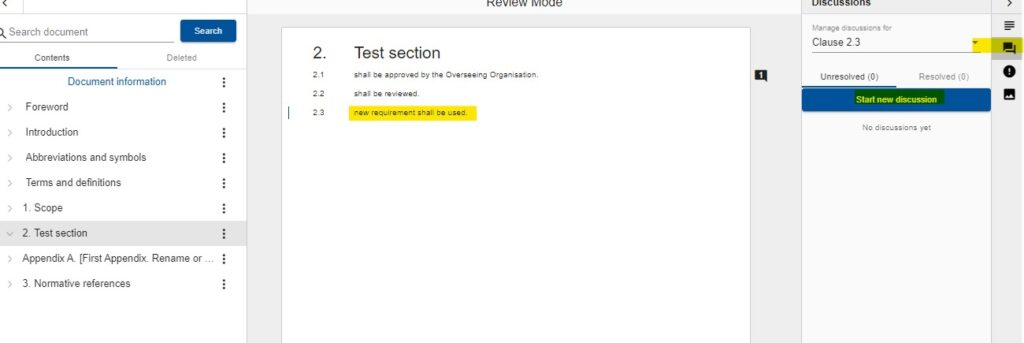
Press start new discussion and add your comment. For ‘in the capacity of’ please select technical consultees as the list is borrowed from another part of the software and will need further options adding in future. Press submit to add your comment.
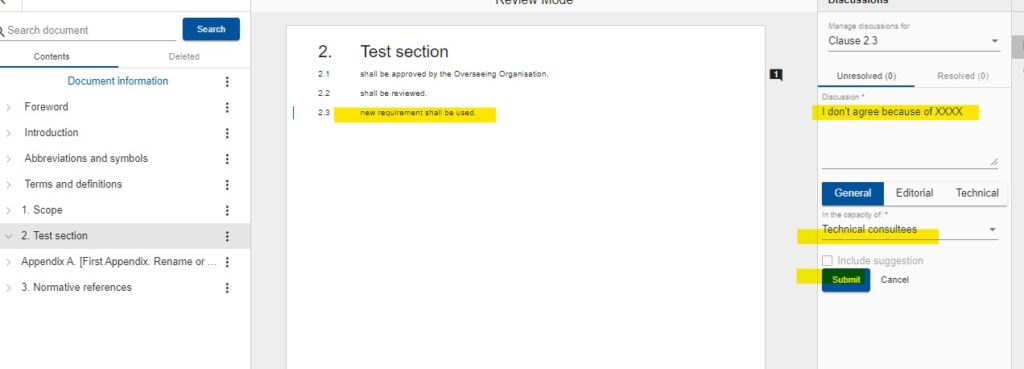
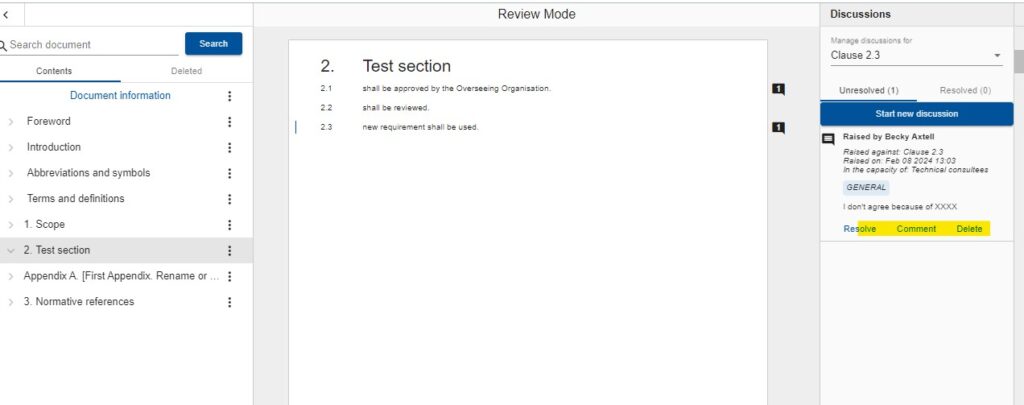
You will see a comment bubble added next to the clause for the author to resolve. You can edit your own comments by opening it up again:
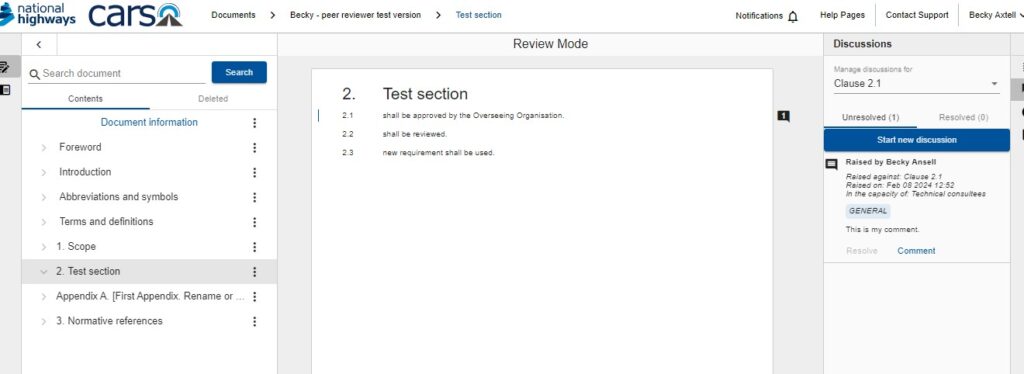
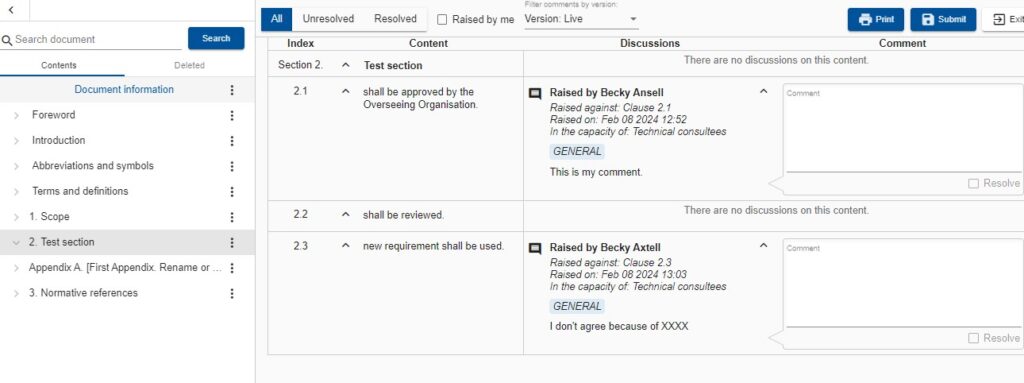
You can see comments by other people and add an additional comment to their comment if you wish:
You can see an overview of all comments received within one section by clicking on the three dots next to the section title on the left hand side and the option: Discussions and comments:
Where you have completed your review, please go back to the document information page at the top of the section list and press ‘finish review’. You can open this up again in future should you have pressed this in error.