
Contents
Step 0: Automated email
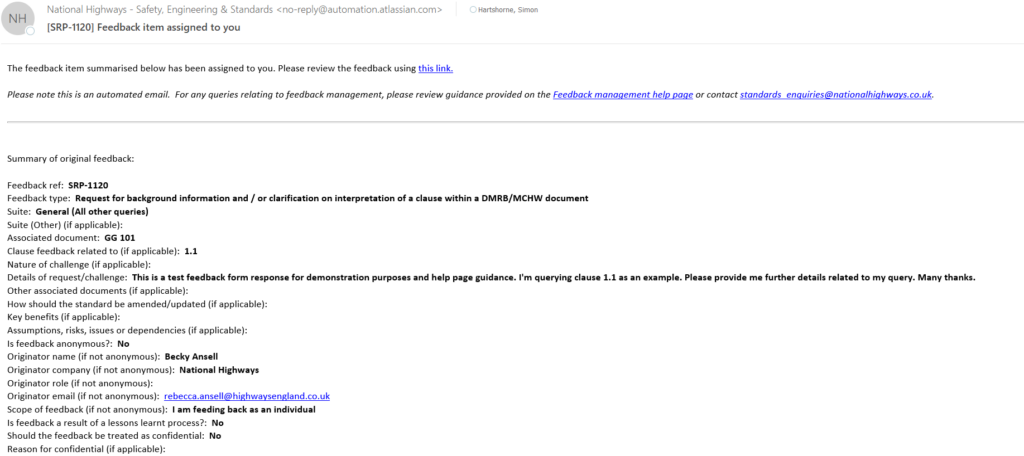
You should have received an automated email giving details of the feedback item received against the document for which you are Technical Author (example below). This has automatically generated a feedback item in Jira.
Step 1: Follow link
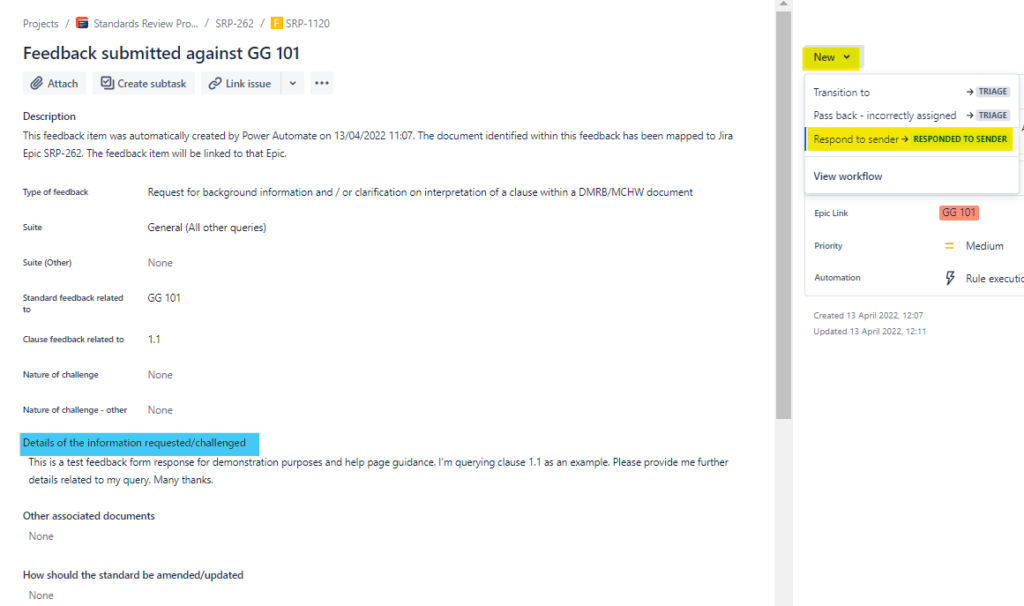
Click on the link provided in the email. You can see the query in the main body of the page.

Step 2: Start response
To respond to the query via Jira please press ‘new’ in the top right hand corner and then ‘respond to sender’.
Please note the status ‘triage’ is only used when a document has incorrectly been assigned to you and passes the query back to the Technical Standards Group to move to the correct document.
Step 3: Draft response
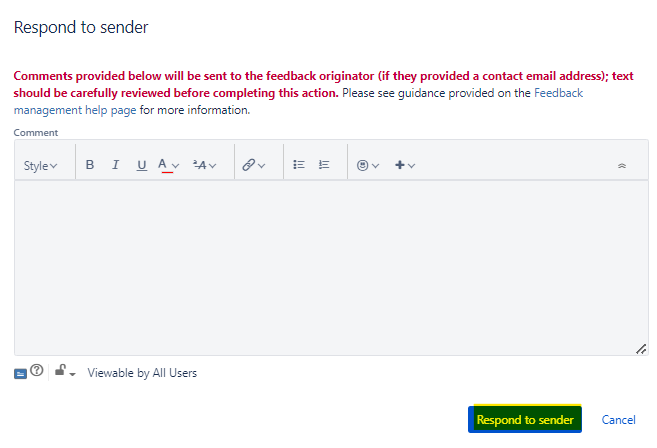
A pop up box will appear and you should draft your reply here like you would if you were responding by email. It doesn’t automatically append your name to the message so please add this at the end of the text if you wish. Note – this goes directly to the enquirer and is not for hidden internal comments/use. You may wish to draft a response and copy and paste this into the box for ease.
Ideally the query is straight forward enough that you can reply in one go without needing further follow up, but if you are not in a position to give a final answer then please provide a holding response and there are options to go back to the originator in step 5 below.
Step 4: Send response
Once you press ‘respond to sender’ it will then automatically reply to the enquirer without using your email address from a ‘no-reply’ email. The enquirer is given the standards enquiries email address for follow up whilst we get used to the form but eventually they will be able to use the form again to send follow up queries using the Jira reference e.g. SRP-1120.
Step 5: Send additional response
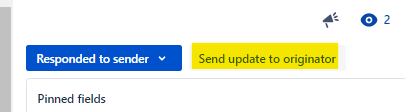
If you weren’t able to answer the query on the initial response, you can use the button ‘send update to originator’ to provide further comments e.g. on things you are currently reviewing or anything else appropriate.
Step 6: Change feedback item status
Having addressed the query, you should then decide next steps from one of the options below. All these options appear when you click on the ‘responded to sender’ button in the top right hand corner.
- Put on hold
- Feedback closed out – change required
- Feedback closed out – no change
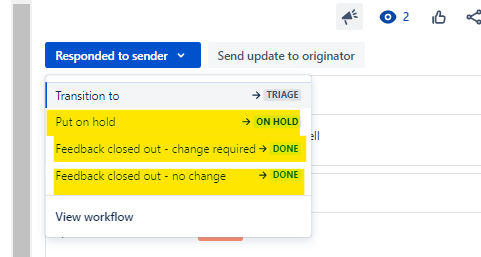
The options work on the following basis (taken from our feedback management help page – https://help.futuredmrb.co.uk/standards-governance/using-jira/feedback-management/)
- Put on hold: Use this transition to record the feedback to be addressed at a later date (i.e. as part of a document review). A comment and ‘reason for hold’ must be provided when using this transition; the feedback item will move to the ‘On hold’ state. Available reasons for putting on hold are:
– Requires major policy change – to be incorporated into a change
– Requires change to requirement(s) – to be incorporated into a change
– Requires change to advice / editorial change – to be incorporated into a change
– To be covered as part of document review - Feedback closed out – no change: Use this transition to record that the feedback has been reviewed and no changes are required to any document. A comment must be provided when using this transition; the feedback item will move to the ‘Done”. The ‘feedback outcome’ will be automatically recorded as ‘No change is needed’.
- Feedback closed out – change required: Use this transition to record that the feedback has been reviewed and that changes are required and the change is being progressed now1. A comment, a ‘feedback outcome’ and a ‘link to the Change ABCD item2’ must be provided when using this transition; the feedback item will move to the ‘Done”. Valid available3 reasons for ‘feedback outcome’ are:
– Requires major policy change – Incorporated into a change (record link to the Change ABCD item2)
– Requires change to requirement(s) – incorporated into a change (record link to the Change ABCD item2)
– Requires change to advice / editorial change – incorporated into a change (record link to the Change ABCD item2)
(Notes: 1 If the intention is to implement the change at a later date, then the feedback item should be put on hold | 2 This is the link to your Change ABCD issue on Jira where the governance is recorded for the change to the document e.g. SRP-1234| 3 ‘No change is needed’ is also listed within the dropdown provided but it is not valid for this transition)
You can therefore select the appropriate option based on what you have decided to do next. If you can’t mark as ‘feedback closed out – no change’ we anticipate you will likely put things ‘on hold’ and being able to close out the feedback at a later date once you have addressed the query in an update to the document. The ‘feedback closed out – change required’ option is for more immediate changes that you want to process.
Step 7: Reopen feedback item & send additional response
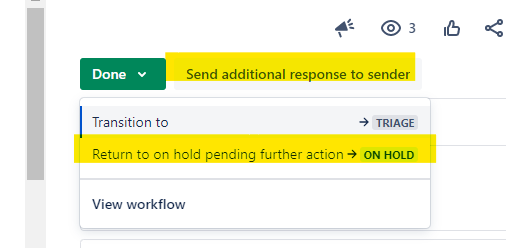
If you receive a further response from the enquirer whilst the item is marked as done, you are able to reply to this by pressing send additional response to sender.
If the correspondence means you wish to move the feedback item back to done, you can do so by pressing the return to on hold pending further action option.
Should you have any further queries, please email us at standards_enquiries@nationalhighways.co.uk
Back to top