
National Highways colleagues may have existing drawing files for DMRB standards in a .dwg or .dwf format. It is possible to request an AutoCAD LT licence from the software catalogue in order to edit these.
Contents
Step by step instructions to install the software
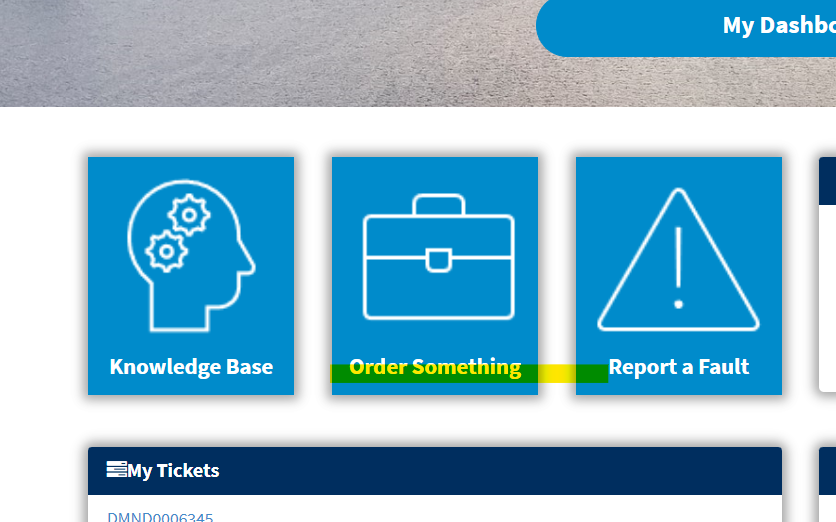
- Go to the ServiceDesk within the National Highways portal and select to ‘Order Something’.
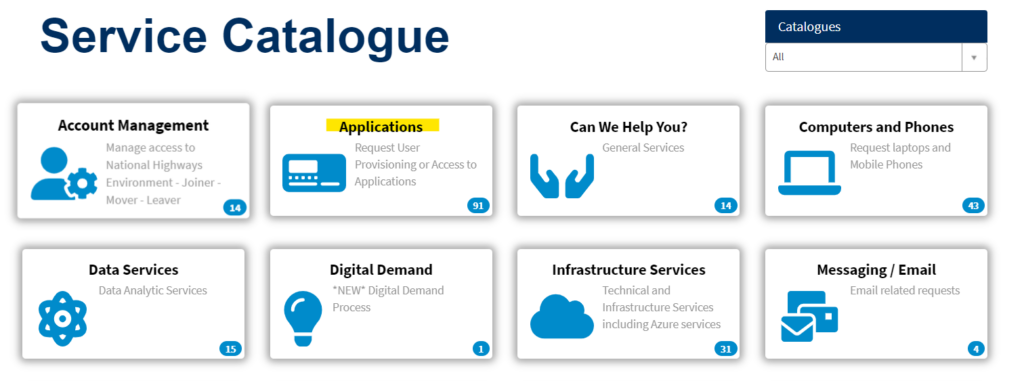
- Select the ‘Applications’ option.
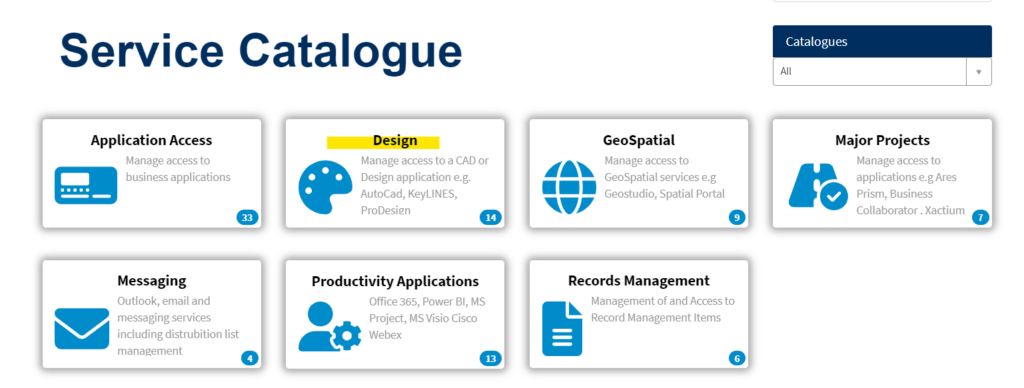
- Select the ‘Design’ option.
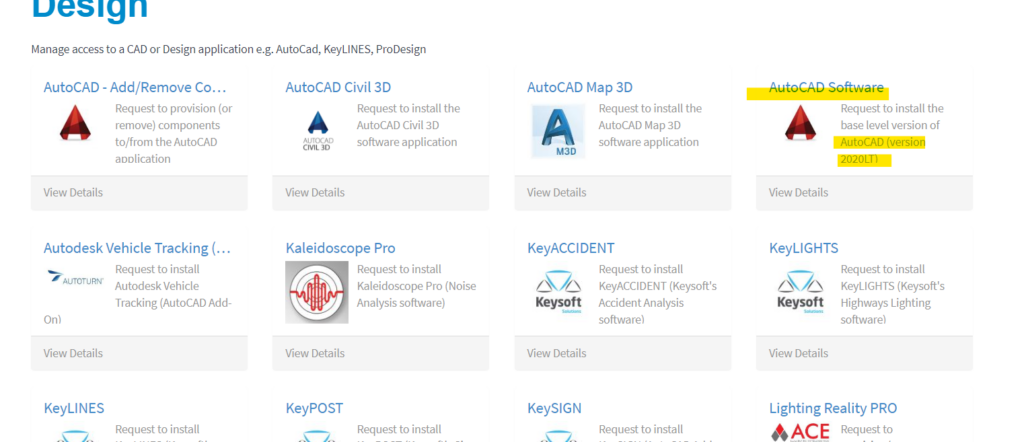
- Select ‘AutoCAD software’ which is the base version of the software (the light or ‘LT’ version).
- You will be asked to add your personal details and a business justification. The justification can explain that you own a standard in the Design Manual for Roads and Bridges and need to be able to edit existing drawings.
- Once approved, a request will be sent to the IT helpdesk who will add your details to a group to cover the software download and licensing. You should expect this to take up to 72 hours before it appears as a download option in your software center.
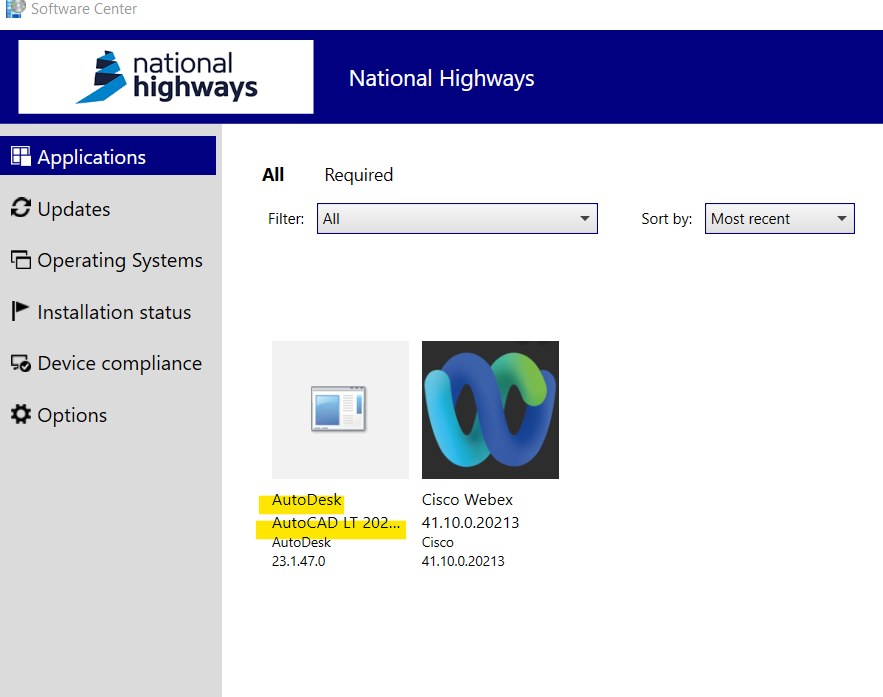
- You will also receive an email prompt to set up an AutoDesk account using your National Highways email address. Please set this account up but do not attempt to download any of the licences/software from this online account as it will be blocked. The correct route is to wait for it to be added to your software center.
- Upon opening the desktop app version of the AutoCAD LT, you should be asked to log in with your NH email address and the password you set up on the AutoDesk online website.
- You should not be asked for licence details as it should automatically download. If you are asked for a licence key however please raise a ticket with IT support and they can remote onto your machine and resolve it for you.
Training materials
Training materials on how to use AutoCAD LT can be accessed here.
Back to top