
Contents
Background
Historically, CARS has automatically calculated column widths for tables based on the text entered within cells. Whilst for the majority of use cases this approach works perfectly well, there are a few scenarios where it leads to poorly formatted tables within the PDF outputs; and there is very little an author, or a system administrator can do.
A new feature has been added to CARS to allow lead authors, authors, and system administrators to manually control the % column widths for table.
Back to topEnabling manual configuration of column widths
To turn this feature on, click the “Use manually managed column widths for Table #.#” button provided within the table toolbar which appears when hovering the mouse over a table within the CARS authoring pad. This button is shown in the screenshot below.

Once the feature is enabled, a new blue row will appear at the top of the table showing the current % column widths.

Manually changing % column widths
Clicking on the blue row (as shown above) will display the “Manually manage column widths” modal. An example of this modal is shown below:
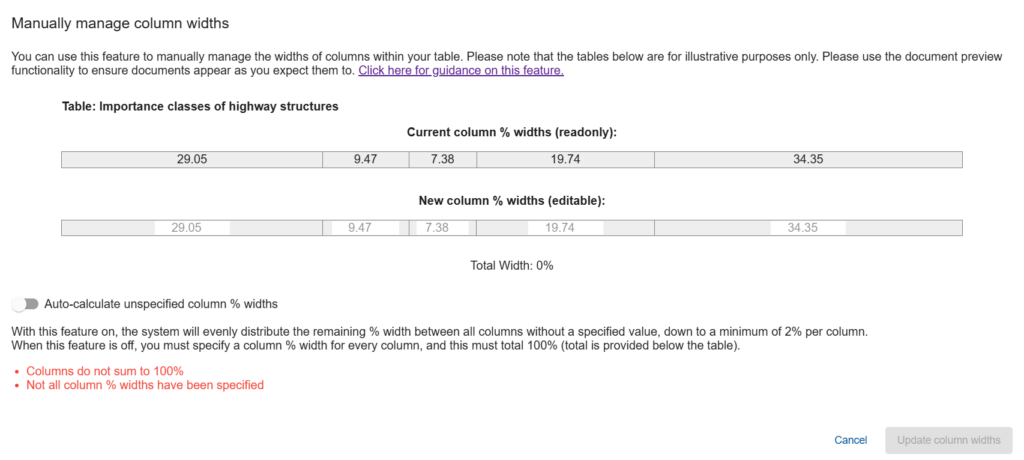
There are 2 approaches for managing column widths.
- Manually setting all % column widths. With this approach, a % width value for each column must be provided. The “Update column widths” button will not be enabled unless the total of all column widths equals 100%. A “Total Width” calculation is provided; it updates whenever a value is changed. Once all column widths have been provided, and they total 100%, click the “Update column widths” button to apply the changes. Validation warnings are provided in red text to help understand any issues that may be blocking updates.
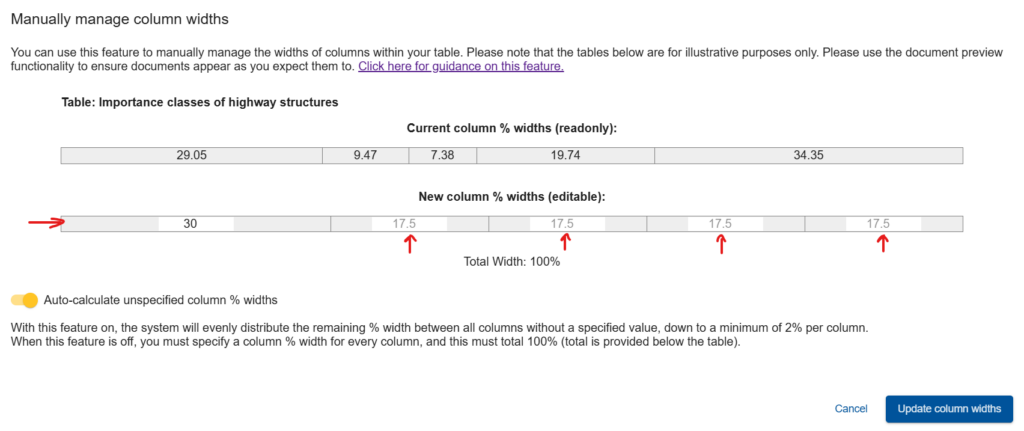
- Auto-calculate unspecified column % widths. With this feature turned on, any unspecified value is automatically calculated; evenly distributing the remaining % width. An example of this feature in use is shown below. As before, validation warnings are provided in red text to help understand any issues that may be blocking updates.
Validating manually adjusted column widths
** Please note that the below functionality is in final development – it is expected to be released by the end of November ’24 **
Once the table’s column widths have been set, it is important to check how the table is rendered in its final PDF format. Whilst only TSG staff and CARS administrators can export documents, Lead authors and authors are able to run a “Document Preview”. This allows them to view the document as it would be exported to PDF. To generate a “Document Preview”:
- Click on the menu button next to the “Document Information” option within the navigation pane (the 3 vertical dots)
- Click “Document Preview”
- Click “Online View”
- The generation process will start, a notification alert will be shown at the top of the CARS screen confirming that an export process in running. NB the document preview option generates a PDF document and then displays it within a read only modal; hence it is exactly the same as the process used for publication.
- Another notification alert will be displayed when the export process has completed.
- Clicking on the associated item within the notification listing will display the exported document.