
Contents
General guidance
What is “revert”?
Picture the following scenario: As a CARS technical author, you have been working on a number of changes to one of your published documents; multiple clause updates across several sections. A critical update is then identified for a single clause; you have been asked to implement that change as soon as possible.
Currently in CARS, you would need to manually reverse all of the edits you had made since the last publication to get the document back to a state ready to apply the critical update. This would require considerable effort, let alone the work to reauthor the changes that had previously been planned.
The CARS “Revert” functionality has been specifically implemented to support this type of scenario. This feature allows members of the National Highways (NH) Technical Standards Group (TSG) to restore the contents of a previous version of a CARS document in place of the current live document. This functionality does not wind the clock back; it simply replaces all contents of the current live document with the contents of the version selected to revert to; any versions “in between” remain in place. This means that the full history of authoring changes made is not lost.
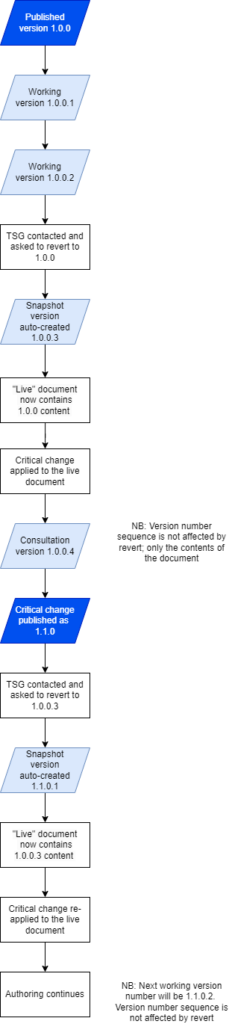
For example, the previous scenario would have played out as below with the revert functionality:
- You have a published document with a number of changes in development
- You are asked to publish a critical change to existing document as soon as possible
- You contact TSG and ask for your document to be “reverted” to the previous published state
- TSG complete the revert process; a snapshot of the current document is automatically generated as a new version prior to the revert.
- You make the critical change and follow the normal processes to get the updated document published as soon as possible
- Following publication, you contact TSG again and ask for your document to be reverted to the snapshot that was previously automatically generated
- You reapply the critical change to the live document – that change will have been lost as a result of the revert.
- You complete the changes that you had originally been working on in line with the Standards Governance Process.
The figure below depicts the above with a focus on the version numbering applied within CARS. NB the version number sequence is not affected by the revert process; it increments following normal rules.
Who can use the revert function?
Only CARS users with the “Document ‘Reverter'” role can use this feature. The role is only assigned to select members of the Technical Standards Group (TSG). Role assignments are also managed by TSG.
Back to topHow do I request my document to be reverted?
Simply email the Technical Standards Group (TSG) via Standards_Enquiries@nationalhighways.co.uk with the following details to request a revert:
- Document code and title
- Reason for revert request
- Previous CARS document version to be reverted to
The email should come from the Lead Author for the document or include evidence of their approval of the request.
A TSG team member will contact you before the revert request is actioned.
Back to topHow is background commentary affected by a revert?
If the document is reverted to a published version, all background commentary will be cleared, reflecting the state in CARS as if the document had just been published. This helps authors to focus on the urgent changes required and to only have to provide background commentary for the new changes made.
If the document is reverted to a non-published version, the background commentary throughout the document will be as it was when that version was created.
Back to topHow are discussions and associated comments affected by a revert?
Unlike background commentary; discussions and associated comments are retained as they are and not affected by the revert process. This could lead to some confusion if not fully understood and is explained further by the scenario below.
- You have a published document with a single section and 3 clauses: 1.1, 1.2 and 1.3
- You have been working on changes to the document and had added clauses 1.4 and 1.5
- Both of the new clauses have several discussions with comments against them
- An urgent request comes in to update clause 1.2. The new clauses are nowhere near ready to be published yet
- You contact TSG to have the document reverted to the published version
- Looking at the current live document you would see:
- Only clauses 1.1, 1.2 and 1.3 as they were when last published
- Looking at the discussions report, there is no mention of the discussions previously captured against 1.4. and 1.5. This is not because the discussions have been rolled back; it is because clauses 1.4 and 1.5 do not exist for the discussions to be included in the report.
- You make changes to clause 1.2 and receive various discussions and comments as part of the consultation process ahead of publication.
- Having closed out all comments and published the document, to ask TSG to revert to the automatically generated snapshot created as part of step 5 above.
- Looking at the current live document you would see:
- Clause 1.2 content as it was before the initial revert (with 1.4 and 1.5 present again)
- The discussions and comments against clause 1.2 will reflect everything that happened during the critical update actions above. You can re-apply the changes exactly as done before and audit trail of review against that change has not been lost.
- The discussions and comments against clauses 1.4 and 1.5 are once against visible. This is because there are valid clauses for them to be displayed against.
It can be quickly seen that comments could get confusing as a result of using the revert functionality. It is recommended that authors attempt to close out comments as much as possible before any revert action be undertaken.
Back to topGuidance for Document “Reverters”
As a TSG Document “Reverter”, how do I revert to a previous version?
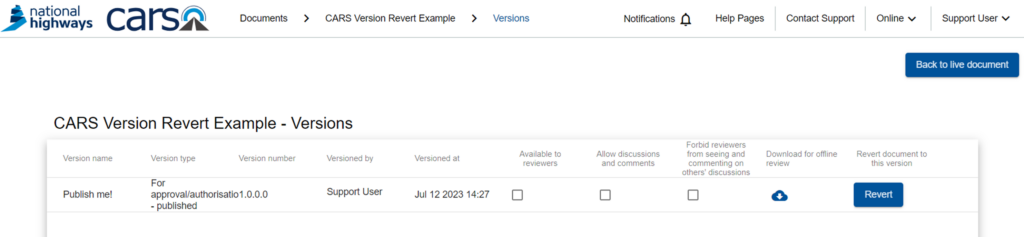
CARS users with the Document “Reverter” role will have an additional option displayed against each of the items in the documents Versions list.
Follow the steps below to revert a document:
- Access CARS
- Navigate to the document to be reverted
- Within the document navigation pane, open the Document Information options menu (the 3 dots next to navigation item)
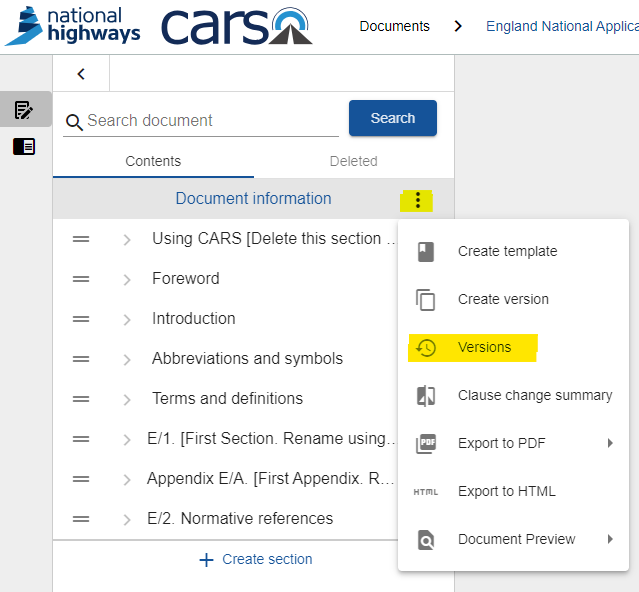
- Click “Versions” to see all versions created for the document
- Within the Versions list, locate the version to be reverted to
- Click the relevant “Revert” button next to the version to be reverted to
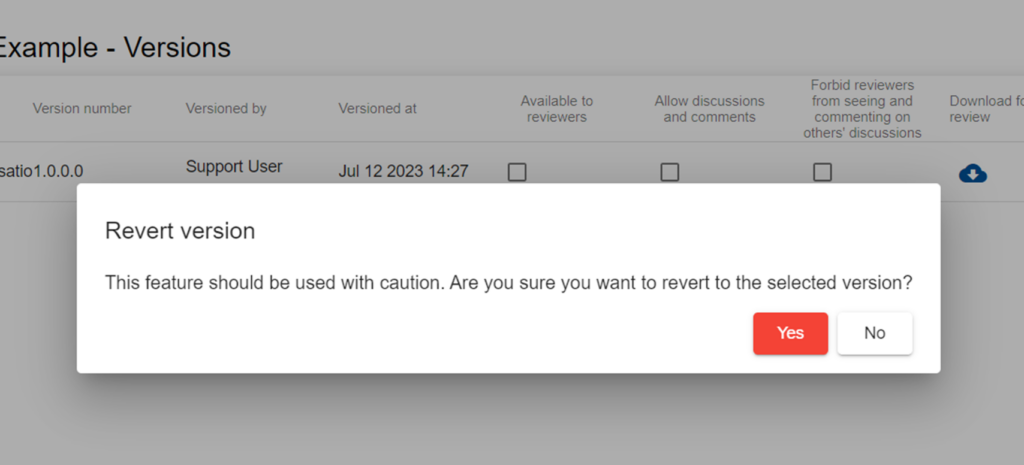
- Upon clicking “Revert” a modal will be displayed prompting for confirmation to continue with the revert. Click “Yes” to proceed.
- A new version will be automatically generated to capture the current live document contents prior to the revert. The title of the auto generated version clearly indicates that it was created by the system as part of a revert to a previous state
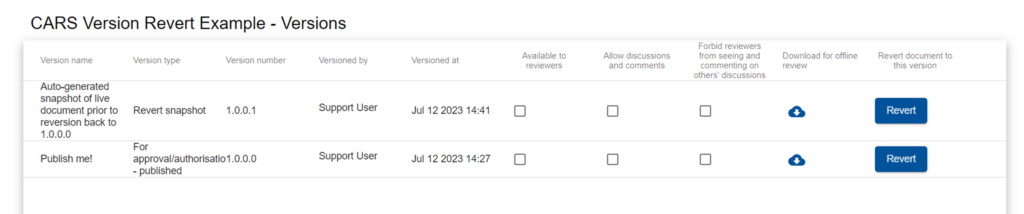
- Finally, simply return to the live document. The contents will reflect those as of the version that has been reverted to.
Can a revert be undone?
No, a revert cannot but undone in the traditional sense of the action, but the document could be reverted to the snapshot that was automatically generated as part of the initial revert.
Back to top