
Contents
Online feedback form
About the form
The online feedback form is publicly available, open to anyone. It can be accessed using the link below:
… or by scanning the QR code also provided below:

The form uses branching logic to only request relevant information based on the type of feedback being submitted. The form has been designed to make it as straight forward as possible to submit feedback, whilst prompting for sufficient detail to be able to review and act upon any submissions received.
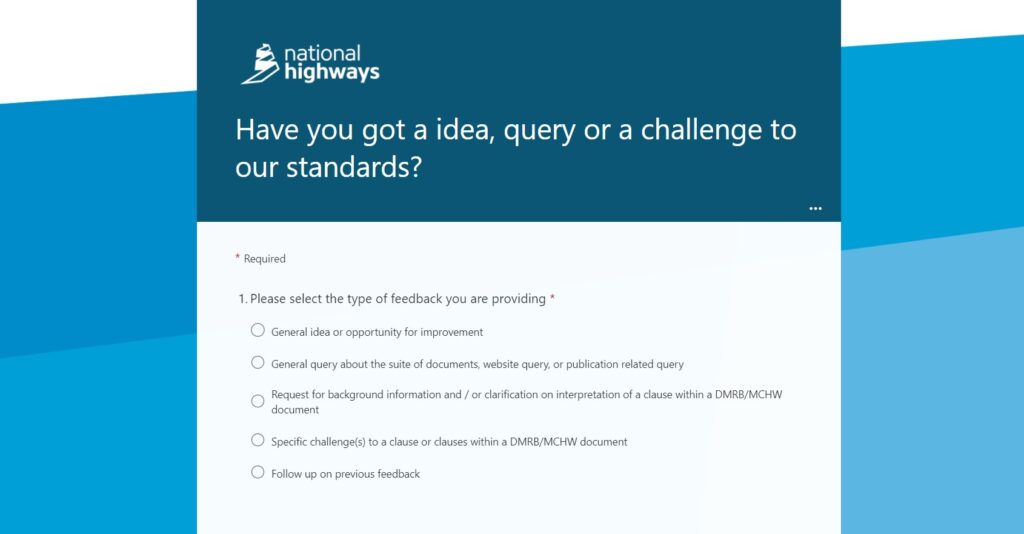
Feedback types
The 5 types of feedback that the form offers are:
- General idea or opportunity for improvement
- General query about the suite of documents, website query, or publication related query
- Request for background information and / or clarification on interpretation of a clause within a DMRB/MCHW document
- Specific challenge(s) to a clause or clauses within a DMRB/MCHW document
- Follow up on previous feedback
The information required by each of these types of feedback is as below.
Back to topGeneral idea or opportunity for improvement
Please note that the standard questions outlined here are applicable to all feedback types and in addition to the type specific questions below.
| Question | Guidance |
|---|---|
| Please provide details of the general idea you’d like to share | Text should be entered outlining the idea being submitted. Only plain text can be provided, there is no option to provide attachments. If critical these could be included by providing a link to a third party file sharing service. |
General query about the suite of documents, website query, or publication related query
Please note that the standard questions outlined here are applicable to all feedback types and in addition to the type specific questions below.
| Question | Guidance |
|---|---|
| Please provide details of your general query about the suite of documents, website query, or publication related query | Text should be entered outlining the query being submitted. Only plain text can be provided, there is no option to provide attachments. If critical these could be included by providing a link to a third party file sharing service. |
Request for background information and / or clarification on interpretation of a clause within a DMRB/MCHW document
Please note that the standard questions outlined here are applicable to all feedback types and in addition to the type specific questions below.
| Question | Guidance |
|---|---|
| Which document suite does your request relate to? | Select from options of DMRB, MCHW or Other. If Other is selected, please specify the name of the suite in the text field provided. |
| [if DMRB] Please select the relevant group for the DMRB standard your request relates to – or – [if MCHW] Please select which MCHW Volume your request relates to – or – [if Other – no question] | Depending on the document suite selected; select the relevant group or Volume to filter the subsequent document list. This information is not requested if ‘Other’ was selected as a document suite. |
| [if DMRB] Which DMRB standard does your request relate to? – or – [if MCHW] Which MCHW Volume [#] document does your request relate to – or – [if Other] Which document in the other suite does your request relate to? | For DMRB or MCHW suites, the documents listed will be based on previous answers. All current documents will be available for selection, however an ‘Other’ option is provided at the bottom of the list if required. For ‘Other’ document suites; simply enter the document code (i.e. reference number) , or document title if it does not have a code. |
| Which clause/requirement does your request relate to? | Provide the clause number that the request relates to; the field accepts freeform text so multiple clauses, or sections can be referenced if necessary. |
| Please provide details of the information you are requesting | Text should be entered outlining the request being submitted. Only plain text can be provided, there is no option to provide attachments. If critical these could be included by providing a link to a third party file sharing service. |
Specific challenge(s) to a clause or clauses within a DMRB/MCHW document
Please note that the standard questions outlined here are applicable to all feedback types and in addition to the type specific questions below.
| Question | Guidance |
|---|---|
| Which document suite does your request relate to? | Select from options of DMRB, MCHW or Other. If Other is selected, please specify the name of the suite in the text field provided. |
| [if DMRB] Please select the relevant group for the DMRB standard your request relates to – or – [if MCHW] Please select which MCHW Volume your request relates to – or – [if Other – no question] | Depending on the document suite selected; select the relevant group or Volume to filter the subsequent document list. This information is not requested if ‘Other’ was selected as a document suite. |
| [if DMRB] Which DMRB standard does your request relate to? – or – [if MCHW] Which MCHW Volume [#] document does your request relate to – or – [if Other] Which document in the other suite does your request relate to? | For DMRB or MCHW suites, the documents listed will be based on previous answers. All current documents will be available for selection, however an ‘Other’ option is provided at the bottom of the list if required. For ‘Other’ document suites; simply enter the document code (i.e. reference number) , or document title if it does not have a code. |
| Which clause/requirement does your request relate to? | Provide the clause number that the request relates to. The field accepts freeform text so multiple clauses, or sections can be referenced if necessary. |
| Please enter any other associated documents your query challenge to (optional) | Optionally – provide details of other documents (and relevant clauses) related to the challenge. The field accepts freeform text so multiple additional documents can be referenced if necessary. |
| What is the nature of your challenge? | The following options are provided with checkboxes alongside. Multiple items can be selected. All relevant items should be selected. – Suspected error in a clause – Gaps in the content – Inconsistencies between documents – Content does not reflect latest European, UK and national legislation or standards – Content does not reflect latest practice (e.g. in design, construction, operation) – Opportunities to harmonise content with other client organisations – Opportunities to add outcomes from research and development – Opportunities for innovation and improvement – Opportunities to add alternative approaches – Other If ‘Other’ is selected then a freeform text field will be provided for the user to enter the desired text. |
| Please provide details of what specifically is being challenged | Text should be entered outlining the challenge being submitted. Only plain text can be provided, there is no option to provide attachments. If critical these could be included by providing a link to a third party file sharing service. |
| Please provide details as to how the standard should be amended/updated (optional) | Optionally – text can be entered outlining suggested amendments/updates. Only plain text can be provided, there is no option to provide attachments. If critical these could be included by providing a link to a third party file sharing service. |
| What would be the key benefits of the proposal? (optional) | Optionally – text can be entered outlining the key benefits of the proposed change. Only plain text can be provided, there is no option to provide attachments. If critical these could be included by providing a link to a third party file sharing service. |
| Please outline any assumptions, risks, issues or dependencies associated with your challenge (optional) | Optionally – text can be entered outlining assumptions, risks, issues or dependency associated with the challenge. Only plain text can be provided, there is no option to provide attachments. If critical these could be included by providing a link to a third party file sharing service. |
Follow up on previous feedback
Please note that unlike the other feedback types, this option does not require the standard question to be answered in addition to the type specific questions below.
| Question | Guidance |
|---|---|
| Please provide the feedback reference you were provided in response to your original feedback | The feedback reference will be similar to “SRP-####”. It is provided within the acknowledgement email sent on receipt of the original feedback. Please note that if the original feedback was provided anonymously then no acknowledgement email can be sent and as such the originator will not have a reference number. |
| Please provide details of your follow up | Comments provided will added to the original feedback item. The contact details originally provided will be used for any response; if these need to be updated, details should be provided in the response to this question. |
Standard questions applicable to all types of feedback
The following questions are presented at the end of the form for all feedback types.
| Question | Guidance |
|---|---|
| Do you want to provide your feedback anonymously? | Feedback can be provided anonymously. If no contact details are provided then it will not be possible to acknowledge or respond to the feedback. |
| [If Yes] Your name | The name of the feedback originator, if electing not to submit anonymously. |
| [If Yes] Your company/organisation | The originator’s company/organisation, if electing not to submit anonymously. |
| [If Yes] Your role within your company/organisation | The originator’s role within their company/organisation, if electing not to submit anonymously. |
| [If Yes] Your email address (we will only use this to respond to your feedback) | The originator’s email address, if electing not to submit anonymously. This email address will be used to send acknowledgement of the feedback and to provide a response following initial review. |
| [If Yes] Scope of your feedback | If not electing to submit anonymously, the originator is asked to confirm if they are feeding back on behalf of their organisation, or as an individual. |
| Are you submitting your feedback as a result of a lessons learnt process and do you agree for a copy to be sent to National Highways’ Knowledge Management programme? | The National Highways’ Knowledge Management programme require a copy any feedback submissions where they have arisen from their lessons learnt process. Selecting ‘Yes’ for this question will automatically email them a summary of the feedback and any action taken once the feedback item is closed out. |
| Should this feedback be treated as confidential? | This option is provided to allow the feedback originator to flag if the submission should be treated as confidential. Such scenarios are expected to be rare. |
| [If Yes] Please provide further details as to why your feedback is confidential | In the rare scenarios when feedback has been flagged as confidential; justification needs to be provided. |
What happens once the form is submitted?
Once a feedback form is submitted, an automated process either creates a new feedback item within Jira, or adds a comment to an existing feedback item. The flow diagram below provides details of the automated process.
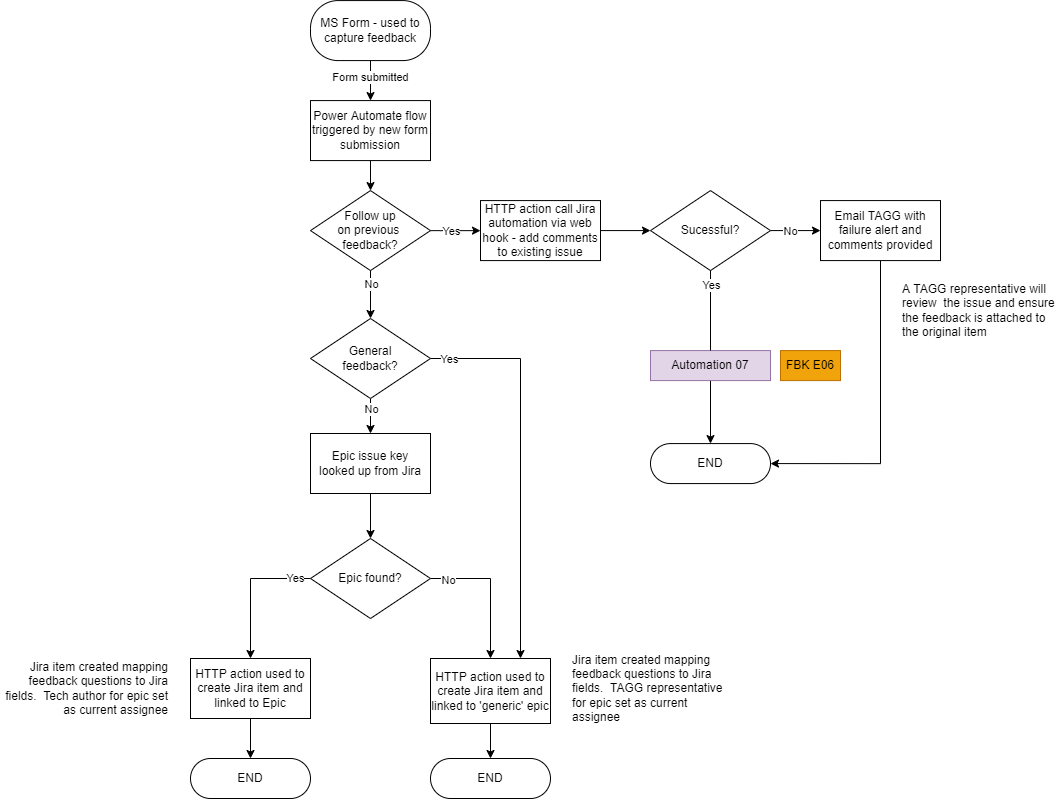
Upon creation of a new feedback item within Jira, the feedback originator (if they elected to not provide the feedback anonymously) will be sent an acknowledgement email providing a reference number for their submission.
At the same time, a email will be sent to the feedback item assignee. This will either be the Technical Author of the associated document (cc’d to the Technical Standards Committee chair), or to the National Highways’ Technical Standards Group (TSG) for general enquiries or where document codes could not be correctly associated.
Back to topManaging feedback items in Jira
Jira is already used for programme management of all DMRB and MCHW document development activities.
As part of the implementation of the Document Maintenance Process (launched in March 2022), all feedback on standards is recorded within Jira. Whenever possible, feedback is directly linked to the Jira DMRB or MCHW document record; helping Technical Standards Committees to ensure that feedback is reviewed in a timely manner and that any changes necessary are made to documents based on an assessment of priority – as outlined by the Document Maintenance Process.
Back to topThe Jira feedback item
All feedback items in Jira, irrespective of the type of feedback have the same fields and workflow. Please note – this means that some fields may not be populated, depending on the type of feedback.
The image below shows a typical feedback item, and highlights the main regions of the item’s layout.
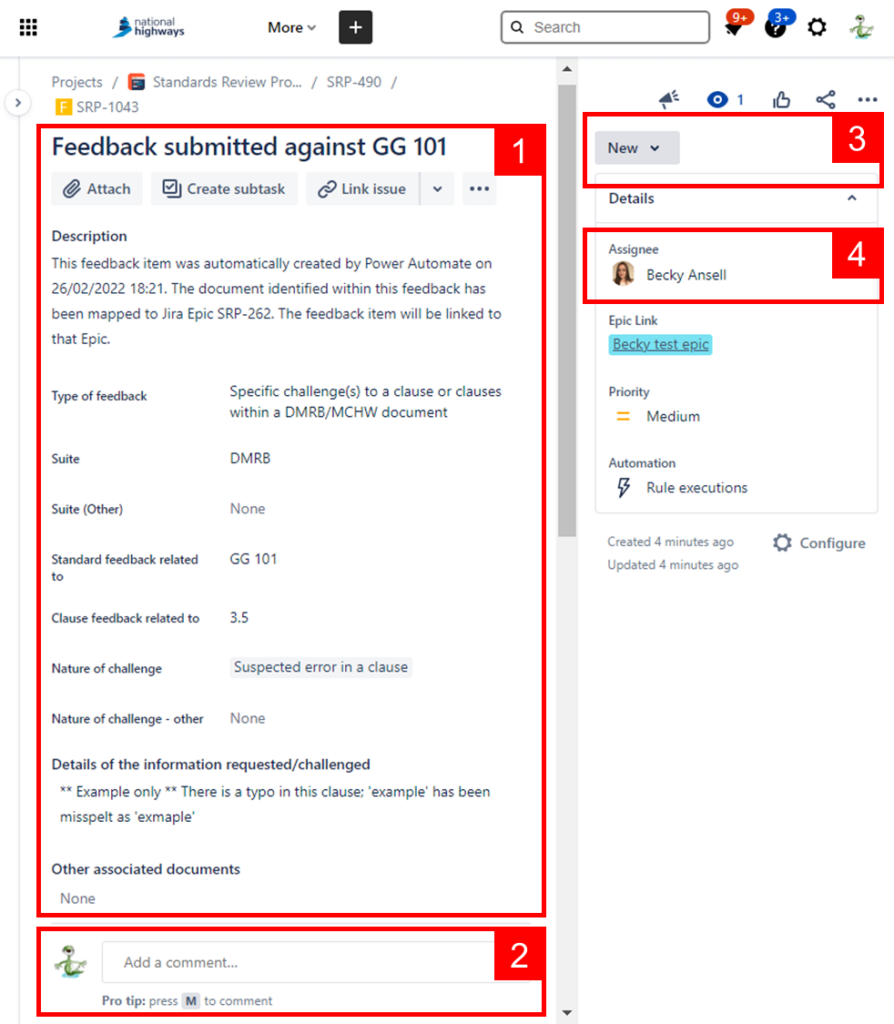
The regions highlighted above are:
- Core feedback item details. The description is automatically generated and summarises when the item was created and document that was linked as part of the creation. All fields presented are read only and can only be updated by TSG. NB – not all fields are shown in the screen shot above, more are available by scrolling down the form.
- Comments. Comments can be added against the Jira feedback item at any time and by anyone who has access to the Standards Review Programme (SRP) Jira project. NB no email alerts are automatically sent when a comment is added. Specific colleagues can be notified of a comment being added by using ‘@ mentions’. To use this, simply type ‘@’ within the comment body and they start typing a colleagues name; matching results will be shown, click on the name you wish to ‘@ mention’. Upon saving the comment, the colleague identified above will receive an email advising them they have been mentioned within a comment.
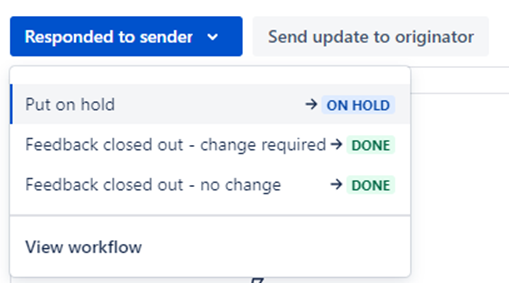
- Transitions. The current workflow state of the feedback item is shown with a dropdown arrow alongside. Clicking on the workflow state will list all available transitions, i.e. the options available to progress, or pass back, the feedback item. See the next section of this help page for more information the workflow and transitions. Please note that transitions that do not change the state of the feedback item are shown as separate buttons, such as the ‘Send update to originator’ option in the screenshot below.
- Assignee. This section confirms who the current assignee for the feedback item is, and can be used to change the assignee. The named assignee is the person responsible for completing the next action on the feedback item.
Jira workflow
An overview of the workflow applied to Jira feedback items is shown below. Items created and linked to DMRB or MCHW documents start in the workflow state of ‘New’; items that have been linked to the ‘generic’ Jira item start in the workflow state of ‘Triage’ – ready for TSG to review and assign as required.
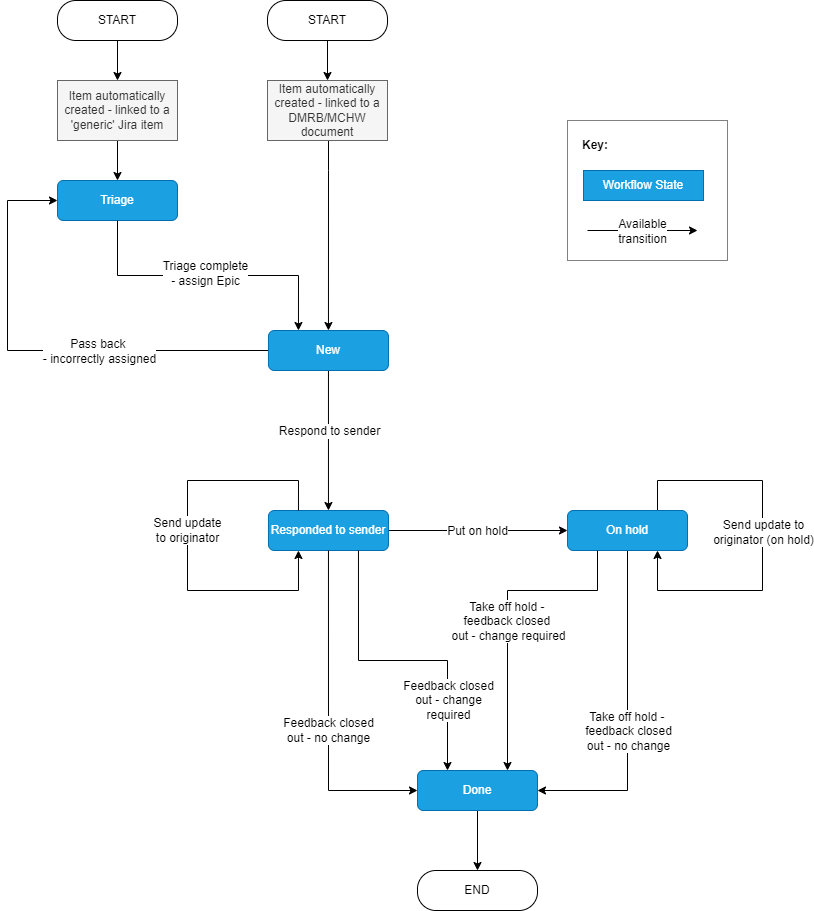
* Feedback items that required changes to a document can be marked as closed once they have been incorporated into a future release of a document; they do not need to wait until the updated document is published.
Back to topJira workflow states
Below is a summary of each workflow state and the transitions available when in that state.
Workflow state: Triage
This is the workflow state assigned to a Jira feedback item upon creation when the feedback is either a general idea/query, or when the specified document could not be linked to a Jira document item (referred to as an ‘Epic’ within the system). This state is also used when a feedback item is ‘passed back’ from the ‘New’ state if the Technical Author or Technical Standards Committee chair believes that the item has been incorrectly assigned against one of their documents.
Please note that TSG representatives have the option to transition a feedback item in any other state to the ‘Triage’ state at anytime for administration purposes.
Available transitions from this state:
- Triage complete – assign Epic: This transition is used to either associate another document with the feedback item, or confirm that the feedback is a general idea or query. A parent document (referred to as an ‘Epic’ within the system) and a comment must be provided when using this transition; the feedback item will move to the ‘New’ state.
Workflow state: New
This workflow state represents that feedback item has been associated with a document, or confirmed to be a general idea/query, and has an owner assigned. The assignee will typically be a Technical Author for DMRB/MCHW documents, or TSG members for general queries/ideas. Whilst there is no formal SLA to move from this state to the next by responding to the sender; assignees are encouraged to do so as soon as possible.
Available transitions from this state:
- Pass back – incorrectly assigned: This transition is used to pass the feedback item back to TSG when it is believed to have been incorrectly assigned to a document. A comment must be provided when using this transition. The feedback item is moved to the ‘Triage’ state and assigned to TSG as a result.
- Respond to sender: Responding to the feedback originator is a key requirement of the process and should be done following an initial review of the feedback. A final decision on the need for any change to the associated document(s) is not required before responding to the user – for example, the decision may be to review in detail as part of a upcoming document review. A comment must be provided when using this transition and the comment provided will be included in an email to the feedback originator, if not provided anonymously. Any email sent to the feedback originator is sent from a no-reply email address (‘no-reply@automation.atlassian.com’) with a display name of ‘National Highways – Safety, Engineering & Standards’.
Workflow state: Responded to sender
The feedback item is in this state once it has been initially reviewed and a response sent to the feedback originator. If the review of the feedback item has already concluded that a change is required, the amendments should be incorporated into an existing ‘Change ABCD’ item, or a new ‘Change ABCD’ item should be created. Once the feedback has been incorporated into a ‘Change ABCD’ item, or it was concluded that no change is required, it can be closed out. If a final decision on the feedback item cannot be made, the item should be put ‘on hold’.
Available transitions from this state:
- Send update to originator: This transition is used to send an updated response by email to the feedback originator, if not submitted anonymously. A comment must be provided when using this transition. The feedback item’s workflow state is not changed. Any email sent to the feedback originator is sent from a no-reply email address (‘no-reply@automation.atlassian.com’) with a display name of ‘National Highways – Safety, Engineering & Standards’.
- Put on hold: Use this transition to record the feedback to be addressed at a later date (i.e. as part of a document review). A comment and ‘reason for hold’ must be provided when using this transition; the feedback item will move to the ‘On hold’ state. Available reasons for putting on hold are:
– Requires major policy change – to be incorporated into a change
– Requires change to requirement(s) – to be incorporated into a change
– Requires change to advice / editorial change – to be incorporated into a change
– To be covered as part of document review - Feedback closed out – no change: Use this transition to record that the feedback has been reviewed and no changes are required to any document. A comment must be provided when using this transition; the feedback item will move to the ‘Done”. The ‘feedback outcome’ will be automatically recorded as ‘No change is needed’.
- Feedback closed out – change required: Use this transition to record that the feedback has been reviewed and that changes are required. A comment, a ‘feedback outcome’ and a ‘link to the Change ABCD item’ must be provided when using this transition; the feedback item will move to the ‘Done”. Valid available reasons for ‘feedback outcome’ are:
– Requires major policy change – Incorporated into a change (record change number)
– Requires change to requirement(s) – incorporated into a change (record change number)
– Requires change to advice / editorial change – incorporated into a change (record change number)
(NB ‘No change is needed’ is also listed within the dropdown provided but it is not valid for this transition)
Workflow state: On hold
This state reflects that the feedback item is on hold, either pending a decision to be made on action to be taken, or waiting to be incorporated into a future change. Once the feedback has been incorporated into a ‘Change ABCD’ item, or it was concluded that no change is required, it can be closed out.
Available transitions from this state:
- Send update to originator (on hold): This transition is used to send an updated response by email to the feedback originator, if not submitted anonymously. A comment must be provided when using this transition. The feedback item’s workflow state is not changed. Any email sent to the feedback originator is sent from a no-reply email address (‘no-reply@automation.atlassian.com’) with a display name of ‘National Highways – Safety, Engineering & Standards’.
- Take off hold – feedback closed out – no change: Use this transition to take the feedback item off hold and record that the feedback has been reviewed and no changes are required to any document. A comment must be provided when using this transition; the feedback item will move to the ‘Done”. The ‘feedback outcome’ will be automatically recorded as ‘No change is needed’.
- Take off hold – feedback closed out – change required: Use this transition to take the feedback item off hold and record that the feedback has been reviewed and that changes are required. A comment, a ‘feedback outcome’ and a ‘link to the Change ABCD item’ must be provided when using this transition; the feedback item will move to the ‘Done”. Valid available reasons for ‘feedback outcome’ are:
– Requires major policy change – Incorporated into a change (record change number)
– Requires change to requirement(s) – incorporated into a change (record change number)
– Requires change to advice / editorial change – incorporated into a change (record change number)
(NB ‘No change is needed’ is also listed within the dropdown provided but it is not valid for this transition)
Workflow state: Done
This is the final workflow state for a feedback item and represents that it has been closed out. Feedback items that require changes to a document can be closed out once they have been planned into a future update of a document – i.e. referenced within a ‘Change ABCD’ scope – they do not need to wait until the document is published.
Available transitions from this state:
- There are no transitions available from this state. NB TSG do have the ability to revert the feedback item back to a Triage state if required.