Contents
Background
In order to be able to publish accessible documents to meet the needs of all users in line with accessibility regulations, the DMRB shall progressively be published in HTML format from mid-2022. This means that all figures within CARS authored documents require alternative text.
Alternative text is a textual substitute for non-text content in web pages.
Alternative text serves several functions:
- Screen readers announce alternative text in place of images, helping users with visual or certain cognitive disabilities perceive the content and function of the images.
- If an image fails to load or the user has blocked images, the browser will present the alternative text visually in place of the image.
- Search engines use alternative text and factor it into their assessment of the page purpose and content.
For further guidance and examples of how to write alternative text, please see this page.
As of 19th May 2022, functionality has been provided in CARS to facilitate the addition of alternative text (also known as ‘alt-text’).
Alternative text validation
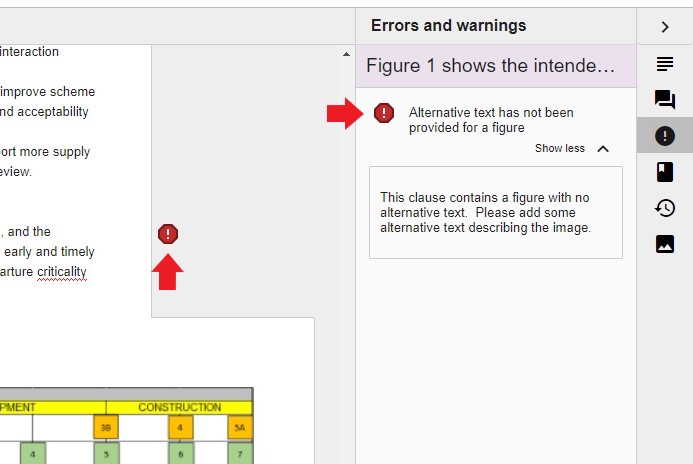
Clauses that contain figures which do not have alternative text provided will show a validation error: “Alternative text has not been provided for a figure” – “This clause contains a figure with no alternative text. Please add some alternative text describing the image.”
This validation error is also reflected within the document health check available to CARS lead authors.
Adding/updating alternative text
Adding and updating alternative text is very simple, follow the steps outlined below:
- Within a CARS document, open a section which contains figures.
- Click on the figure.
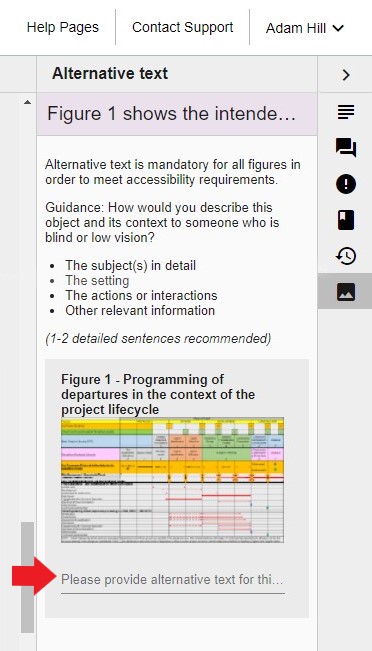
- Within the right-hand sidebar, click on the ‘Alternative text’ icon; the Alternative text side pane will open.
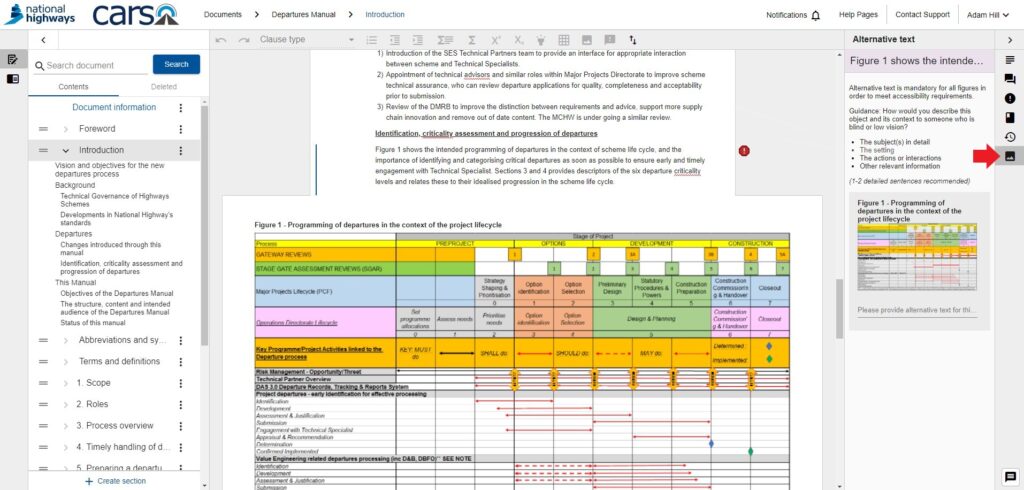
- A smaller representation of each figure within the current clause will be shown within the side panel; underneath each figure representation, a text field is provided to enter the alternative text.
- Add/update the alternative text as required – basic guidance is provided at the top of the side panel. The text field will automatically expand as required.