
Contents
Section references
Please note that currently section references are only available in the MCHW document suite.
‘Section references’ are used to reference a section within either the same or another MCHW document. The reference created is ‘linked’ to the target section; enabling automated updates of the referenced section index and title, and document code and title if they are modified. Validation errors are also provided if the target section is deleted.
Discussions with the authors of the referenced document should be undertaken to ensure that requirements are grouped in such a way that they can be referenced.
Back to topAdding a section reference
Only the section reference standard format requirements (SFRs) shall be used to reference between sections, either of the same document or another.
Simply click on the ‘Insert standard format requirement’ icon ( ) in the menu bar and select one of the following options to be inserted into your document. Click here for more information on standard format requirements.
Section reference (single):
<Subject of requirement> shall <comply with/compliance action or description> <section reference>.
Section reference (multiple):
<Subject of requirement> shall <comply with/compliance action or description> one of the following options: <multiple section references>.
Once the SFR has been inserted into the document the first two user input regions can be completed as required by entering text. To define the section reference(s), hover your mouse over the ‘<section reference>’ or ‘<multiple section references>’ input region and click on the ‘Change reference‘ buttons shown.

Clicking the ‘Change reference‘ button provided will load the ‘Section/WSR references‘ side pane for the current clause. Please note that if the side pane is already open for the current clause then the button will be disabled.
Back to topSelecting a document to reference

The ‘Section/WSR references‘ side pane confirms the currently selected clause at the top, showing the clause’s index number and the first few words of content.
The ‘Select a document‘ field can be clicked on to list MCHW documents available for selection, or you can type in text to filter the documents returned in the listing.
Once you have found the document you wish to reference, click on the entry in the drop down list. The selected document’s code (if set) and title will be shown in the dropdown field and the sections available to reference within the document will be listed below.
The following text will also be shown below the selected document: “The Technical Author for this document is [Name of Technical Author, or ‘Unknown User’ if not available], please contact them for Reviewer access if you would like to read the section referenced.” The name of the Technical Author is provided to facilitate discussion with them to ensure that requirements are grouped in such a way that they can be referenced. If the name is unknown, please contact TSG for further assistance – standards_enquiries@nationalhighways.co.uk
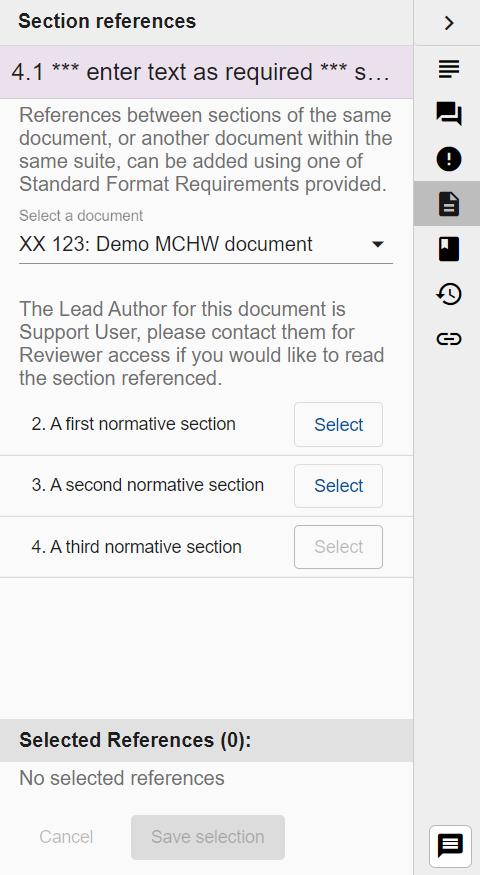
‘Select‘ buttons are provided for each section available within the selected document.
Please note, automatically generated normative and informative reference sections are not included for selection. Furthermore, when the current document is selected, the current section is automatically disabled from selection as shown in the screenshot alongside.
Back to top
Selecting sections to reference
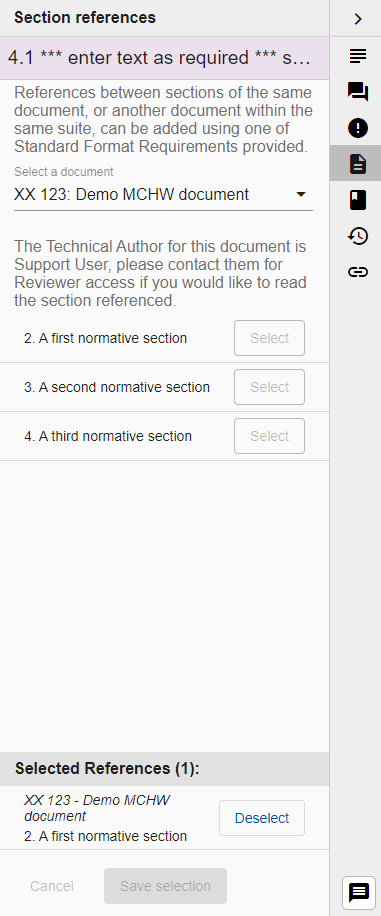
Clicking the ‘Select‘ button will add the respective section to the ‘Selected References‘ list at the bottom of the side pane. The document code and title, and section index and title are shown to confirm the selection(s) made.
If the ‘Section reference (single)‘ SFR was selected, then only a single section can be added the to ‘Selected References‘ list, and all ‘Select‘ buttons will be disabled.
If the ‘Section reference (multiple)‘ SFR was selected, then many sections can be added the to ‘Selected References‘ list. The ‘Select‘ buttons for the current section (if the same document) and sections already selected will be disabled.
Click the ‘Save selection‘ button to add the selected references to the SFR. If, at any time, you do not want to save the changes, click the ‘Cancel‘ button to revert selections to their previous state.
Once your selection has been saved the SFR will be updated accordingly.
Automatic inclusion in the Normative references section
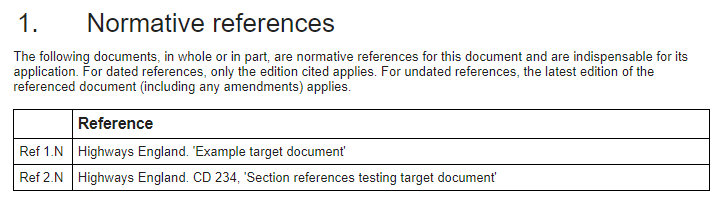
When a section reference to another document is added, the document is automatically added to the ‘Normative references‘ section and a unique reference (within the document only) is included within the SFR. Section references are always included as normative references as the SFR states that they shall be complied with (or words to that effect). See the below screenshots for examples of this automated feature.

Accessing referenced sections
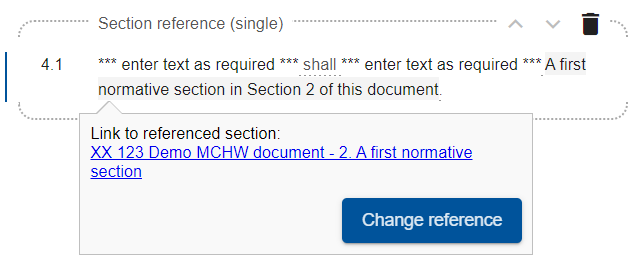
Hovering over the reference within the SFR will display a link to the referenced section. If the link relates to a section within the current document then clicking on the link will open the section in the current browser tab. If the link relates to a section within another document then the link will open a new browser tab.
Back to topUpdating section references
If you need to change the section(s) referenced within the SFR simply click on the section reference, then click the ‘Change reference‘ button provided. As highlighted above, the button will be disabled if the ‘Section references‘ side pane is already open for the selected clause.
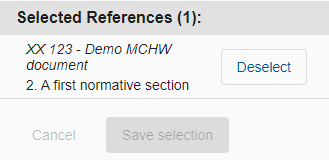
A ‘Deselect‘ button is provided alongside each of the currently selected section references. Please note that clicking the button does not prompt for confirmation; if you click the button in error, simply click the ‘Cancel‘ button provided to reset the selections to their current state as in the document.
Once the non-required sections have been removed you can add new ones as required following the steps as outlined previously on this page.
Back to topRefreshing section references
Section references added to a document do not automatically update. This avoids excessive load on the system.
Functionality however is provided to ‘Refresh section/WSR references‘. This feature checks the target documents of all sections references to validate whether:
- The section has been moved and hence re-indexed
- The section title has been changed
- The document code has been changed
- The document title has been changed
- The section has been deleted
This functionality is available on the ‘Document information page‘, as shown below.
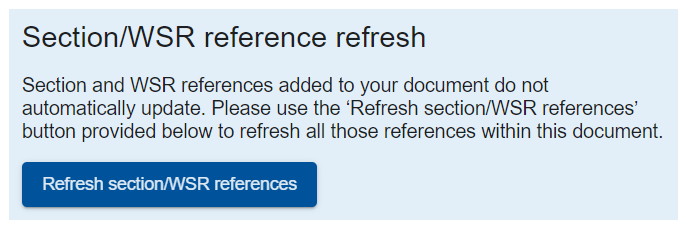
Clicking the ‘Refresh section/WSR references‘ button will start the process. A blue processing bar is display whilst the refresh is in progress. Once the process has completed a message will be displayed at the bottom of the page confirming that “Section/WSR references have been successfully updated”.
Any changes to the referenced section properties checked will be automatically updated in all respective SFRs in your document. If the section has been deleted then a validation error will be displayed. See the ‘Section references validation’ section on this page.
Back to topValidation of section references
Validation is built in to CARS to advise of any issues with section references.
Document health
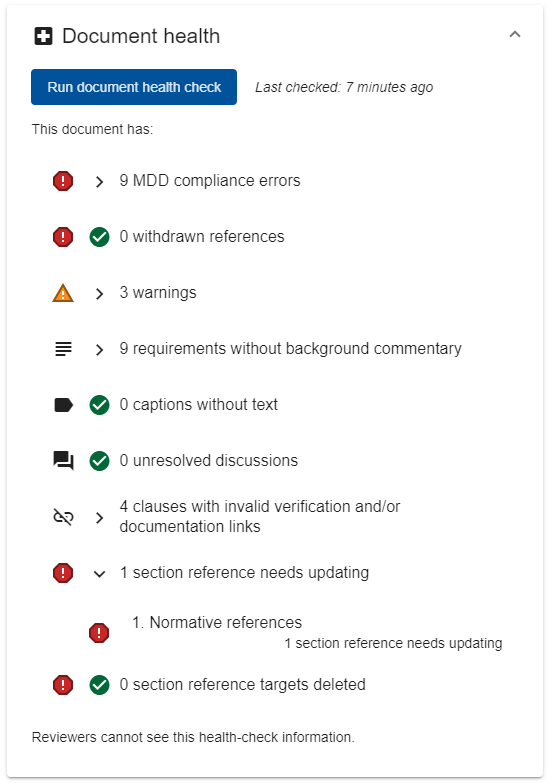
As a CARS document author, the first thing to do when checking for potential issues within your document is to run the Document health check. This feature is available (only to Lead Authors and Authors) on the Document information page. You can check your document at any time by clicking on the ‘Run document health check‘ button. The date of when the last check was performed is clearly shown for information.
In the example screenshot shown there is one section reference that needs to be updated because the document it targets has been changed. This first error category is checking if the target document has been updated since the reference was initially added, or since the last refresh was performed. This can include deletions of sections within the target document; please note that in this situation, the deleted section will not be flagged in the second error category – “# section reference targets deleted”; such errors are only flagged once the section references have been refresh.
Back to topValidation warnings
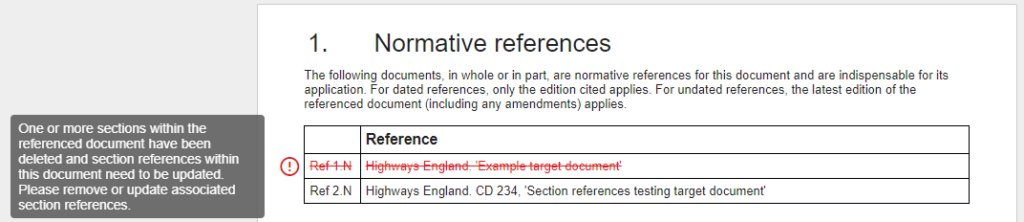
The validation warnings shown in the Document health check are also highlighted on the auto generated ‘Normative references‘ page as per the below screenshots.
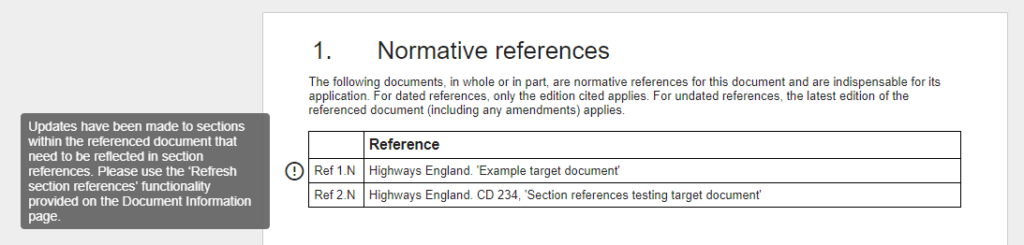
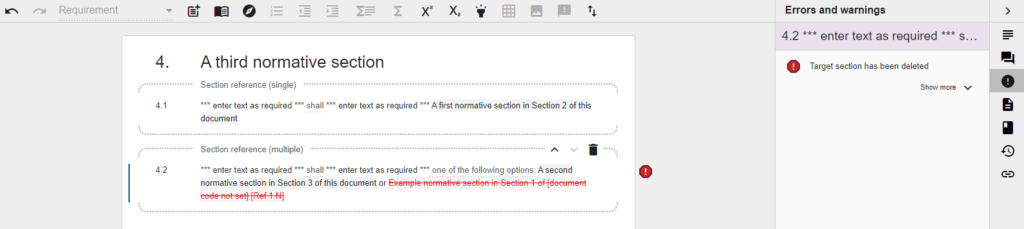
Similarly, the below shows a validation error where the target referenced section has been deleted.
Works specific references (WSR)
Please note that Works Specific References (WSR) are only applicable to MCHW documents.
Background
Within the contract, Constructors will be provided with the Works Specification. This comprises:
- the Specification for Highways Works (SHW), which is brought in by reference
- the Works Specific Requirements (WSR); formed from the relevant WSR documents as required by the scheme. The WSR documents will either be created using the WSR templates as published with the Instructions for Specifier (IfS) documents on the Standards for Highways website, or by using the Specifier Tool (for NH schemes only)
The contents of the WSR documents to be created by the specifier are defined by specifier instructions (SIs) – these are being authored by Technical Authors as part of the MCHW refresh programme. Upon publication, the SIs authored in CARS will be published alongside their respect constructor requirements in the IfS document. Published IfS documents will be accompanied by automatically generated open format WSR document templates – these spreadsheet documents will contain all of the SIs in a format that can be readily completed by the specifier.
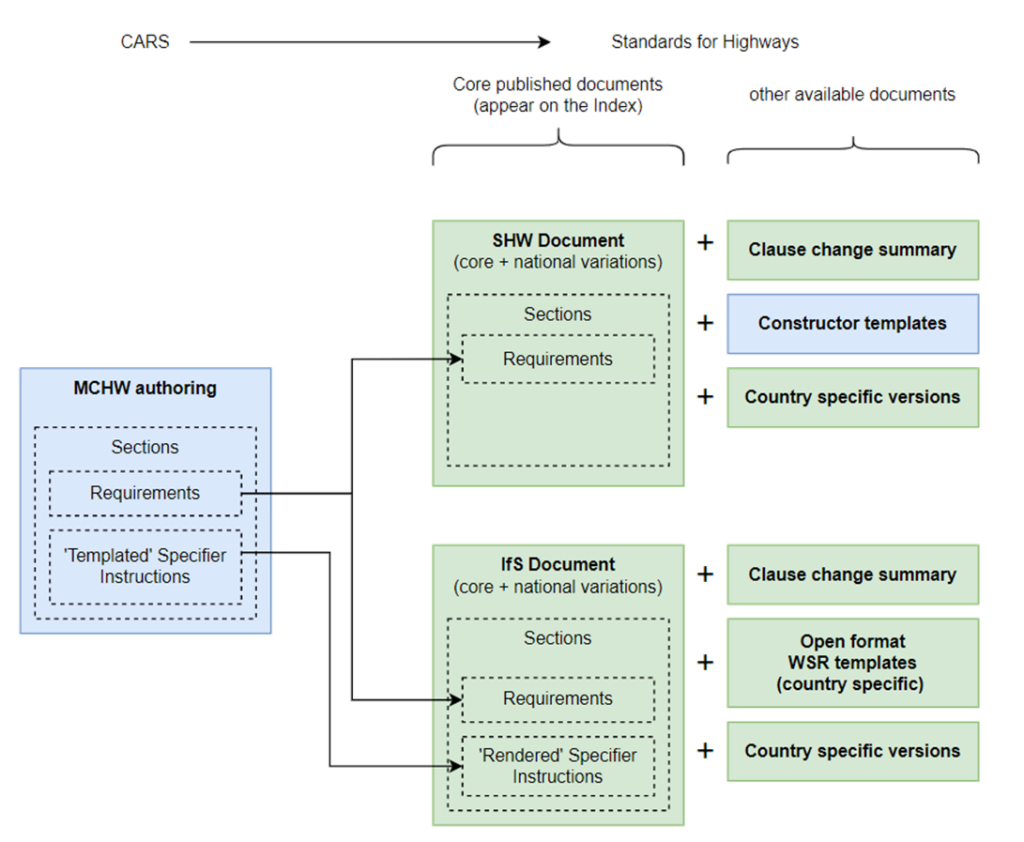
Each WSR document will map to one or many sections of an IfS (and by direct association SHW) document; this mapping is managed by the Technical Standards Group (TSG) in collaboration with the lead Technical Authors. The manual mapping process also defines the WSR document reference number. For example, an IfS document with a document code of CP 501 would have associated WSR documents with references of WSR 501/###, i.e. WSR 501/001.
The constructor requirements, published in the SHW documents, which require contract specific information to be defined within the WSRs shall direct the specifier to the relevant WSR document where then information shall be provided.
To make it as easy as possible for Technical Authors, WSR references within SFRs are set by selecting the MCHW document section which defines the required WSRs. The associated WSR document reference is then inserted based on the pre-defined mapping.
Back to topAdding a WSR reference
WSR references can only be inserted into WSR based standard format requirements (SFRs), for example the ‘Verification within WSR’ SFR. Simply click on the ‘Insert standard format requirement’ icon () in the menu bar and select one of the WSR base SFR options to insert it into your document.
The inserted SFR will contain a requirement with a ‘<WSR reference>’ input region, similar to the example shown below:
The frequency of <description of testing/inspection> shall be <input minimum frequency> unless otherwise state in <WSR reference>
To define the WSR reference, hover your mouse over the ‘<WSR reference>’ input region and click on the ‘Change reference‘ button.
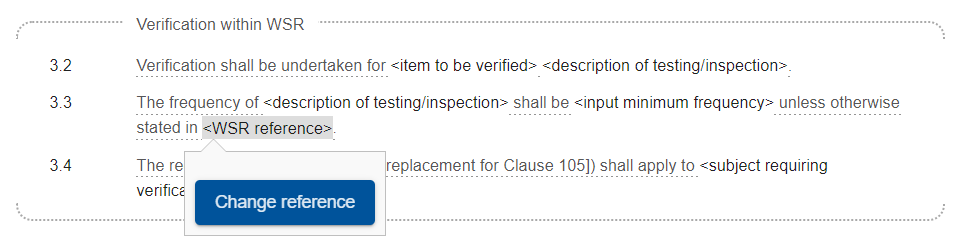
Clicking the ‘Change reference‘ button provided will load the ‘Section/WSR references‘ side pane for the current clause. Please note that if the side pane is already open for the current clause then the button will be disabled.
Back to topSelecting a WSR document to reference
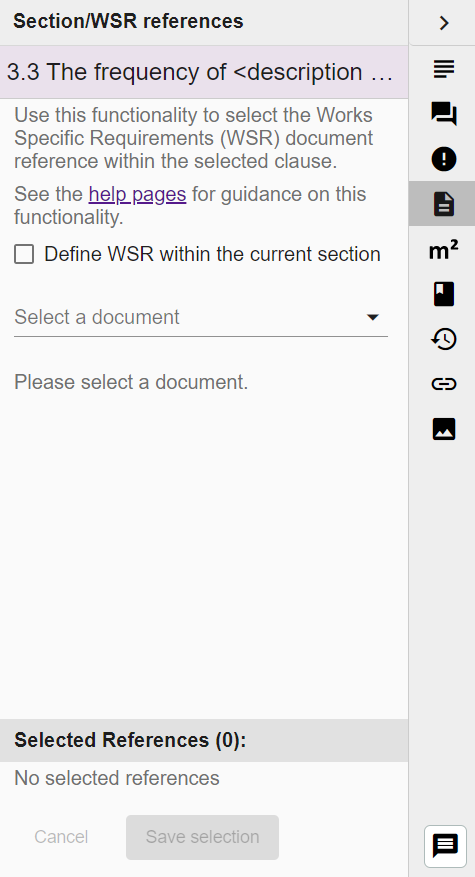
The ‘Section/WSR references‘ side pane confirms the currently selected clause at the top, showing the clause’s index number and the first few words of content.
If the WSRs to be referenced are defined within the current section, simply check the ‘Define WSR within the current section‘ checkbox.
NB You will receive an error if you try to check this box when there are no specifier instructions in the current section! This is a safety feature to ensure that only sections that contain SIs can be referenced.
If the WSRs to be referenced are within another section of the same document, or another MCHW document, the ‘Select a document‘ field can be clicked on to list MCHW documents available for selection, or you can type in text to filter the documents returned in the listing.
Once you have found the document you wish to reference, click on the entry in the drop down list. The selected document’s code (if set) and title will be shown in the dropdown field and the sections available to reference within the document will be listed below. Only sections that contain SIs will be enabled for selection as only these will have associated WSR documents.

‘Select‘ buttons are provided for each section with SIs available within the selected document.
Please note, automatically generated normative and informative reference sections are not included for selection as they cannot contain SIs.
Back to top
Selecting sections to set the WSR reference
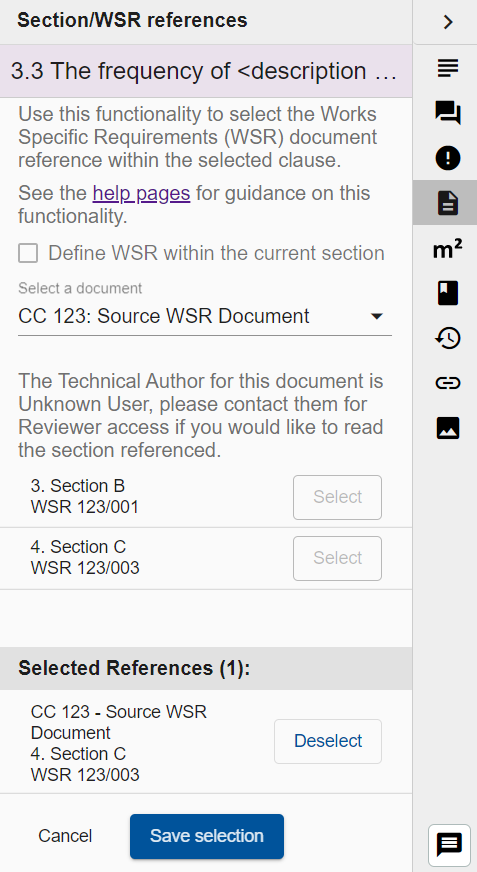
Clicking the ‘Select‘ button will add the respective section to the ‘Selected References‘ list at the bottom of the side pane. The document code and title, section index and title, and WSR reference number are shown to confirm the selection made.
Only a single section can be added the to ‘Selected References‘ list, and all other ‘Select‘ buttons will be disabled.
Click the ‘Save selection‘ button to insert the selected WSR reference to the SFR. If, at any time, you do not want to save the changes, click the ‘Cancel‘ button to revert selections to their previous state.
Once your selection has been saved the SFR will be updated accordingly.
Inclusion of WSR references in the Normative references section
When a WSR reference based on a section within another MCHW document is added, the document is NOT automatically added to the ‘Normative references’ section. WSR documents are contract specific and are only created by the specifier, and included within contract documentation, when required.
Back to topAccessing the sections that define the WSR
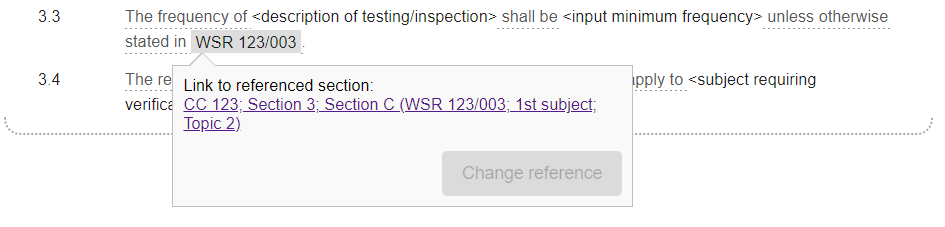
Hovering over the WSR reference within the SFR will display a link to the referenced MCHW section. The display text for the link confirms the target MCHW document, the section index and title, and the mapped subject, topic and reference number of the WSR document. If the link relates to a section within the current document then clicking on the link will open the section in the current browser tab. If the link relates to a section within another document then the link will open a new browser tab.
Back to topUpdating WSR references
If you need to change the MCHW section referenced within the SFR simply click on the WSR reference, then click the ‘Change reference‘ button provided. (The button will be disabled if the ‘Section references‘ side pane is already open for the selected clause.)
A ‘Deselect‘ button is provided alongside the currently selected reference. Please note that clicking the button does not prompt for confirmation; if you click the button in error, simply click the ‘Cancel‘ button provided to reset the selections to their current state as in the document.
Once deselected, you can add a new reference following the steps as outlined previously on this page.
Back to topRefreshing WSR references
WSR references added to a document do not automatically update. This avoids excessive load on the system.
Functionality however is provided to ‘Refresh section/WSR references‘. This feature checks the target documents of all WSR references to validate whether:
- The section has been moved and hence re-indexed
- The document code, and hence WSR reference, has been changed
- The WSR reference has been changed
- The section has been deleted
This functionality is available on the ‘Document information page‘, as shown below.
Clicking the ‘Refresh section/WSR references‘ button will start the process. A blue processing bar is display whilst the refresh is in progress. Once the process has completed a message will be displayed at the bottom of the page confirming that “Section/WSR references have been successfully updated”.
Any changes to the referenced section properties checked will be automatically updated in all respective SFRs in your document. If the section has been deleted then a validation error will be displayed. See the ‘Section references validation’ section on this page.
Back to topValidation of WSR references
Validation is built in to CARS to advise of any issues with WSR references.
Document health
As a CARS document author, the first thing to do when checking for potential issues within your document is to run the Document health check. This feature is available (only to Lead Authors and Authors) on the Document information page. You can check your document at any time by clicking on the ‘Run document health check‘ button. The date of when the last check was performed is clearly shown for information.
The document health clearly lists all issues present in the document. For WSR references this will include:
- Where MCHW sections have not been mapped correctly to an WSR document reference, subject and topic.
- Where WSR references have not be set within WSR based SFRs.
- Where the referenced sections that define the WSRs have been changed and associated references need to be refreshed.
- Where the referenced sections that define the WSRs have been deleted.