
Contents
Background
When a schedule based standard format requirement (SFR) is inserted into a MCHW document, the Technical Author has a selection of column defining specifier instructions (SI) to choose from. These outline the structure of the schedule to be completed by the Specifier within the relevant Works Specific Requirement (WSR) document.
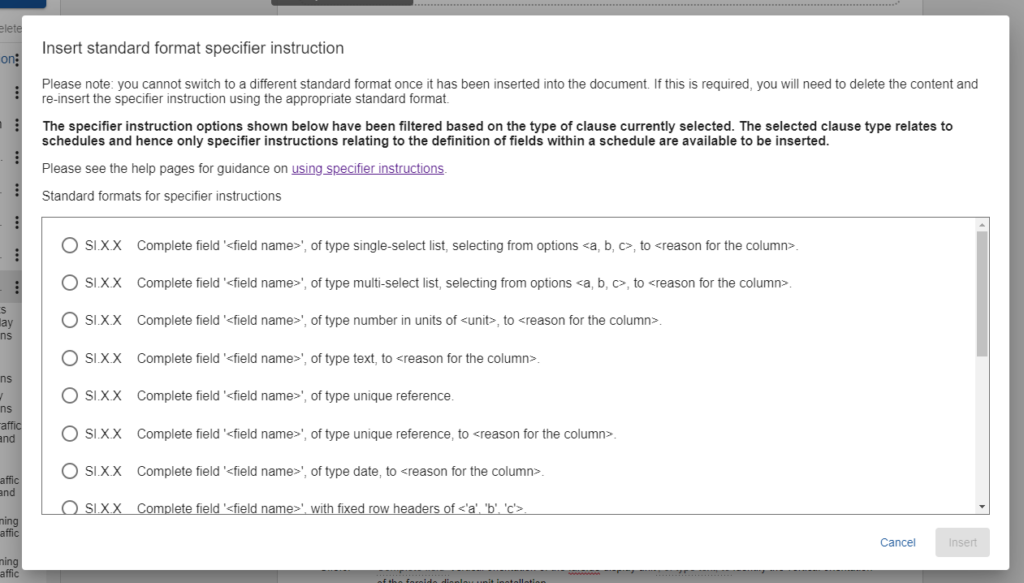
SIs are used to define columns so that:
- The column title is clearly defined
- The permitted data type for the column is defined
- Where applicable, permitted options that can be selected are defined
- A clear purpose for the column is provided
- Columns can be easily reordered, or moved between schedules
- Future machine readability and automation directions are supported
The final presentation of the schedule within the Instructions for Specifier (IfS) document will, of course, be in a tabular format; so that Specifiers can take the structure and populate it as part of their WSR documentation.
In order to help Technical Authors visualise how the final schedule will be presented, CARS provides a preview function. This preview function shows the table as it will be rendered within the IfS document, directly under the schedule definition. An example is shown in the screenshot below:
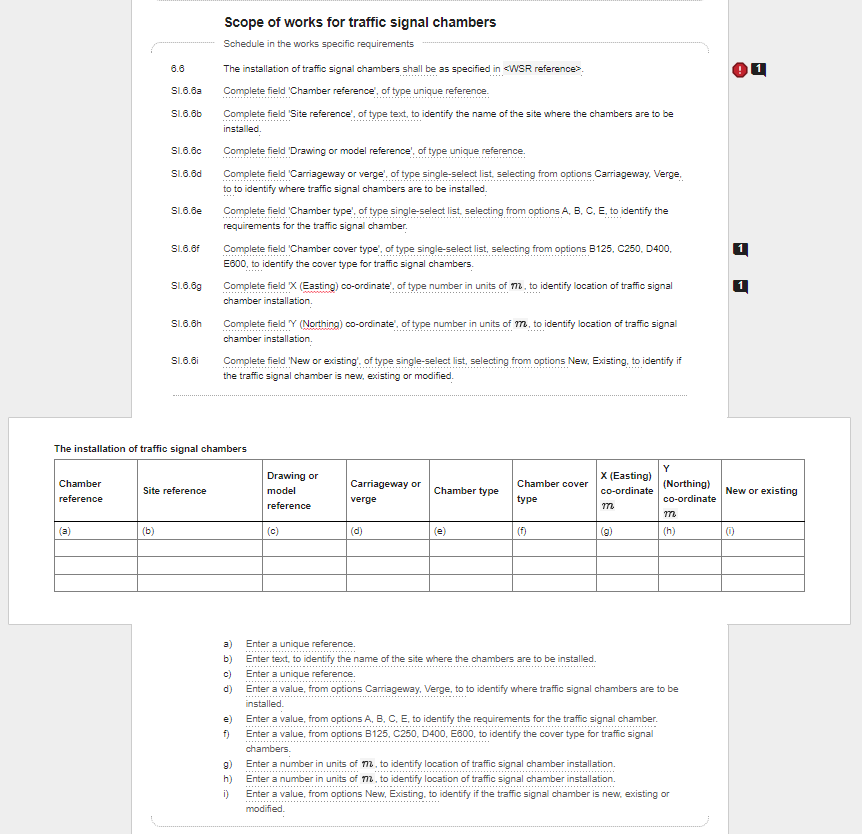
Some key information about the presentation of schedules within the IfS document:
- Schedules do not have index numbers as these are specific to the WSR document; indeed the same schedule could appear multiple times within a WSR document for different elements of a scheme
- Columns are shown in the order they are defined by the SIs
- Defined units, where applicable, are shown within the column headings
- Instructions on how to enter data into the schedule are provided as a list under it; these instructions are automatically derived from the SI content
- Each column has an associated letter which references the relevant instruction
- The proportionate width of each column is automatically set based on the column’s data type
How to generate the preview
Previews are automatically generated based on the authored SIs upon opening a section within the document.
The preview will not automatically refresh as updates are made to existing SIs, nor as new SIs are added.
Having made changes, simply click the refresh button – provided within the SFR menu – to refresh the preview. See the highlighted button in the screenshot below.
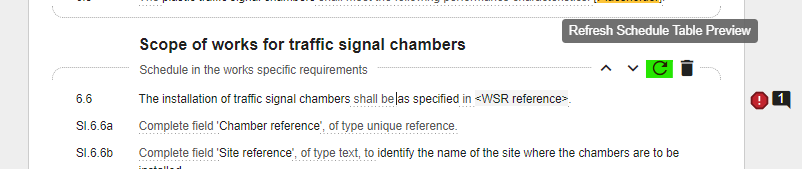
“Loading the schedule preview” will be displayed whilst the preview is being refreshed.
Back to topWhat happens if I have too many columns?
CARS will automatically split the rendered schedule when there are too many columns to fit on to a single page. See the example below.
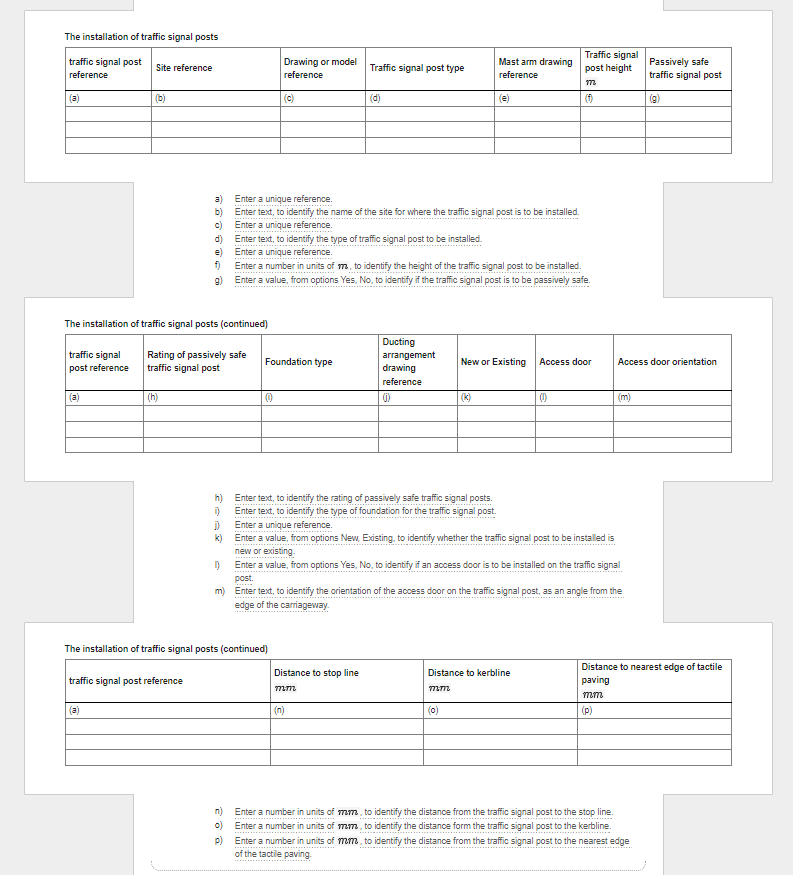
Key points about automatic schedule splitting:
- The split points are automatically calculated and cannot be manually changed
- The first column of the schedule is automatically repeated at the start of each portion
- Only the relevant instructions are shown below each portion; the instructions for column (a) are not repeated
- ‘(continued)’ is automatically added to the schedule caption for all subsequent portions after the first
- The PDF and HTML exports for the IfS document will reflect the same splitting
- The schedules within the WSR templates will not be split – they will be shown as one, single table for completion.