
Contents
NB This help content only applies to MCHW documents.
Specifier instructions (SIs) define the type and format of information to be provided by the specifier within the works specific requirements.
Inserting specifier instructions
To ensure a consistent approach, SIs can only be entered into CARS using pre-defined templates. To insert a SI:
- Ensure you are in a normative section, within a MCHW document in CARS.
- Ensure a constructor requirement is selected.
- Click the ‘Insert specifier instruction’ button,
 ,on the menu bar.
 - A modal will be shown with all available SI templates. Different SI templates are intended for use against constructor requirements to those provided for schedule based requirements. The system will only show the relevant SI templates depending on the currently selected clause. SIs which are associated with an incompatible clause type within the authoring pad will be highlighted with a validation error.
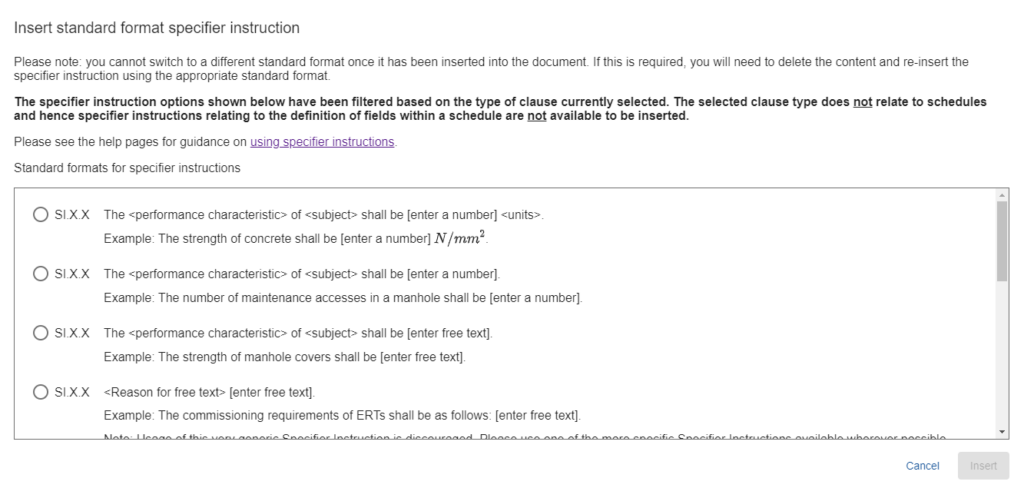
- Examples of how each SI template is intended to be used are provided within the insert modal.
- Review the SI template options presented, selecting the desired item by clicking the radio button to the left of the option.
- Click ‘Insert’ to add the SI template to the selected clause.
Wherever possible, SIs should be as specific as possible. Use of the generic ‘<Reason for free text> [enter free text]’ template is discouraged. The system will prompt for confirmation when electing to use this SI template; please always consider if a more specific template can be used.
Back to topSpecifier instruction components
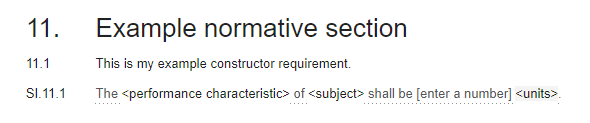
SI templates can include:
- Read only content – dark grey in colour and underlined with a dotted line. This text cannot be changed or moved. Text within square brackets, i.e. ‘[enter a number]’ indicates content that the Specifier will need to provide within the Works Specific Requirements.
- User input region – editable, black in colour, and with placeholder text enclosed with less than and greater than signs, i.e. ‘<subject>’. The placeholder text is provided to guide the author as to the required content. Typing any text within a user input region will replace the placeholder text. Removing all text within a user input region will restore the placeholder text. User inputs regions are mandatory and a validation error message will be displayed if any regions have not been completed.
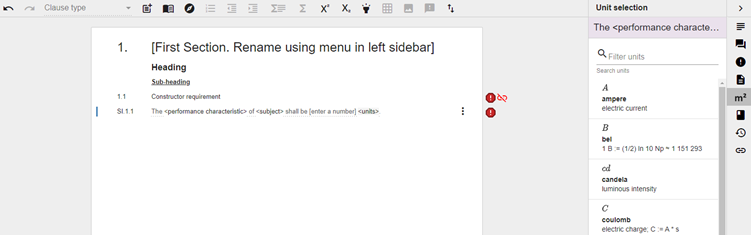
- Units input region – editable, black in colour, with a light grey background and the text ‘units’ enclosed with less than and greater than signs, i.e. ‘<units>’. Clicking on the units input region within the SI will automatically open the Unit selection side panel. The units listed can easily be filtered by typing into the search bar provided. Please email standards_enquiries@nationalhighways.co.uk if the unit you require is not listed.
Guidance on special templates
A few special SI templates are provided to facilitate relationships between different schedules.
Fixed row headers
The following SI template is available when a schedule based requirement is selected:
Complete field ‘<field name>’, with fixed row headers of <‘a’, ‘b’, ‘c’>.
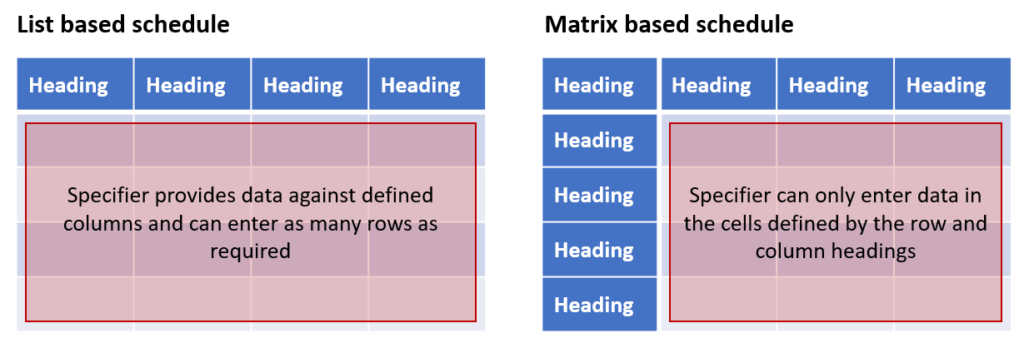
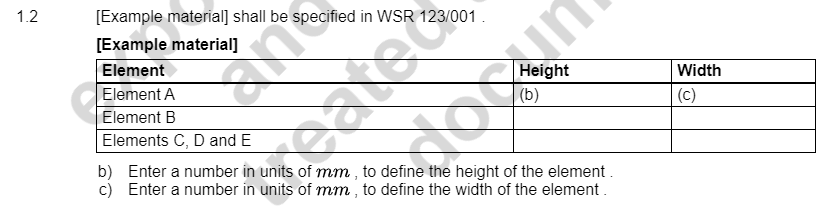
This SI template is used to create a ‘matrix based schedule’ rather than a ‘list based schedule’. List based schedules only have defined column headings and the Specifier can add as many rows to the schedule as are required. Matrix based schedules have defined column and row headings; Specifiers can only enter data in the resultant matrix cells created and cannot insert additional rows.
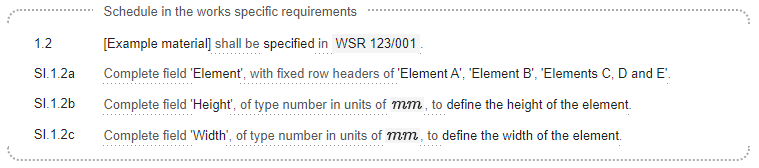
The SI template prompts for a ‘field name’ and a string array of ‘fixed row headers’. The ‘field name’ is displayed in the column heading above the row headers, and the ‘fix row headers’ string array is used to define which row headings shall be shown. Each row heading shall be enclosed in single quote marks and shall be separated by a comma. A completed example is shown below.
The CARS example shown above will be rendered in the Instructions for Specifiers (IfS) document as follows:
Please note:
- Row header text will render incorrectly if not enclosed in single quote marks.
- The use of single quote marks also means that commas can be included in the header text as shown by the previous example.
- Row headers may not render correctly if a space is not included after separating commas.
- There is no limit to the number of row headers that can be defined in this way.
- There is no way currently to hide the column heading above the row headers; please provide appropriate text.
Column options based on the unique reference of another schedules
The following SI template is available when a schedule based requirement is selected:
Complete field ‘<field name>’, of type unique reference, selecting from options as defined in <schedule SI clause Index> of <document code>, to <reason for the column>.
This SI template is used to define a schedule column where the allowed options are to be taken from the unique references as entered by the Specifier within another schedule. This option is ideal for a continuation of a very large schedule.
- The ‘source’ schedule for the options can be in the same MCHW document, or another.
- The ‘source’ column for the options is defined by entering its <schedule SI clause index> number (i.e., “SI.1.2a”) and the <document code> (i.e. “CP 204”).
- Please note that the Instructions for Specifiers (IfS) document code must be used.
- The values entered in <schedule SI clause index> and <document code> are NOT validated by CARS.
- Being of type ‘unique reference’, options selected within this column must only appear once.
Similar SI templates are available as below. These options do not require the selected option to be distinct; they simply allow the content of a column in another schedule to be used as the source for allowed options for a single, or multiple selection column.
Back to topComplete field ‘<field name>’, of type single-select list, selecting from options as defined in <schedule SI clause Index> of <document code>, to <reason for the column>.
Complete field ‘<field name>’, of type multi-select list, selecting from options as defined in <schedule SI clause Index> of <document code>, to <reason for the column>.
Cascading options
The following SI templates are available when a schedule based requirement is selected:
Complete field ‘<field name>’, of type single-select list, selecting options which are dependent on the value selected in <schedule SI clause Index> in <document code> from: <options syntax>, to <reason for the the column>.
Complete field ‘<field name>’, of type multi-select list, selecting options which are dependent on the value selected in <schedule SI clause Index> in <document code> from: <options syntax>, to <reason for the the column>.
These SI templates are used when the allowed options for a schedule column are dependent on the option selected in another call.
- The ‘source’ column for the ‘value selected’ would typically be within the same schedule, but it could be identified as another schedule in the same MCHW document, or another.
- The ‘source’ column for the ‘value selected’ is defined by entering its <schedule SI clause index> number (i.e., “SI.2.1b”) and the <document code> (i.e. “CP 204”).
- Please note that the Instructions for Specifiers (IfS) document code must be used.
- The <options syntax> uses a specific text syntax to define the allowed options based on the ‘value selected’ as defined above. The syntax is as below:
<value selected option>:[<comma separated options>];<value selected option>:[<comma separated options>];
i.e., A:[1,2,3];B[4,5,6];
- Please note, if any of the options in the above syntax contain a comma, colon, or square brackets; the option text should be enclosed in quotation marks.
i.e., “Types A,B, or C”:[Option 1,”Options 2,3 or 4″];Type C:[Option 5,”Options 5,6, or 7″];
- The values entered in <schedule SI clause index>, <document code> and <options syntax> are NOT validated by CARS.
Worked example
A schedule contains a column named ‘Type’ with permitted values of ‘Type I’ and ‘Type’ II”. Within the same schedule, another column named ‘Type variant’ permits values of ‘Option A’ and ‘Option B’ if ‘Type I’ has been selected on the same data row, and ‘Option C’ and ‘Option D’ is ‘Type II’ has been selected. Below is SI definition for the ‘Type’ and ‘Type variant’ columns:
Back to top(IfS document code: CP 204)
(SI.2.1b) Complete field ‘Type‘, of type single-select list, selecting from options Type I,Type II, to <reason for the the column>.
(SI.2.1c) Complete field ‘Type variant‘, of type single-select list, selecting options which are dependent on the value selected in SI.2.1b in CP 204 from: Type I:[Option A,Option B];Type II:[Option C,Option D], to <reason for the the column>.