
Contents
User Management
How do I add a user to CARS?
A new CARS user account can be create by any existing CARS user. Please watch this video from 1:56 to learn how to add a user to CARS. The steps are also summarised below:
- Identify if a user has an account by typing their name into the required role on the document. If they appear in the dropdown options, they have an account. If they do not appear, they will require a new account.
- To add a new user, click the + icon shown on the right.
- Complete the users details in the popup
- Press Create
- The user will be sent an automatic email with the details on how to access CARS.
How do I reset my password?
Please press the ‘Forgot Password’ link of the CARS homepage. The link for CARS is: https://futuredmrb.co.uk/
Back to topWhat are the user permissions in CARS?
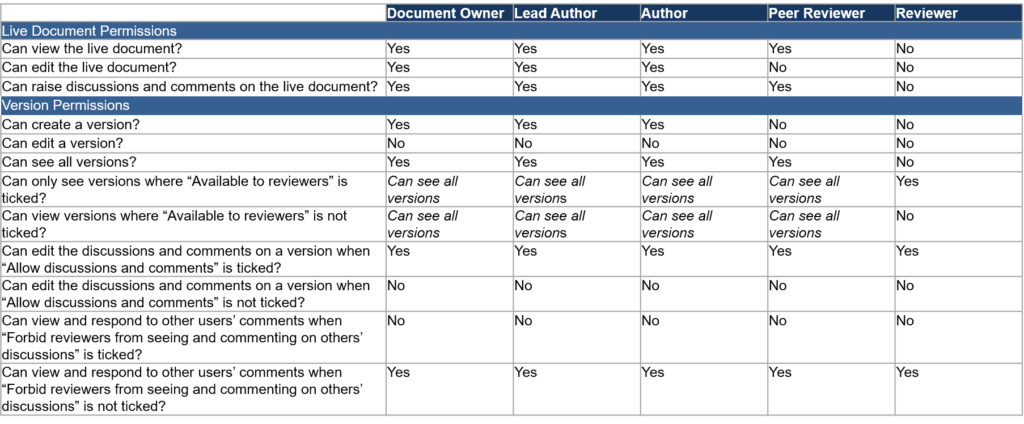
There are a number of user roles within CARS documents. Please watch this video to learn about the permissions of each user role.
This table defines the permissions each user role has for for the live document, and versions of a document.
Authoring Documents
How do I copy and paste in CARS?
Please watch this video to learn how to copy and paste in CARS. Please note this guidance does not relate to standard format requirements within MCHW documents on CARS which cannot currently be copied and pasted.
Back to topHow do I move clauses, tables, equations and figures?
Content must be moved used the “Reorder clause” button in the CARS toolbar. If this functionality is not used, and instead Ctrl+C/Ctrl+V is used, then all comments and background commentary will be lost.
Please watch this video to learn how to move clauses, tables and figures in a CARS document.
Back to topHow do I delete or restore a section?
- Open the CARS document
- Navigate to the left hand sidebar. Click ‘…’ on the section and chose ‘Delete
When a section is deleted, it is moved to the ‘Deleted’ area. If you wish to restore the section, follow these steps:
- Open the ‘Deleted’ section
- Click ‘…’ on the section and chose ‘Restore’
- The section will now appear in the ‘Contents’ area with all other sections
How do I search for words in the document?
- Open the CARS document
- Navigate to the left hand sidebar. If the sidebar is closed, open it by clicking the icon that shows three vertical lines.
- Use the “Search document” field and press Search
- The search results include all sections within the document
How do I insert equations in a document?
Please use the guidance in the page ‘Equations’.
Back to topHow do I add symbols to a table heading?
Currently this is not possible at present, but is on the backlog of future work.
Back to topHow do I use references in CARS?
Please watch this video to learn how to use references within documents in CARS.
Back to topHow are withdrawn references managed in CARS?
Please watch this video to learn how withdrawn references are managed in CARS.
Back to topHow do I populate the information for a new reference in CARS?
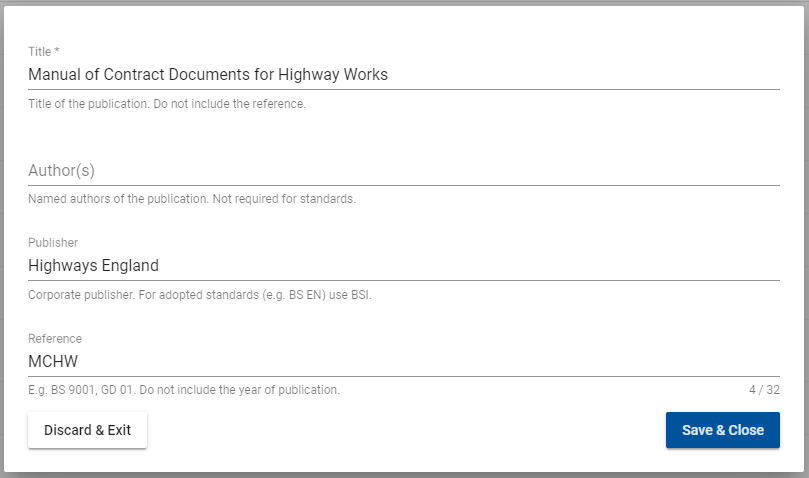
For a new library reference, the following information should be populated:
- Title – Enter the name of the publication. Do not include the reference code. For example, “Drainage asset data and risk management”
- Author(s) – Enter the named authors of the publication. This is not required for standards. If the author is the same as the publisher, please leave this field empty.
- Publisher – Enter the name of the corporate publisher. For standards (e.g. BS EN) use BSI. For example, “National Highways”
- Reference – Enter the reference code. Do not enter the year of publication. For example, BS 9001
Please see below the CARS reference for the MCHW as an example:
How do I reference elements with my CARS document e.g. tables?
Currently this is not possible, but is prioritised on the backlog of future work.
Back to topHow do I import pictures from a previously drafted DMRB Microsoft Word document?
- Open the document in Microsoft Word
- Right click the image and select “Save image as”. Save the image to a known location.
- Open the CARS document
- Insert the image into CARS using the “Insert image” functionality
How do I add a Visio diagram?
Convert the diagram into a picture file to insert it in CARS. The picture file can be one of the following formats: jpg, bmp, gif, png.
Back to topHow do I make a page landscape?
It is possible to change the format of a table or figure to landscape. To do this, follow these steps:
- Hover the mouse on the figure
- A row of icons appears on the top right of the figure
- The rectangle icon will “toggle orientation” of the figure between landscape and portrait
It is not permitted by the MDD to format the document pages as landscape format.
Back to topHow do I make the pages A3?
It is not permitted by the MDD to format the document pages as A3.
Back to top
Tables
How do I insert a new row or column into a table?
- Select within the table
- Select the down arrow icon. This is shown in the top right hand side of the cell.
- Select either ‘Insert row above’, ‘Insert row below’, ‘Insert column before’, or ‘Insert column after’ as required
How do I delete a row or column from a table?
- Select within the table
- Select the down arrow icon. This is shown in the top right hand side of the cell.
- Select either ‘Delete row’, or ‘Delete column’ as required
- The row or column that is going to be deleted will be highlighted in red
How do I resize columns in a table?
Table columns cannot be resized within CARS. The column widths are automatically calculated and updated based on the content within the column.
Back to topHow do I merge cells in a table?
Cells that are in the header row cannot be merged. To merge cells:
- Highlight the cells to merge
- Select the down arrow icon. This is shown in the top right hand side of the cell.
- Select ‘Merge cells’
How do I splits cells in a table?
A merged cell can be split.
- Select the cell to split
- Select the down arrow icon. This is shown in the top right hand side of the cell.
- For cells that have been merged horizontally, chose ‘Split horizontally’
- For cells that have been merged vertically, chose ‘Split vertically’
How do I format cells as headings in a table?
- Highlight the cells that should be set or removed as headings
- Select the down arrow icon. This is shown in the top right hand side of the cell.
- Select ‘Toggle headings’
How do I change the text alignment in a table?
Text alignment can be set by individual cell in a table.
- Highlight the cells which need the text alignment changing
- Select the down arrow icon. This is shown in the top right hand side of the cell.
- Select ‘Text Alignment’
- Select the required text alignment
How do I move a table?
- The “Reorder clauses” button can be used to move a table to another location in the document, including a different section. To learn how to use this, please watch the video here
- Select the table that needs to be moved
- At the top of the table, a row of icons are shown on the right hand side
- The up arrow moves the table up in the document content. The down arrow moves the table down in the document content.
How do I shade a cell in a table?
Table cells cannot be shaded in CARS. This is not MDD compliant and therefore this functionality is not available in CARS.
Back to topHow do I make a table portrait or landscape?
- Select the table that needs to be made portrait or landscape
- At the top of the table, a row of icons are shown on the right hand side
- The rectangle icon is “Toggle orientation”
- Select “Toggle orientation” to change the orientation of the table between portrait and landscape
My table is split across multiple pages in the PDF output. How do I repeat the table headers on each page?
- Select the table that requires a repeated header row
- At the top of the table, a row of icons are shown on the right hand side
- The first icon is “Create repeating header row”. This is shown when you hover over the icon.
- Select “Create repeating header row”
- This will be indicated in CARS with an underline under the header row. In the PDF output the table header will be repeated on every page.
- To remove the repeated header row, reselect the same icon to “Delete repeating header row”
Comments
How do I use the My Discussions dashboard?
Please watch this video to learn how to learn about the My Discussions dashboard.
Back to topHow do I use the My Documents dashboard?
Please watch this video to learn how to learn about the My Documents dashboard.
Back to topHow do I edit a comment?
Currently comments cannot be edited. Please delete the comment and create a new one.
Back to topHow do I delete a comment?
A comment can only be deleted by the user that raised the comment. A comment can only be deleted if there has been no response to the comment, and it has not be resolved. To delete a comment:
- Open the Discussion panel
- On the required comment, select Delete
- Confirm you wish to delete the comment and understand that this is irreversible
How can I see all comments on a document?
Currently Discussions & Comments can be viewed by Section in CARS. Please see “How can I see and respond to all comments for a Section” for steps to do this.
It is on the backlog of future development work to create this functionality.
Back to topHow can I see and respond to all comments for a Section?
Click on the three dots to the right of the section title and select Discussions and Comments
- Open the Document Contents side bar
- Beside each Section, click the three dots icon. This will open an additional menu
- Click ‘Discussions & comments’
- The full Discussions & Comments for the Section is displayed. This can be printed to PDF using ‘Print’ on the top right.
- The Discussions & Comments that are shown can be filtered using the filter options in the top header bar: All, Unresolved, Resolved, Raised by me.
- To respond to a comment, enter the response in the Comment box and press ‘Submit’. To resolve this comment, use the Resolve tick box.
How do I comment on a section title?
Currently a comment cannot be added to a section title. As a work around, the comment should be added to the first clause in the section.
Back to topHow do I see comments on deleted clauses?
Document reviews should be performed on versions of documents. Please see the question “How do I create a version of a document?” to learn how to create a version of your document.
During review, comments should be made on versions on documents. These comments will then be retained if any clauses are deleted in the live document.
Back to topHow do I see how my comments have been resolved?
Please watch this video to learn how to see how your comments have been resolved.
Back to topHow do I create the Background Commentary in CARS?
Please watch this video to learn how to create the background commentary for a document.
Back to topHow do I add an equation to the Background Commentary?
To include an equation in the background commentary, insert a back-tick at the beginning and end of the equation. For example, ‘e=mc^2’.
Back-ticks are found on the keyboard key to the left of the 1 on Windows, and on the key to the left of the Z for Apple. Back-ticks are not apostrophes.
Back to topHow can I see the full Background Commentary for a section?
- Open the Document Contents side bar
- Beside each Section, click the three dots icon. This will open an additional menu
- Click ‘Background and Commentary’
- The full Background & Commentary for the Section is displayed. This can be printed to PDF using ‘Print’ on the top right.
Reviewing Documents
What is the difference between a Reviewer and a Peer Reviewer?
Peer Reviewers work closely with you during the authoring process, and are able to see your document during the authoring process. They can see the live document as it is being edited. They can raise discussions on clauses, and see the clause history and background commentary. They cannot make changes to the document content.
Reviewers are formal reviewers who will only see your document when you release it to them by creating a version. Reviewers can only see versions. Please see the question “How do I create a version of a document?” to learn how to create a version of your document.
Please see What are the user permissions in CARS? for more information.
Back to topHow do I add reviewers to a document?
To add reviewers to a document:
- Open the Document Information page
- Navigate to the Reviewers or Peer Reviewers entry field
- Type the name of the user into the field, and select them from the dropdown
- If the user is not shown in the dropdown, add the user as a new user to CARS. Please see the question “How to add a new user to CARS” for steps to do this.
How do I create the change log in CARS?
Please watch this video to learn how to create the change log for a document. Please watch this video to learn how to view the whole Change Log.
Back to topHow do I perform a TPB Review?
Please use the guidance in the page ‘Conducting a TPB Review’.
Back to topHow are authoring rights removed after TPB Approval?
When a document has been approved at Technical Project Board, it becomes read-only in CARS and can no longer be edited. This is to ensure that documents are not corrupted during publication. TSG are able to reassign authoring permissions to specific users if required as part of the final approval checks.
Please watch this video to learn more about how authoring rights are removed after TPB Approval.
Back to topVersions
How do I create a version of a document?
Please watch this video to learn how to create a version of your document in CARS.
Back to topHow do I view the versions for a document?
- Open the document in CARS
- Click the ‘…’ symbol beside the Document Information section
- Click Versions
- The Versions screen is displayed, listing all versions and their permissions
How do I change the permissions for a version?
The following users have the permission to change this tick box on a new or existing version: Document Owner, Lead Author, Author and Peer Reviewer. To do this please:
- Open the document in CARS
- Click the ‘…’ symbol beside the Document Information section
- Click Versions
- The Versions screen is displayed, listing all versions.
- Tick the required tick boxes for the permissions you require on each version
Why can’t the reviewer see a version of my document?
A reviewer is only able to see versions that have the tick-box “Available to reviewers” ticked. If a reviewer cannot see a specific version, this tick-box is not ticked for this version.
The following users have the permission to change this tick box on a new or existing version: Document Owner, Lead Author, Author and Peer Reviewer. To do this please:
- Open the document in CARS
- Click the ‘…’ symbol beside the Document Information section
- Click Versions
- The Versions screen is displayed, listing all versions.
- Tick the required tick boxes for the permissions you require on each version
Please see What are the user permissions in CARS? for more information.
Back to topWhy can’t the reviewer comment on a version of my document?
A reviewer is only able to comment on a version that have the tick-box “Allow discussions and comments” ticked. If a reviewer cannot comment on a specific version, this tick-box is not ticked for this version.
The following users have the permission to change this tick box on a new or existing version: Document Owner, Lead Author, Author and Peer Reviewer. To do this please:
- Open the document in CARS
- Click the ‘…’ symbol beside the Document Information section
- Click Versions
- The Versions screen is displayed, listing all versions.
- Tick the required tick boxes for the permissions you require on each version
Please see What are the user permissions in CARS? for more information.
Back to topWhy can’t the reviewer see other users comments on a version?
A reviewer is only able to see other users comments on a version if the tick-box “Forbid reviewers from seeing and commenting on others’ discussion” is unticked. If this tick-box is ticked, then users cannot see other users comments on a version.
The following users have the permission to change this tick box on a new or existing version: Document Owner, Lead Author, Author and Peer Reviewer. To do this please:
- Open the document in CARS
- Click the ‘…’ symbol beside the Document Information section
- Click Versions
- The Versions screen is displayed, listing all versions.
- Tick the required tick boxes for the permissions you require on each version
Please see What are the user permissions in CARS? for more information.
Back to topDocument Management
How do I download/print my document?
National Highways policy defines that users are not allowed to print documents from CARS. This is to ensure that all authoring and reviewing is performed within CARS in order to maintain a full audit trail of all updates made to the document.
TSG can print PDF versions of documents. If you require a PDF version of a document, please contact TSG to request assistance.
Back to topHow do I work on CARS offline?
This is not currently possible as CARS is a web based application. All your information is sent to National Highways’ servers. Creating an offline review mode is on the backlog of future work.
Back to topHow do I delete a document?
TSG are the only users permitted to delete documents in CARS.
Please update you document title to contain the word “DELETE” and contact TSG to request they delete the document.
Back to topHow many pages is my document?
Typesetting is dependent on final publication decisions, and performed automatically after the TPB Review. Therefore, this information is not available during authoring.
Back to topHow does CARS link to JIRA?
In the Document Information page, populate the field ‘Jira document ID’. This will link the CARS document and the JIRA document, and automatically populate the following information in the CARS Document Information page:
- Document Owner
- Jira Epic ID
- Workflow Status
- Forecast QMR2 Submission
- Forecast TPB Submission
Why is my Document Owner stated as Unknown User not the Document Owner assigned in Jira?
The Document Owner will only be populated if the CARS document is linked to a Jira Document via the ‘Jira Document ID’ field in the Document Information page.
If the ‘Jira Document ID’ field is populated the user is still displayed as ‘Unknown User’ this is due to an update to the Atlassian Jira API. Please find steps below to resolve this issue.
In each CARS document, there is a blue box on the Document Information page which displays key Jira information. This is populated automatically when the CARS document is linked to a Jira Document ID. The Jira information is passed from Jira to CARS via the Jira API.
Jira have released an update to the Jira API which now prevents CARS from accessing the user’s email address unless this is explicitly permitted by the user. The Document Owner is defined in Jira and passed to CARS via the API. The impact of this API change is that the Document Owner email address cannot be passed to CARS, and so “Unknown User” is displayed in the CARS Document Information page.
Solution:
The issue is resolved if users change the new setting that hides their email address. This allows CARS to read the email address and display the Document Owner correctly. To do this please follow these steps:
- Open this link https://id.atlassian.com/manage-profile/profile-and-visibility
- Navigate to “Contact” section at the bottom of the page and find “Email Address”.
- Change the “Who can see this?” dropdown to say “Anyone”.
Please note that this instance of Jira is owned by National Highways with no access to the public. Changing this setting will make your email address visible to other National Highways Jira users and to CARS. It will not make your email address visible to the public. - In order to see this change in CARS you will need to:
- Wait one hour for Jira to refresh.
- In CARS, remove the ‘Jira document ID’ link set in the Document Information page. Please wait for the blue ‘Saving…’chip in the bottom left to disappear.
- Re-enter the Document ID in the ‘Jira document ID’ field in the Document Information page. This will force the sync between the Jira API and CARS to refresh.
- CARS will now display the Document Owner name correctly.
Document Suites
What is a document suite?
A suite is a defined group of documents, for example the DMRB or the MCHW.
Back to topWhich suites exist in CARS?
- The Design Manual for Roads and Bridges (DMRB)
- Manual of Contract Documents for Highway Works (MCHW)
How is CARS different for different suites?
There is different CARS functionality available for documents in different suites. For example, documents may have different formatting or validation rules if they are in different suites.
Back to topHow do I assign a document to a suite in CARS?
A document is assigned to a suite when it is created. To do this, please follow these steps:
- Open the CARS Home Page
- Press the “Create document” button
- Enter the new document title
- Select the suite for the document from the Suite dropdown
- Select the document template that is required
- Press the “Create document” button
Can I move a document to another suite?
No. A document can only be assigned to a suite when it is created. If a document is in the wrong suite, please contact Support at iig_cars_feedback@caci.co.uk
Back to topHow can I see which suite a document is in?
The suite for each document is shown the CARS home page in the column ‘Suite’.
Back to topCan I search for documents in a specific suite?
You cannot search by suite, but you can sort search results by suite. To do this:
- Open the CARS Home Page
- Click the title of the Suite column
- The documents will be sorted alphabetically by Suite
Do I need different CARS log-ins to access documents in different suites?
No. All suites and documents are access via a single CARS log-in. To access a document, you must be assigned to a role within the document.
Back to top