
Contents
Peer reviews
When the draft document has reached an appropriate stage, the technical author shall arrange an initial peer review within his or her team/group.
Initial peer review checks that the criteria by which the document is considered a success have been met and ensures that any issues that were identified can be investigated, discussed and resolved before the document progresses to review by the TSC.
Peer reviewers can raise discussions and comments on the live document, however it is still recommended that a version of type ‘Draft for peer review’ is created (ensuring that ‘Available to reviewers’ is not checked).
Back to topConsultation
Preparing a version for Consultation
Consultation is performed on a version on a document in CARS. This ensures that all consultees make comments against the same version of the document. Please see the question “How do I create a version of a document?” to learn how to create a version of your document.
Back to topBefore the Consultation
Preliminary checks
- Read the requirements in the MDD for Consultation (MDD part 1).
- Give your peer reviewers enough time to review your document before you submit it for Consultation.
- Resolve all of the MDD validation errors in your document. You will not be able to publish the document with errors.
- Complete references using CARS functionality. Using the CARS referencing feature will allow the publishing team to determine if a document can be published.
- For brand new documents where it has not previously been published in CARS, complete the change log in CARS for your document. For updated documents, generate a Clause Change Summary in CARS.
- Complete the background commentary in CARS for all newly drafted or updated clauses. This is important as it will appear as a column in the clause change summary and will help reviewers to know why you made the change or added the new text.
- Consult with your Content Specialist and give sufficient notice to allow them to complete a review for MDD compliance before submission to the TSC for consultation. NOTE CARS does not warn you of all MDD errors and the Content Specialist review will assist with this.
Governance deliverables and versioning
- Before submitting the draft CARS document (category A) or the draft CARS clauses (categories B, C) to the TSC for consultation, the technical author shall complete a pre-consultation impact assessment (cat A, B, C only) identifying the anticipated impacts of the work (including when there is no impact or a negative impact) and a commercial impact assessment. See MDD part 1 and the standards governance technical author training video for further guidance if needed.
- All consultees shall be added as reviewers to your document. A list of current TSC consultees can be found here. See ‘Adding users to a CARS document’ for more information and how to add users who do not have a CARS account.
- Create a version. Reviewers can only see versions of a document. Remember to make the version available to read, and available to comment. You may wish to uncheck the ‘Available to reviewers’ box for other versions, so reviewers are not confused.
- Within the version, open the clause change summary (see the … menu on the document information page) and copy the link at the top of the page to be shared with the reviewers in the notification email.
- Please contact the TSG team for support (Standards_Enquiries@nationalhighways.co.uk) if you need review comments from:
an industry board that needs to consolidate their response across multiple parties; an organisation that can ONLY use Internet Explorer as its web browser. - Please create a PDF copy of your finalised impact assessment report to attach to the email to consultees.
- There is an excel template for your consultees to add any comments related to the impact assessment report (example here). Please save a copy of this template to your own governance folders (where governance deliverables are stored) in DMRB or MCHW as appropriate as a link will be shared in the notification email.
- Update your change issue in Jira to record that you have sent your document out for consultation. Further guidance on how to record governance in Jira can be found here.
Notifying consultees
This is some suggested text to send by email to your consultees. Please copy and paste the text into an email and edit the text in italics as appropriate before sending out.
Notice of the forthcoming consultation
To:All on your TSC consultee list including the Technical Author
Dear Consultee,
I would like to consult with you on an update to a standards document in the Design Manual for Roads and Bridges/Manual of Contract Documents for Highway Works titled ‘name of document’. The main purpose of the update is to edit as appropriate.
The purpose of this email is to give you an early heads up that you will be invited to our Technical Standards Committee (TSC) consultation as a group of trusted consultees in the review. On the insert date, I’ll send further details and links to help your review, and the consultation will run from insert start date to end date. I hope my early advice here allows you to some plan some time for the review.
The review will take place on our Collaborative Authoring and Review System (CARS) and I will send details of this to you by confirm date. Some of you are new users and will have received an automated email inviting you to log in for the first time. Alternatively you can go to this link: CARS home page and press ‘forgotten password’ to receive a reminder of the log-on. You won’t see details of the review just yet, and I’ll write again letting you know when it is ready.
If you’ve not followed this process before, there is a training video on our governance process and use of CARS to review and comment. You can view that via this link. This will be a useful training/reference resource so I would recommend you view it. You’ll need to set aside an hour and a half if you’ve not seen this training video before.
If you have queries on any of the above, then please do contact me.
Kind regards, TSC chair name on behalf of the insert discipline name Technical Standards Committee.
Sending the document out to consultation
To:All on your TSC consultee list including the Technical Author
Dear Consultee,
You are invited to review document name which has been drafted using our Collaborative Authoring and Review System (CARS).
The document can be accessed at this link add link and the consultation is open for comments until add consultation completion date.
About CARS
This online method of reviewing documents aims to reduce the number of meetings. It does this by allowing you to see and respond to other reviewers’ comments as they are written, so discussions can take place offline.
Please open the document link in either Chrome or Firefox. Internet Explorer is not supported. If you can’t remember your password, a password reset link is available on the log-in page.
When you access the document within CARS you will see the option to record when you have started (press ‘start review’) and concluded (press ‘finish review’) your review of the document. Click here for an example
Supporting evidence
A PDF copy of the Impact Assessment Report (IAR) and excel copy of the commercial impact assessment for insert document name is attached. You can comment on the IAR using the feedback template for this document which can be accessed using this link insert link to excel template in governance SharePoint folder.
A copy of the clause change summary (categories B/C), change log/proposed changes summary/document development plan (category A) (delete as appropriate) is available at this link/as attached (insert links as appropriate).
Further support
Please watch this training video for technical consultees on governance deliverables and reviewing documents in CARS if you are not familiar the requirements of your consultee role.
The guidance on CARS can be found from 59.00 onwards in the video (please note there are some out of date references to Highways England rather than National Highways as this was recorded in June 2021).
If you are no longer the consultee for your directorate/area of expertise, please email Standards Enquiries upon receiving this email please so we have time to source a replacement who can carry out the consultation review.
For all other queries, please contact name of TSC secretary.
Encourage consultees to read each others comments, and discuss any differing views.
Back to topDuring the Consultation
You can see consultees’ comments as they are added to CARS, and you may respond immediately to them if you need more clarity.
Back to topAfter the Consultation
- Ensure that all comments have been recorded in CARS.
- Resolve every discussion. You can either accept or reject each one.
- Make updates to the document.
- Create a new version of the document.
- Send a link to the new version to reviewers.
Conclusion of the consultation
To:All on your TSC consultee list including the Technical Author
Dear Consultee,
Thank you for taking part in the Technical Standards Committee consultation for ‘name of document’. My authoring team and I have reviewed the comments on CARS and we have resolved these. It is now time for you to review the resolved comments that some of you made.
You can review the resolved comments by accessing CARS for ‘name of document’ at this link: add link to CARS document.
I would be grateful if you would now review the resolutions to satisfy yourselves that your comments have been addressed and resolved. I am setting a insert timeframe duration for you to review the resolutions with a closing date of insert date.
If no responses to the resolutions are received by this date then it will be assumed that the resolutions have been adequately dealt with. If you do have further comment on the resolution please email me and copy in name of technical author and we can look into this further.
Delete and re-word as applicable: I will send our responses to the feedback queries that some of you left on the Impact Assessment report feedback form in a separate email.
If you have queries on any of the above, then please do contact me.
Kind regards, TSC chair name on behalf of the insert discipline name Technical Standards Committee.
Review Status
On the My Discussions dashboard
The ‘My Discussions’ dashboard lists all documents for which you are assigned a role, and provides an overview of all the discussions and comments that you have raised against those documents. The dashboard also allows reviewers to set the status of their review for each document. The review status follows the flow outlined below:

The review status is visible to Lead Authors in the My Documents dashboard and hence this functionality can be used to easily share your review progress. To learn more, please watch this video.
Back to topOn the Version Information page
To make it as easy as possible for reviewers to record the status of the their review, the functionality from the ‘My Discussions’ dashboard has also been incorporated into the Version Information page.

On the My Documents dashboard
The ‘My Documents’ dashboard provides an overview of all the discussions on documents where you are the Lead Author. The dashboard also displays the review status for each reviewer on each document. This can be used to help answer questions like “Are all the reviews completed on the latest version of my document?”, “Has a review been completed for every NAA?”, and “Has a reviewer completed their review before I respond to their comments?”. To learn more, please watch this video.
Back to topDiscussions
Adding a new discussion
To add a discussion:
- Select a clause within the current section. To select a clause, simply click anywhere within the clause or select some of the clause’s content. You can easily identify the selected clause by the blue bar visible within the left margin.
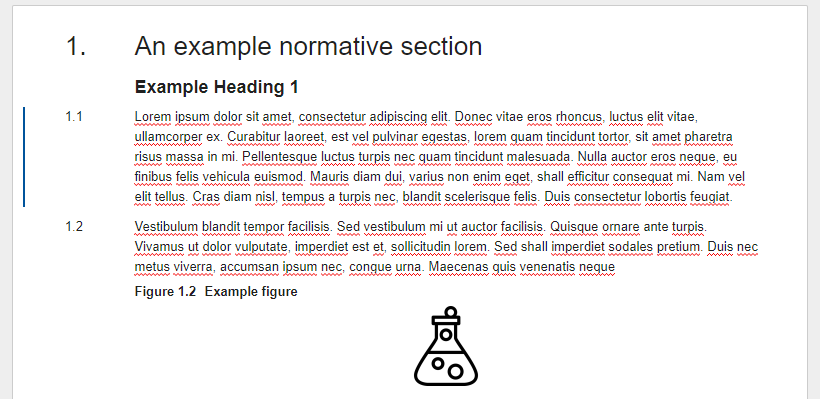
- On the right hand sidebar, click the Discussions icon
 (resembling two speech bubbles). The Discussions side pane will be displayed.
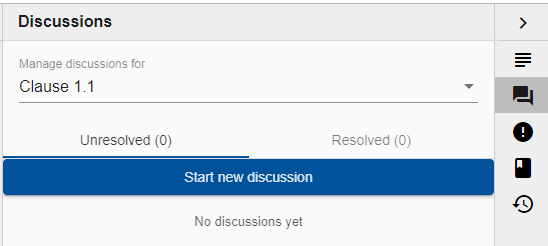
- At the top of the Discussions side pane, the ‘Manage discussions for’ selection field will confirm the index reference for the currently selected clause. If the selected clause has sub-content, i.e. a table, figure and or equation, then the index reference may reflect that content if it is selected.
- The ‘Manage discussions for’ can be used to specify the clause’s content that you wish to start a discussion above.
- The option is also provided to be able to select the Section. This option can be used when you want to comment on the whole section, rather than just one clause or a clauses sub-content.
- With the relevant item selected using the ‘Manage discussions for’ selector, simply click ‘Start new discussion’ to add a new discussion.
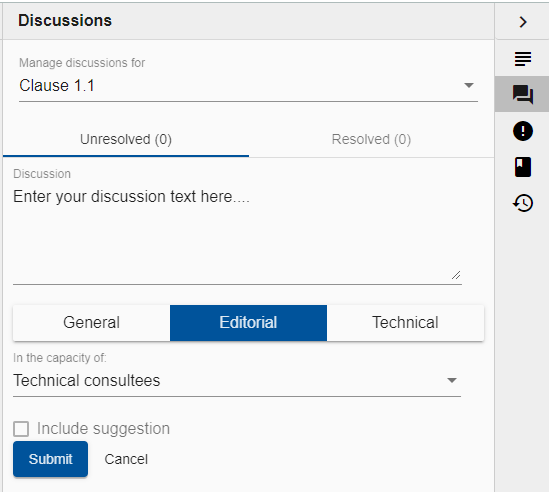
- Enter the text of your discussion into the ‘Discussion’ field provided.
- Next, categorise your discussion as to whether it is General, Editorial or Technical in nature.
- You then confirm the capacity in which you are raising a discussion using the ‘In the capacity of’ field provided.
- At this point you could ‘Submit’ your discussion. However, you may also want to propose a suggestion for alternative text as part of your discussion.
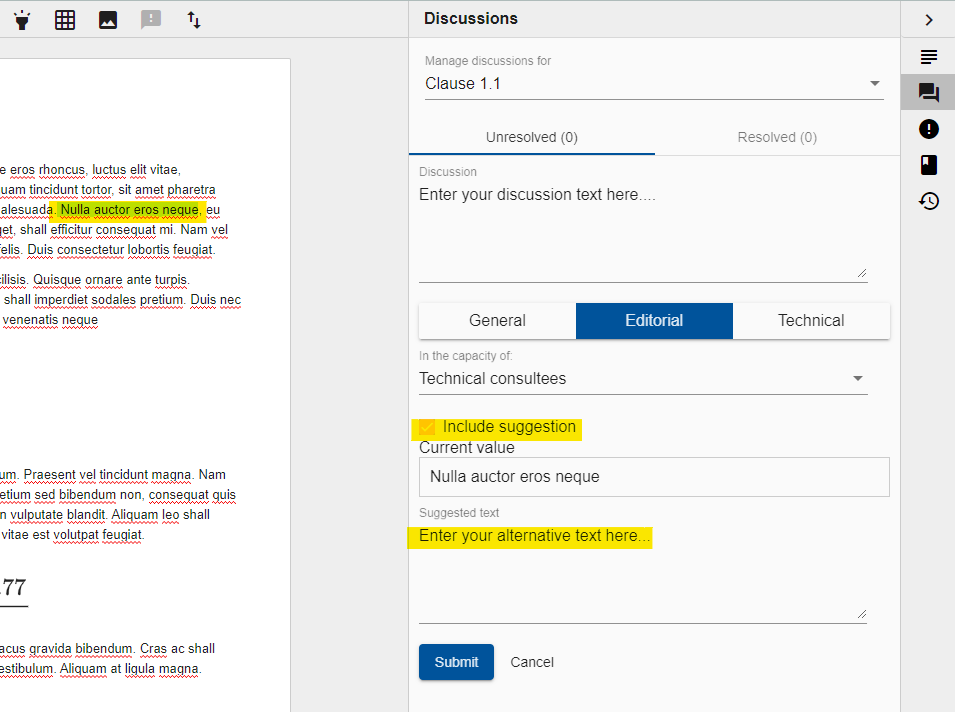
- To propose alternative text:
- with your discussion still open prior to being submitted
- select the text within the clause for which you wish to provide an alternative suggestion
- having select some text, the ‘Include suggestion’ checkbox will be enabled
- Checking this checkbox will provide you with the option to enter some suggested text
- Enter your alternative text suggestion
- Clicking ‘Submit’ will save your discussion.
Please note that if you select another clause or navigate away from the current section or page, any text entered will be lost. Please also note that currently CARS does not support editing of discussions once they have been saved.
Back to topIdentifying clauses which have discussions
Once a discussion has been added to a clause a ‘unresolved discussion icon’ is shown to the right of the clause (or sub-content if the discussion was raised against a table, figure or equation).
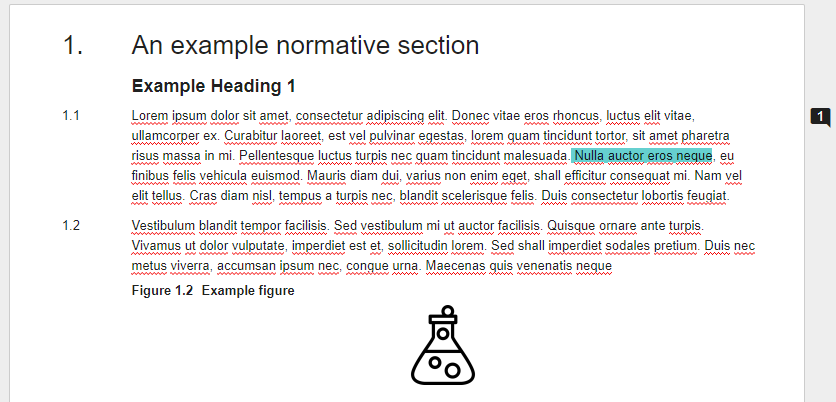
The number of unresolved discussions is shown as a number within the discussion icon. Any alternative text suggestions are also highlighted as shown in the figure below.
Back to topReviewing discussions
Clicking on the discussion icon to the right of the clause will open the Discussion side pane for the associated clause.
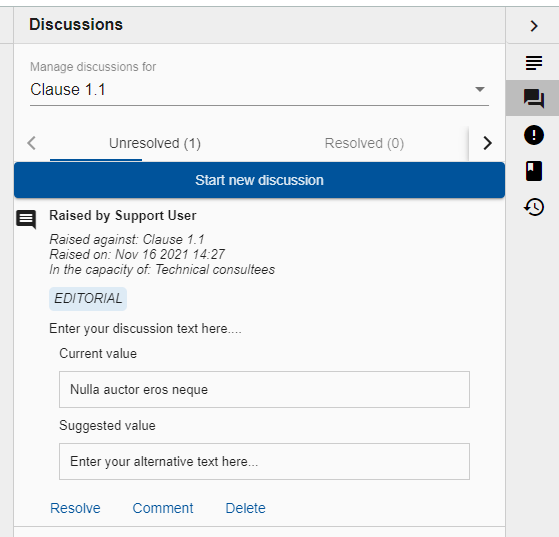
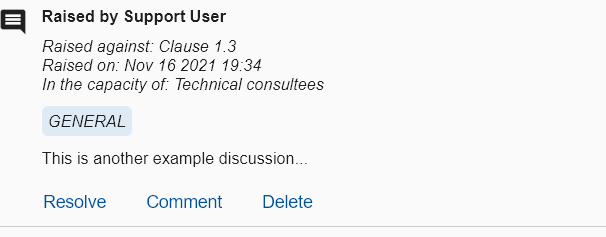
The discussion summary provides the following information:
- Confirmation of who raised the discussion
- Whether the discussion was raised against the core clause content, or its sub-content
- The date and time that the discussion was raised
- The capacity in which the discussion’s author was working on behalf of
- Confirmation of the category for the discussion (general, editorial, or technical)
- The text of the discussion
- If relevant, the current text and suggested alternative.
Commenting on a discussion
Having reviewed an existing discussion (see above), you can easily add your own comments to it using the ‘Comment’ option provided.
Having clicked ‘Comment’, you will be prompted to enter your comment and then click ‘Submit’ to save your comment. You can click ‘Cancel’ if you decide not to add a comment.
Submitted comments are summarised underneath the original comment.
Please note that once a comment has been made you cannot edit or delete it.
Back to topResolving discussions
Document authors can record discussions as resolved once all comments have been addressed.
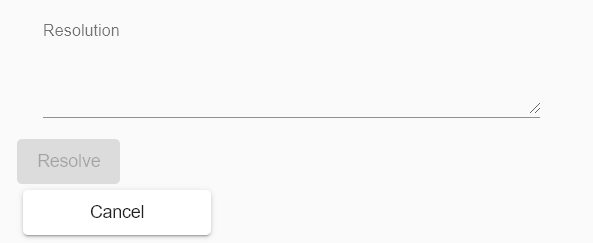
Clicking the ‘Resolve’ option beneath the discussion summary will prompt for a ‘Resolution’ comment. If a suggestion for alternative text has been provided then options are provided to ‘Resolve and accept’, ‘Resolve and reject’ or ‘Cancel’.
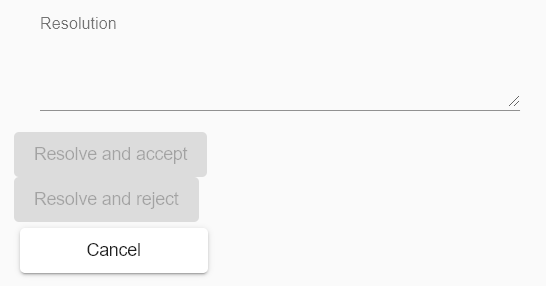
Clicking ‘Resolve and accept’ will automatically update the clause text based on the suggestion and mark the discussion as resolved. Clicking ‘Resolve and reject’ will not affect any change on the clause text and the discussion will be marked as resolved. If there are no remaining unresolved discussions against the associated clause then the ‘unresolved discussion icon’ will be removed from the right hand margin; otherwise the counter will be reduced by one.
If no suggestion for alternative text has been provided, then options for ‘Resolve’ and ‘Cancel’ are provided.
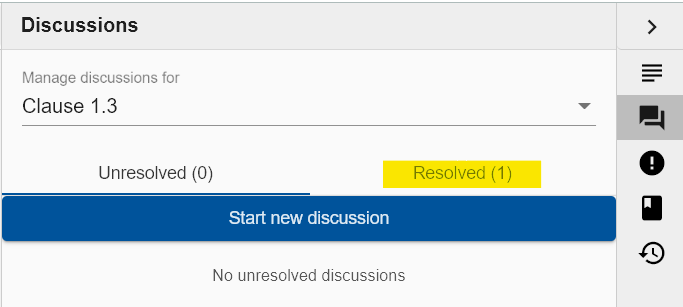
Resolved discussions against a clause can be viewed at any time by clicking on the ‘Resolved (#)’ tab beneath the ‘Manage discussions for’ selector. The number of resolved discussions is shown as part of the tab title.
Deleting discussions
Please note, discussions can only be deleted if they have not been commented on or resolved, and only by the author of the discussion.
To delete a comment, locate it within the Discussions side pane (quickly accessed by clicking on the unresolved discussion icon to the right of the respective clause), then click on the ‘Delete’ option provided at the bottom of the discussion summary.
You will be prompted for confirmation. Either click ‘Delete’ to delete the discussion, or ‘Cancel’ to abort the delete action.
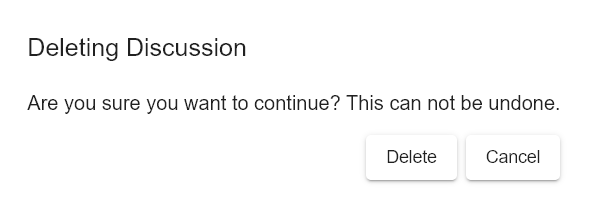
Please note, deletion of discussion cannot be undone.
Back to topDiscussion permissions
Discussions and comments on discussions can be created on the live document by Lead Authors, Authors and Peer Reviewers.
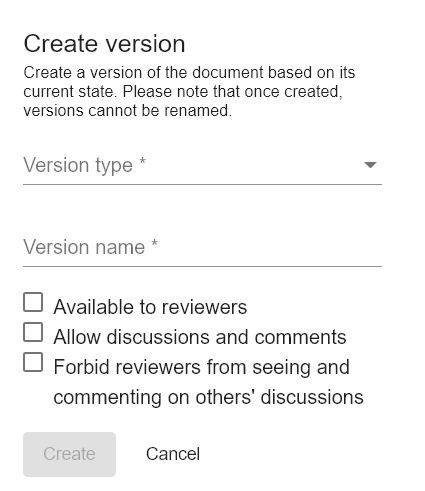
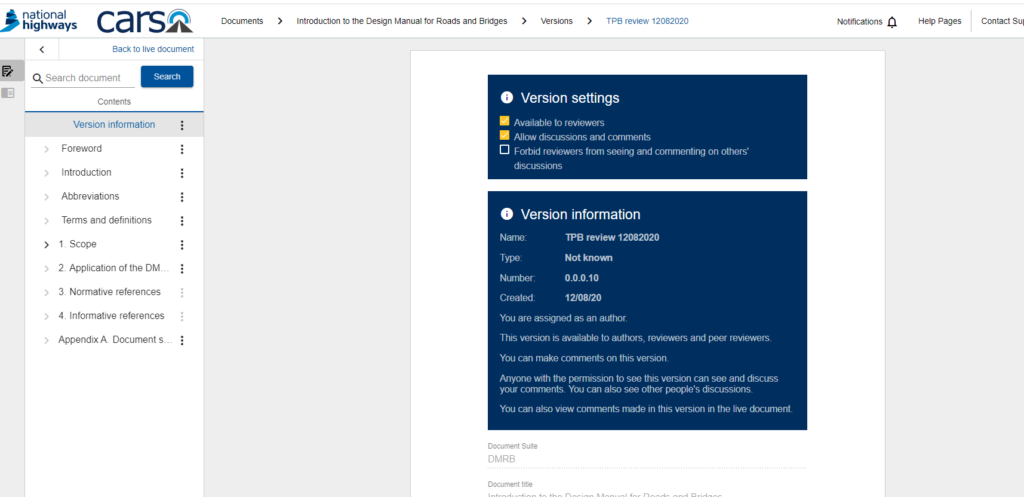
Reviewers can only create discussions and comments on discussions if the version shared with them has been configured to ‘Allow discussions and comments’. A further version configuration option can also be used to limit Reviewer access to only see and comment on their own discussions. The screenshot below shows these options as part of version creation.
Exporting discussions and comments
Authors of a document are able to export the list of comments received against their document. This is a requirement of the consultation report in the standards governance process so there is a record of any discussions and comments received as part of a Technical Standards Committee (TSC) consultation.
To export all discussions and comments received against a particular version of a document, i.e. a version used for a TSC consultation, please ensure the CARS document is opened up in the ‘version’ view rather than the live document:
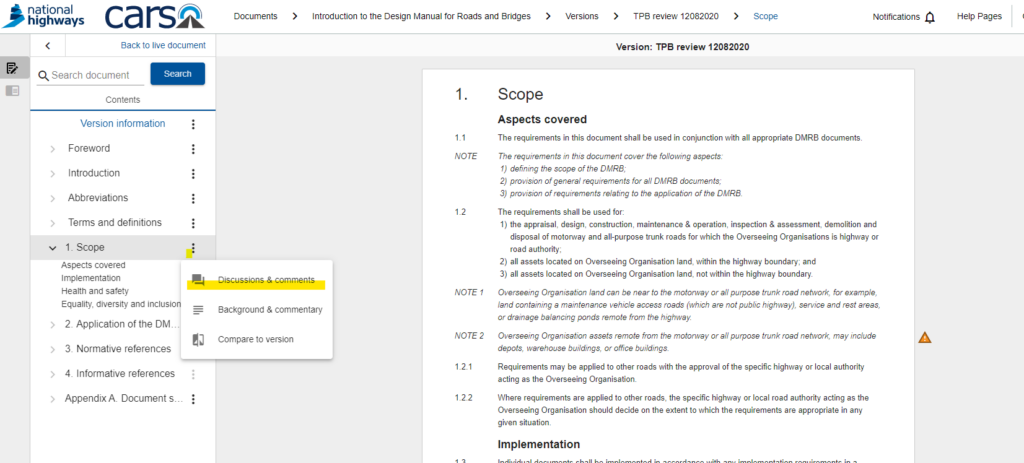
Please then select a section on the left hand side and press the three dot button to open up the sub-menu options and in particular ‘discussions and comments’:
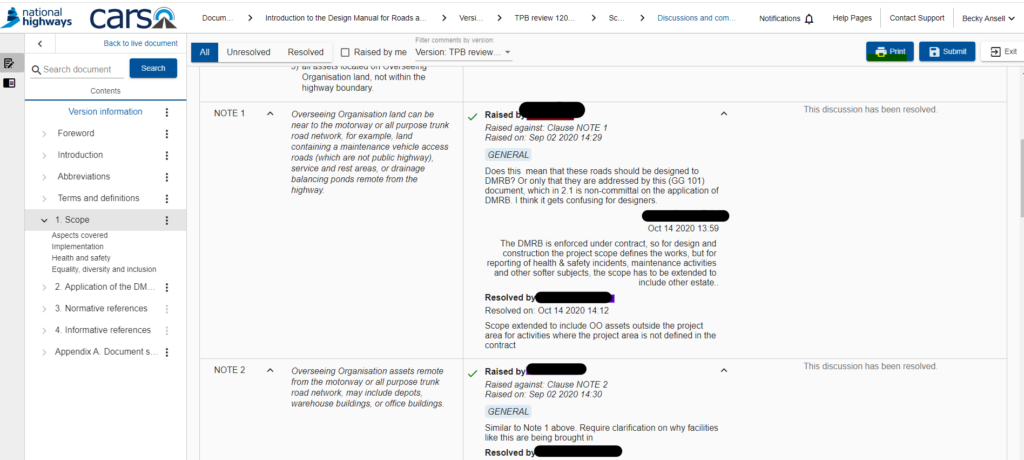
By clicking on the various sections you will be able to see if any discussions and comments were recorded against that version:
Where there are comments, please press ‘print’ in the top right corner to print a PDF copy of that section:
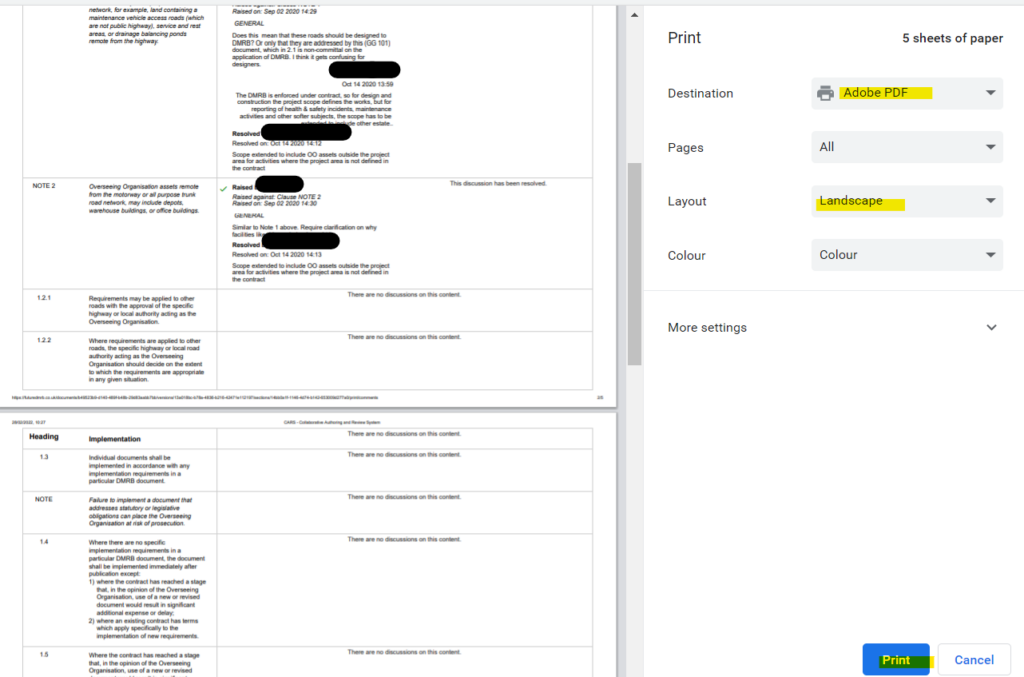
Please note you can only print discussions and comments on a section by section basis and cannot print the whole document at the same time.
Back to top